Projector Fan Too Loud Fix: Technical Guide
Master home theater acoustics by identifying mechanical whine and optimizing airflow for quiet cinematic projection.
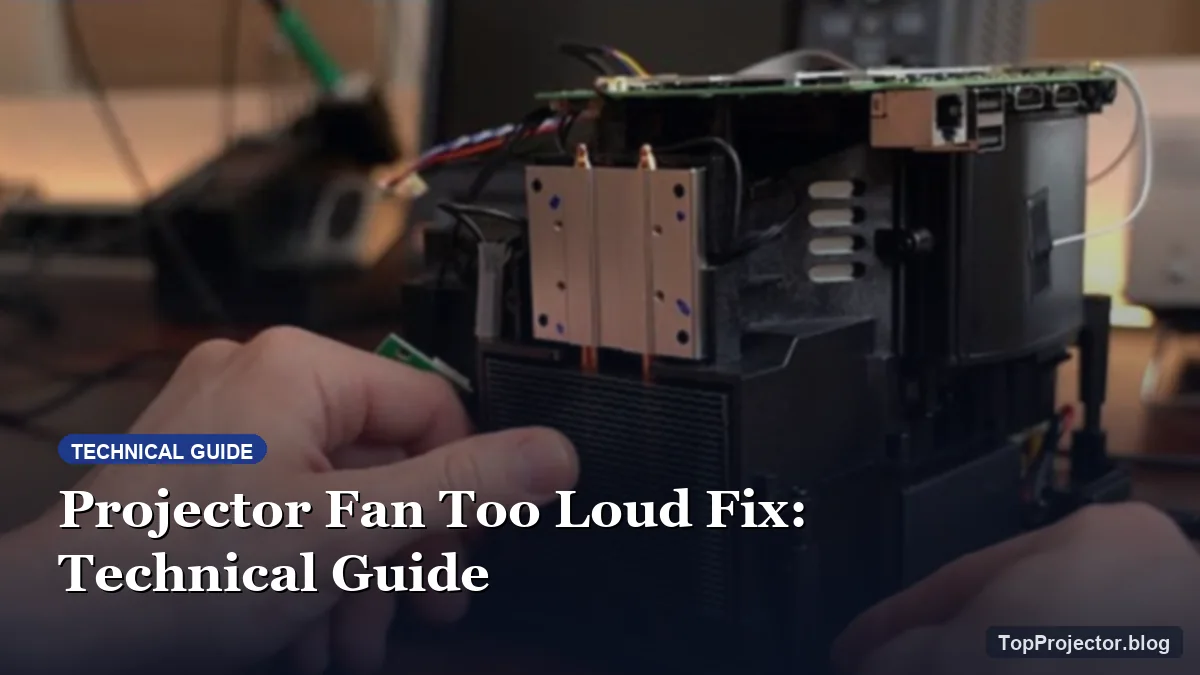
Reduce annoying acoustic hum by switching to Eco lamp mode and clearing blocked intake vents for optimal whisper-quiet operation.
Ready to compare verified models? Start with our Best Home Projectors Guide.
Practical Quick-Reference Table
| Acoustic Issue | Target Decibel Level | Primary Solution |
|---|---|---|
| Airflow Hiss | Under 26 dB | Clean dust filters and clear intake vents. |
| Mechanical Whine | Under 24 dB | Replace worn sleeve bearings with fluid dynamic variants. |
| Cabinet Resonance | Under 22 dB | Install high-density silicone vibration isolation gaskets. |
| Thermal Overload | Maximum 30 dB | Lower ambient room temperature below 75 degrees Fahrenheit. |
| High Lamp Noise | Standard 32 dB | Switch projection output to Eco Mode permanently. |
| Dynamic Iris Tick | Near 0 dB | Disable aggressive iris stepping in dark rooms. |
Diagnosing Acoustic Profiles: Airflow Versus Mechanical Noise
Understanding your projector's acoustic signature starts with distinguishing between rushing air and grinding mechanical components. Modern home theater projectors push significant air volume through tightly engineered chassis.
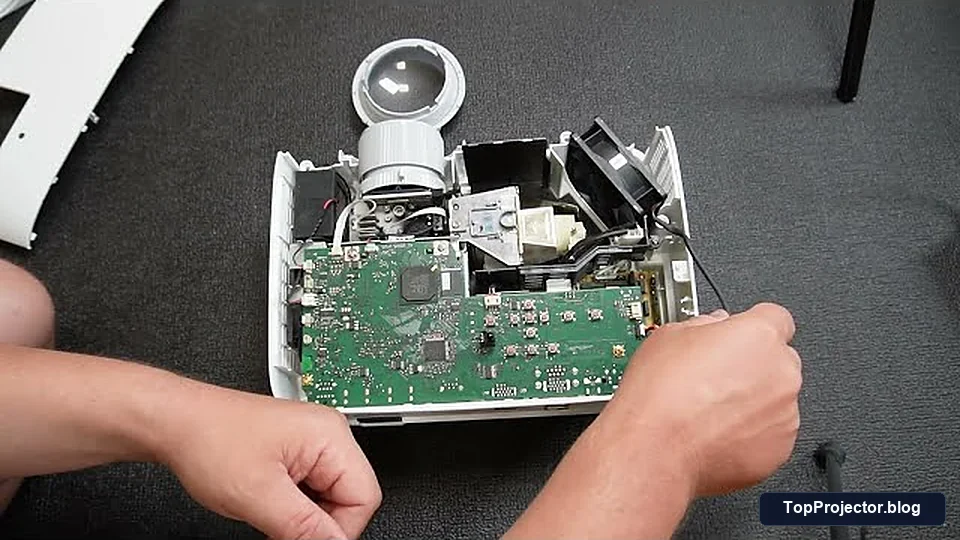
Airflow hiss usually sounds like a gentle rushing wind near the exhaust ports. This noise scales directly with fan RPM and internal thermal load sensors.
Mechanical noise introduces high-frequency whines, rattles, or clicking sounds into your listening environment. These anomalies indicate failing bearing assemblies or loose internal housing panels.
Pinpointing the exact source saves you from performing unnecessary maintenance steps on healthy optical engines. Listen closely near the intake and exhaust vents before opening any casing.
- Isolate exhaust ports to check for smooth laminar airflow.
- Listen for high-frequency bearing whines indicating mechanical failure.
- Measure baseline ambient room noise before turning the unit on.
- Check if chassis vibration amplifies the acoustic profile on shelves.
Identifying High-Frequency Whine
High-frequency whines cut through movie soundtracks far more aggressively than low-frequency air swooshes. These irritating tones usually originate from aging sleeve bearings inside miniature blower fans.
When bearing lubrication dries out completely, the rotor spins off-center and creates friction. This friction generates a distinct metallic whine that worsens over extended viewing sessions.
- Detect metallic tones distinct from normal rushing wind.
- Locate small blower fans situated near the lamp housing.
Measuring Decibel Levels at Seating Distance
Manufacturers rate projector noise at one meter, but your seating distance changes everything. Check out our pocket projector guide to compare portable acoustics.
Use a calibrated decibel meter to record noise levels at your exact ear height. Compare these real-world metrics against official factory specifications to evaluate performance.
- Position SPL meters at primary headrest listening positions.
- Compare measured output against factory decibel ratings.
Environmental Interventions and Thermal Management Strategies
Your projector's internal fans automatically ramp up speed when ambient room temperatures climb too high. Controlling the immediate environment remains one of the easiest ways to quiet noisy cooling systems.
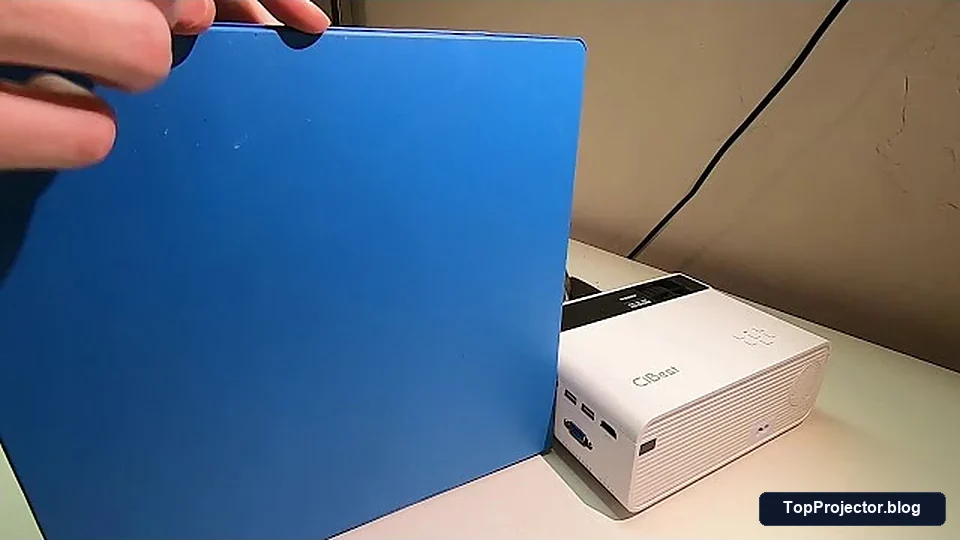
Never enclose high-lumen projection units inside tight, unventilated AV cabinets without active exhaust fans. Read our epson 2350 review to see how modern models handle thermal management.
Maintain adequate clearance of at least 12 inches around all intake and exhaust vents. Proper room airflow prevents thermal throttling and keeps fan speeds locked in low gear.
Consider lowering your general living space ambient temperature by a few degrees during long movie marathons. Cooler intake air allows optical cooling systems to operate much more quietly.
- Ensure mandatory clearance around all chassis ventilation ports.
- Avoid fully enclosed shelving units lacking active ventilation.
- Keep room air conditioning active during long viewing sessions.
- Monitor internal thermal warning indicators to prevent shutdowns.
Ambient Temperature Optimization
Projectors draw in room air to cool hot mercury lamps or laser diode arrays. If your room sits above 78 degrees Fahrenheit, fans must spin much faster to compensate.
Keeping your home theater climate-controlled directly reduces the thermal workload placed upon internal cooling fans. Lower workloads translate directly to lower decibel output during quiet scenes.
- Keep baseline room temperatures below 75 degrees.
- Monitor incoming air temperature near projector intake vents.
Minimizing Cabinet and Shelf Resonance
Wobbly media consoles can amplify subtle fan vibrations into loud, booming room resonances. Solid mounting platforms prevent your furniture from acting like an acoustic speaker cabinet.
Isolate the projector chassis using heavy stone slabs or specialized damping feet. Decoupling the device from hard wooden shelves eliminates structural vibration hum instantly.
- Place heavy isolation pads underneath projector feet.
- Ensure media shelves are rigidly anchored to walls.
Video Walkthrough: My Projector Problem!
Filter Maintenance and Dust Mitigation Protocols
Clogged intake filters restrict airflow and force cooling fans to work twice as hard to maintain safe temperatures. Regular preventative cleaning protects your hardware and keeps acoustic output remarkably low.
Fine dust particles accumulate rapidly over months of continuous home theater use. Inspect your removable mesh air filters every three months to ensure optimal breathing capability.
Gently vacuum external filter surfaces using a brush attachment on low power settings. Never blast high-pressure compressed air directly through unremoved filters into sensitive optics.
Wash foam filters thoroughly with warm water, then dry them completely before reinstallation. Read our projector flickering guide if dust has already caused optical artifacts.
- Inspect removable air intake filters every ninety days.
- Clean mesh screens gently with low-suction vacuum attachments.
- Ensure washed foam elements are 100% dry before reinstalling.
- Never use harsh chemical solvents on delicate plastic filter frames.
Cleaning Permanent Mesh Filters
Many modern home theater projectors feature integrated mesh screens that catch large dust bunnies. Slide these filters out carefully to avoid dropping accumulated debris inside the chassis.
Wipe accumulated lint away with a microfiber cloth or soft-bristled brush. Keeping these pathways clear prevents the localized hotspots that trigger emergency fan acceleration.
- Slide filters out slowly to contain trapped dust debris.
- Wipe clean using dry anti-static microfiber towels.
Inspecting Internal Intake Vents
Beyond removable filters, dust often cakes directly onto internal plastic intake grilles. Shine a flashlight through the outer casing to check for hidden blockages.
Use long, angled cotton swabs to dislodge stubborn dust rings without scratching internal components. Clear pathways restore factory-designed airflow dynamics and reduce acoustic strain.
- Inspect internal grilles using a bright LED flashlight.
- Clear stubborn dust rings with non-conductive swabs.
Lamp Mode Adjustments and Power Management Tuning
The fastest software-based fix for a loud projector involves changing your power management settings. High lamp power modes push maximum voltage to UHP bulbs, generating intense heat.
Switching your projector from Normal or Dynamic mode to Eco Mode immediately reduces thermal output. Lower heat generation allows internal fans to throttle back to much quieter speeds.
Laser projectors also benefit significantly from custom light source dimming and power scaling profiles. Adjusting laser power percentages lets you fine-tune brightness against acoustic thresholds.
While Eco Mode reduces peak lumen output by 15 to 25 percent, you can use our lumens room calculator to maintain optimal brightness levels without acoustic penalties.
- Navigate to the main settings menu and locate lamp power options.
- Switch from Normal brightness to dedicated Eco Mode profiles.
- Test laser dimming settings to balance brightness and fan noise.
- Accept minor lumen drops in exchange for whisper-quiet operation.
Shifting from High Lamp to Eco Mode
UHP mercury lamps run exceptionally hot and require aggressive cooling when driven at maximum wattage. Activating Eco Mode drops lamp wattage and instantly calms noisy exhaust fans.
Most viewers cannot notice a severe brightness drop in fully darkened home theaters. The reduction in decibels makes this software tweak entirely worthwhile for movie lovers.
- Lower bulb wattage via the primary display settings menu.
- Verify that fan RPM drops within two minutes of switching.
Managing Pixel Shift and Laser Diodes
Advanced 4K pixel-shifting actuators and laser cooling systems add mechanical noise profiles. Ensure you disable unused background processing features that force extra hardware activity.
Optimizing laser output curves prevents sudden fan surges during bright, high-APL movie scenes. Smooth power management keeps acoustic transitions completely imperceptible during quiet films.
- Disable unnecessary background image processing actuators.
- Calibrate laser light output to match room screen size.
Hardware Modifications and Advanced Acoustic Dampening
When software tweaks and cleaning fail to quiet an obnoxious fan, hardware intervention becomes necessary. Upgrading stock components requires careful disassembly and steady technical precision.
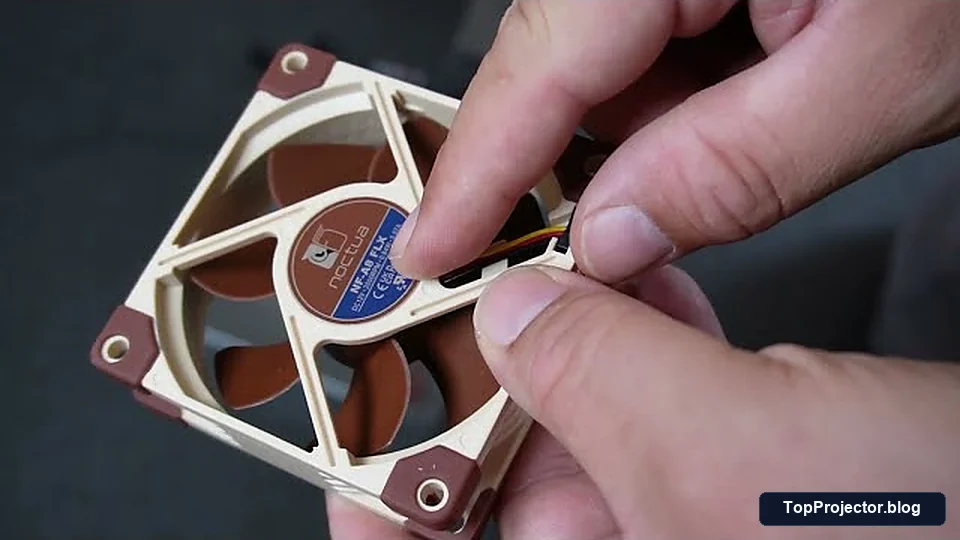
Factory fans prioritize low manufacturing costs over quiet fluid dynamic bearings. Replacing stock cooling units with premium aftermarket fans dramatically lowers mechanical whines.
Look for quiet replacement fans featuring magnetic levitation or advanced fluid dynamic bearing designs. Ensure voltage ratings and airflow CFM specifications match factory original equipment perfectly.
Install soft silicone isolation gaskets between the fan frame and projector chassis. These dampening rings absorb high-frequency vibrations before they resonate through the outer plastic shell.
- Source premium replacement fans with fluid dynamic bearings.
- Verify matching electrical voltage and airflow CFM ratings.
- Add silicone vibration dampening gaskets around fan mountings.
- Disconnect all power cables before opening projector housings.
Replacing Stock Fans with Premium Bearings
Stock sleeve fans degrade quickly under constant heat stress and start rattling loudly. Upgrading to high-end replacement fans transforms the acoustic signature of your projection setup.
Take detailed photographs during disassembly to ensure correct wire routing and connector orientation. Precision matters immensely when soldering or plugging in replacement cooling assemblies.
- Photograph internal wiring harnesses before disassembly.
- Install premium aftermarket fans with quiet bearing designs.
Applying Silicone Isolation Gaskets
Hard plastic-on-plastic fan mounting creates irritating structural buzzing noises. Wrapping contact points in soft silicone gaskets isolates mechanical movement completely.
Tighten mounting screws gently to avoid compressing the dampening material into a solid state. Proper isolation maintains maximum acoustic absorption across all operating frequencies.
- Cut custom silicone sheets to fit fan mounting brackets.
- Avoid over-tightening screws to preserve vibration isolation.
Professional Calibration to Lower Thermal Stress
Incorrect display settings can force your projector's internal hardware to work harder than necessary. Professional video calibration ensures optimal energy efficiency and reduced thermal buildup.
Over-boosting contrast, color saturation, and sharpness controls drives up internal digital processing loads. Keeping these image parameters balanced reduces internal heat generation significantly.
Disable aggressive dynamic iris systems if their mechanical clicking proves too distracting in quiet rooms. Static iris adjustments or native panel contrast often provide superior viewing results.
Regularly check firmware updates provided by manufacturers to ensure optimal fan curve management. Software patches frequently refine thermal algorithms to eliminate erratic fan speed pulsing.
- Calibrate contrast and brightness to prevent processing strain.
- Disable noisy dynamic iris mechanisms in dedicated dark rooms.
- Update projector firmware to access optimized fan algorithms.
- Maintain balanced color settings to reduce optical engine heat.
Optimizing Contrast and Brightness Output
Pushing contrast sliders to their maximum limits forces internal power supplies to draw excess current. This electrical surge generates unnecessary heat that triggers aggressive fan cooling loops.
Calibrate white and black levels using test patterns for clean, efficient light engine operation. Efficient processing keeps operating temperatures stable and fan noise strictly minimized.
- Calibrate white clipping points using standard test charts.
- Prevent power supply strain by avoiding maximum contrast.
Reducing Dynamic Iris Noise
Dynamic iris mechanisms physically open and close mechanically during dark and bright scene transitions. This rapid mechanical movement often sounds like clicking or ticking inside the chassis.
Switching the dynamic iris to a quieter mode or turning it off entirely restores acoustic peace. Enjoy distraction-free movie soundtracks without mechanical distractions ruining quiet moments.
- Locate iris settings in advanced image adjustment menus.
- Disable aggressive mechanical iris stepping for silent operation.
Frequently Asked Questions
Why is my projector fan suddenly running much louder than normal?
Sudden loudness usually indicates blocked air intake filters or a failing bearing. Clean your dust filters immediately to restore proper airflow dynamics and lower fan RPM.
Does switching to Eco Mode actually reduce projector fan noise?
Yes, Eco Mode reduces lamp wattage and overall heat output significantly. Lower thermal loads allow internal fans to spin much slower, achieving whisper-quiet operation.
Can I safely vacuum my projector air intake vents?
You can vacuum removable exterior mesh filters using a soft brush attachment on low suction. Never insert vacuum nozzles directly into internal optical components or unremoved vents.
What is the difference between airflow hiss and mechanical bearing whine?
Airflow hiss sounds like rushing wind and scales smoothly with fan speed. Mechanical bearing whine introduces high-frequency metallic tones indicating worn components that require immediate replacement.
How often should I clean my home theater projector air filters?
Inspect and clean your air intake filters every three to six months depending on room dust levels. Regular preventative maintenance prevents overheating and eliminates unnecessary noise spikes.