How to Use a Soundbar with a Projector?
Master advanced home theater audio integration by linking your modern projector to dedicated external soundbars. Eliminate tinny onboard sound and achieve true cinematic immersion.
Always route your playback source directly to the soundbar when possible to minimize audio latency. Use HDMI eARC for lossless multi-channel formats.
Ready to compare verified models? Start with our Best Soundbar For Projector: Top Cinematic Picks.
Practical Quick-Reference Table
| Connection Type | Max Audio Format | Latency Profile |
|---|---|---|
| HDMI eARC | Dolby Atmos / TrueHD | Ultra-Low (<15ms) |
| HDMI ARC | Dolby Digital Plus | Low (~30ms) |
| Optical (TOSLINK) | Dolby Digital 5.1 | Low (~20ms) |
| Bluetooth 5.0+ | SBC / AAC / aptX | High (>100ms) |
| 3.5mm Aux | Analog Stereo | Negligible (<10ms) |
| Direct Source HDMI | Lossless Bitstream | Minimal (<10ms) |
Architectural Audio Layouts for Projection Systems
Deploying a high-end projection system introduces unique acoustic challenges that flat-panel TVs rarely face. While your projector handles the visuals, sound must travel across the room.
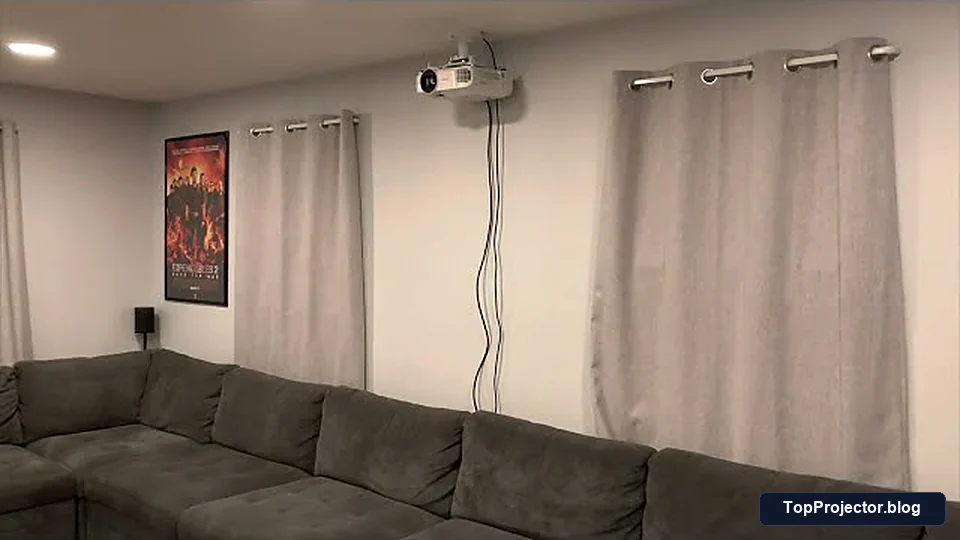
Traditional television setups place speakers directly beneath screens. Users can check our epson home cinema 2350 review to see how dedicated audio routing solves these spatial placement challenges.
Bridge this acoustic gap by understanding your hardware interface options. Choosing the correct cabling prevents frustrating audio sync issues during movie nights.
- Map your room layout before running permanent wall cables.
- Keep total HDMI cable length under 50 feet to prevent signal degradation.
- Identify whether your source devices output multi-channel or stereo audio.
- Prioritize physical cable runs over wireless alternatives for stability.
Evaluating Room Acoustics and Soundbar Placement
Soundbars rely on precise boundary reflections to simulate overhead and side surround effects. Placing your soundbar directly centered beneath the projection screen maintains directional realism.
Avoid tucking soundbars inside enclosed media cabinets because this muffles high-frequency drivers. Ensure unobstructed line-of-sight between the soundbar acoustic drivers and your primary seating position.
- Mount soundbars at ear level when seated for optimal dialogue clarity.
- Leave at least two inches of clearance around side-firing drivers.
The Intrinsic Shortcomings of Onboard Projector Speakers
Most consumer projectors integrate diminutive internal speakers rated between two and ten watts. You can pair external audio gear after reviewing our guide on how to use airplay on projectors for wireless streaming.
Midrange frequencies often sound boxy and strained during complex action sequences. Dialogue clarity suffers severely because manufacturers prioritize optical engine cooling over acoustics.
External soundbars solve these acoustic limitations by housing dedicated woofers and tweeters. Upgrading to an external bar transforms thin projector audio into a cinematic experience.
- Internal speakers typically distort heavily above 75 percent volume.
- Built-in amplifiers completely lack discrete subwoofer channel outputs.
- Cooling fan noise easily overpowers weak internal speaker drivers.
- A dedicated soundbar provides broader soundstage dispersion instantly.
Understanding Frequency Response Gaps in Small Transducers
Tiny internal speaker cones cannot physically displace enough air to reproduce deep bass. Frequencies below 150 Hz simply vanish into background fan noise.
External soundbars feature matched crossover networks and dedicated subwoofers. This structural difference restores full-range audio impact to your favorite films.
- Tiny speaker cones roll off rapidly below 200 Hz.
- External drivers handle dynamic peaks without thermal clipping.
Video Walkthrough: 7 Ways to Connect a Projector to Speakers
Utilizing HDMI ARC and eARC for Uncompressed Audio
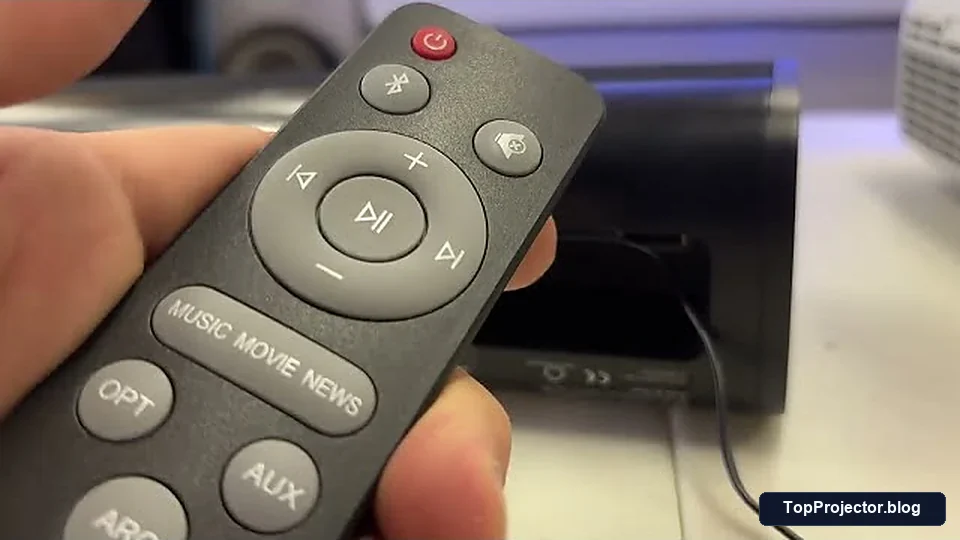
The Audio Return Channel protocol revolutionizes home theater wiring by eliminating extra audio cables. HDMI ARC transmits stereo or compressed 5.1 audio down the same cable.
Enhanced Audio Return Channel, known as eARC, supports uncompressed Dolby TrueHD and DTS-HD Master Audio formats. This bandwidth expansion is essential for lossless surround sound setups.
Connect your streaming device to the projector, then run an ARC-enabled HDMI cable from the projector to your soundbar. Verify that CEC control is enabled in settings.
- Always use certified High Speed or Ultra High Speed HDMI cables.
- Verify both devices support HDMI 2.1 for full eARC bandwidth.
- Enable HDMI-CEC in your projector menu for unified power control.
- Disable internal projector speakers to prevent annoying audio echo loops.
Troubleshooting Common HDMI Handshake Failures
HDMI handshakes occasionally fail due to outdated firmware or faulty cable specifications. Power cycle all connected components sequentially to reset the digital authentication protocol.
Check that your source device outputs bitstream audio rather than restricted PCM. Correct configuration guarantees that multichannel surround signals reach your soundbar successfully.
- Power down all AV gear before swapping HDMI cables.
- Update projector and soundbar firmware to the latest manufacturer release.
Digital Optical Connections as the Reliable Alternative
TOSLINK optical cables provide a robust digital audio transfer method when HDMI ARC fails. Optical connections transmit standard Dolby Digital 5.1 surround sound reliably across long distances.
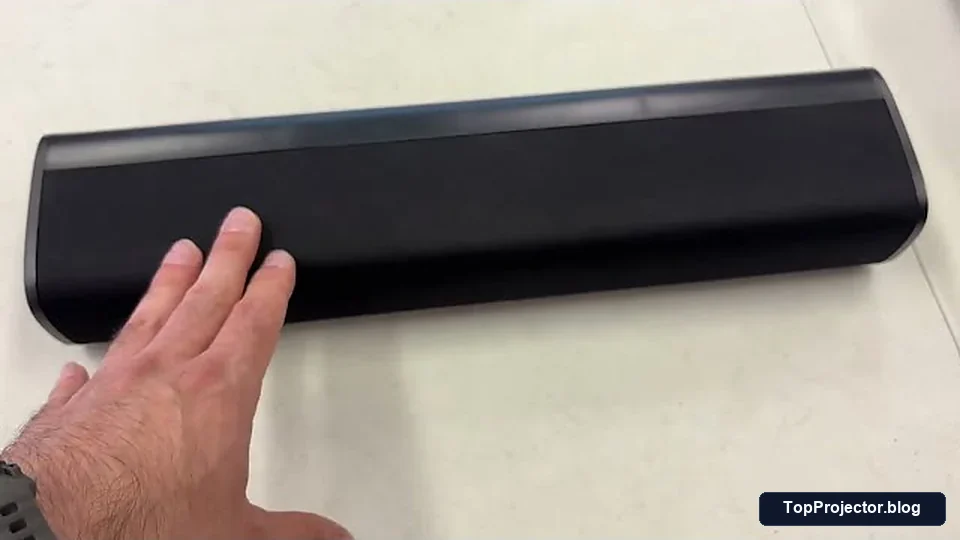
Glass fiber optic cables remain completely immune to electromagnetic interference from power supplies. This makes optical lines ideal for complex room installations with heavy wiring.
Plug one end of the optical cable into the projector audio output port. Insert the opposing end into the digital optical input on your soundbar.
- Optical cables do not support high-bandwidth lossless Atmos formats.
- Ensure the fragile protective plastic caps are removed before plugging in.
- Keep cable bend radius wide to prevent internal fiber optic breakage.
- Set source output to Dolby Digital to enable surround decoding.
Overcoming Optical Channel Limitations
Standard optical connections lack the necessary bandwidth for uncompressed multi-channel audio streams. Your soundbar will downmix complex soundtracks into basic stereo or compressed 5.1.
Accept this trade-off if your primary goal is reliable lip-sync accuracy. Optical remains a foolproof backup when HDMI handshakes prove stubborn or unstable.
- Optical ports handle compressed 5.1 audio flawlessly.
- Physical locking connectors prevent accidental cable dislodgment.
Video Walkthrough: How to Connect a Sonos Soundbar to a Projector
Wireless Audio Transmission via Bluetooth and Latency Management
Bluetooth connectivity offers wireless convenience for pairing portable soundbars when choosing a model from our best projector with android tv roundup. However, wireless audio introduces noticeable audio-to-video latency during playback.
Standard Bluetooth codecs suffer from delay spikes exceeding 150 milliseconds. This mismatch causes visible lip-sync errors that disrupt movie watching enjoyment.
Use low-latency codecs like aptX Low Latency if both your projector and soundbar support them. Otherwise, reserve wireless Bluetooth connections for casual background music streaming.
- Bluetooth wireless range drops significantly past 30 feet in open spaces.
- Interference from Wi-Fi routers can cause periodic audio dropouts.
- Adjust video sync delays in media player settings to compensate.
- Avoid competitive gaming over standard Bluetooth audio connections.
Minimizing Wireless Delay Through Codec Selection
Modern Bluetooth versions improve data throughput but cannot completely eliminate processing lag. Check your projector menu for explicit audio delay calibration sliders.
Manually advance the video track by several frames to match audio arrival times. Fine-tuning this setting restores natural synchronization for casual viewing sessions.
- Look for aptX or LE Audio compatible hardware tags.
- Keep line-of-sight clear between transmitter and receiver antennas.
Legacy Analog Integration Using 3.5mm Aux Cords
The standard 3.5mm auxiliary cable represents the simplest analog lifeline for audio connections. Plug the analog jack into your projector audio output and route it to the soundbar.
Analog connections are susceptible to electrical hum and ground loop interference. Keep analog audio lines physically separated from high-voltage AC power cords.
Stereo analog cables transmit basic two-channel sound without surround effects. Use this method only when digital HDMI or optical ports are completely unavailable.
- Analog cables are prone to audible hiss and buzzing noise.
- Aux connections are strictly limited to two-channel stereo output.
- Use shielded cables to minimize electromagnetic interference pickup.
- Check plug seating to prevent intermittent channel dropouts.
Eliminating Ground Loop Hum in Analog Setups
Ground loop hum occurs when audio gear plugs into different electrical circuits. Introduce an inexpensive ground loop isolator inline to eliminate annoying 60 Hz electrical buzzing.
Ensure all home theater components share a single grounded power strip. Proper grounding protects sensitive analog audio stages from electrical interference.
- Plug all AV equipment into the same power surge protector.
- Use isolated audio transformers to break ground loops.
Diagnostic Troubleshooting for Common Soundbar Handshake Failures
Audio troubleshooting requires systematic isolation of source devices, cables, and display hardware. Begin by testing each component individually with a known working audio source.
Inspect all physical cable connections to ensure ports are completely free of dust. A loose plug frequently causes intermittent audio dropouts during peak volume scenes.
Verify that your source media player outputs standard PCM or bitstream formats. Incorrect audio output encoding results in complete silence from your soundbar.
- Isolate faulty cables by swapping them with certified replacements.
- Check projector audio output settings to ensure external routing is active.
- Perform a factory reset on the soundbar if settings freeze.
- Verify source device firmware is fully updated.
Resolving Lip-Sync Drift During Extended Playback
Lip-sync drift occurs when audio processing delay gradually accumulates over time. Restarting your media streaming box usually clears temporary processor buffer overloads.
Lock your source output frame rate to match projector refresh rates precisely before calculating layout geometry using our screen size and viewing distance calculator. This prevents subtle timing mismatches during playback.
- Clear media player cache files periodically.
- Disable unnecessary digital signal processing effects on the soundbar.
Frequently Asked Questions
Can I connect my source device directly to the soundbar instead of the projector?
Yes, connecting your streaming box directly to the soundbar is often preferred for zero audio latency. Route the video signal onward from the soundbar HDMI output to your projector.
Why is there an annoying echo when my soundbar and projector play audio simultaneously?
An echo occurs because internal projector speakers process audio slightly slower than external soundbars. Always disable internal projector speakers in the system audio menu to fix this.
What is the absolute best cable type for connecting a soundbar to a projector?
An HDMI eARC cable provides the highest possible bandwidth for lossless surround sound formats. It eliminates audio compression and supports advanced multi-channel audio tracks effortlessly.
Does Bluetooth audio lag ruin movie watching with a projector?
Standard Bluetooth introduces noticeable audio delay exceeding 100 milliseconds. This creates distracting lip-sync errors unless you use low-latency codecs or manual delay adjustments.
How do I fix a complete lack of sound when using an optical cable?
Check your source device audio settings and switch output format from bitstream to PCM stereo. Also verify that you removed the protective plastic tips from the optical cable.