How to Stream Netflix on a Projector?
Master projector hardware compatibility, streaming stick integration, and HDCP protocols for flawless movie nights.
Always use an external streaming device connected via HDMI to bypass native app licensing blocks and guarantee smooth 1080p or 4K playback.
Ready to compare verified models? Start with our Best Smart Projector With Netflix: Top Streaming Picks.
Practical Quick-Reference Table
| Connection Method | HDCP Support | Maximum Resolution | Latency Impact | Reliability Rating |
|---|---|---|---|---|
| Dedicated Streaming Stick | HDCP 2.2 / 2.3 | Up to 4K HDR | Low (<30ms) | Exceptional |
| Wired Laptop HDMI | HDCP 2.2 Compliant | Native Panel Resolution | Minimal (<15ms) | High |
| Wireless Screen Mirroring | Frequently Blocked | 1080p Standard | Noticeable Lag | Poor for Netflix |
| Built-in Android TV | Varies by Model | Native App Capable | None | Moderate |
| USB Flash Drive Playback | Not Supported | None | N/A | Unsupported |
| External AV Receiver Pass-through | Full HDCP Pass-through | 4K 60Hz | Very Low | Excellent |
Understanding Projector Netflix Compatibility Constraints
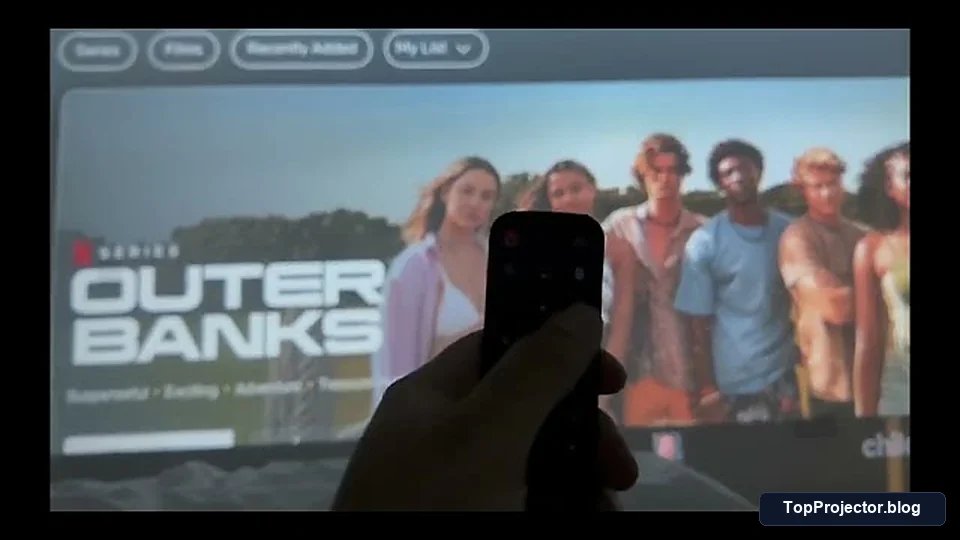
Streaming Netflix on projection equipment requires navigating strict digital rights management protocols that often trip up casual users. Many budget projectors lack official app certification.
Hardware manufacturers must secure explicit licensing agreements with media providers to enable native application playback. Without these formal certificates, standard APK downloads frequently fail or crash.
Knowing these software limits prevents streaming headaches when pairing your display with a top pick from our best projector screen for lighted room guide to maintain strong contrast.
- Native projector software often lacks official DRM licensing support.
- Streaming apps may crash instantly upon selecting a playable video title.
- Standard Android-based projectors frequently run outdated mobile operating system versions.
- Security certificates expire quickly on uncertified hardware platforms and firmware.
The Reality of Unlicensed Android Operating Systems
Projectors advertising built-in Android interfaces frequently run modified mobile builds rather than official Android TV software. This distinction prevents proper authentication with major streaming servers.
Users attempting to sideload applications onto these cheap units discover that video playback remains permanently locked at low standard definition resolutions due to security flags.
- Sideloaded applications bypass essential security handshake routines entirely.
- High-definition video streams require verified Widevine L1 security levels.
- Budget projectors usually operate at insecure Widevine L3 decryption tiers.
Recognizing Official Hardware Certification Standards
Fully licensed home theater projectors explicitly list certified platform integration on their packaging materials and specification sheets. These rare models support seamless media playback natively.
Verifying hardware credentials before purchase prevents compatibility headaches and ensures your optical setup handles encrypted video streams without unexpected errors.
- Look for explicit manufacturer mentions of official software licensing.
- Check user manuals for detailed Widevine decryption security specifications.
- Research independent technical reviews focusing on app compatibility tests.
Deploying Dedicated External Streaming Hardware
The most reliable method for watching Netflix involves plugging a dedicated external media player directly into your projector. Popular streaming sticks bypass native software limitations completely.
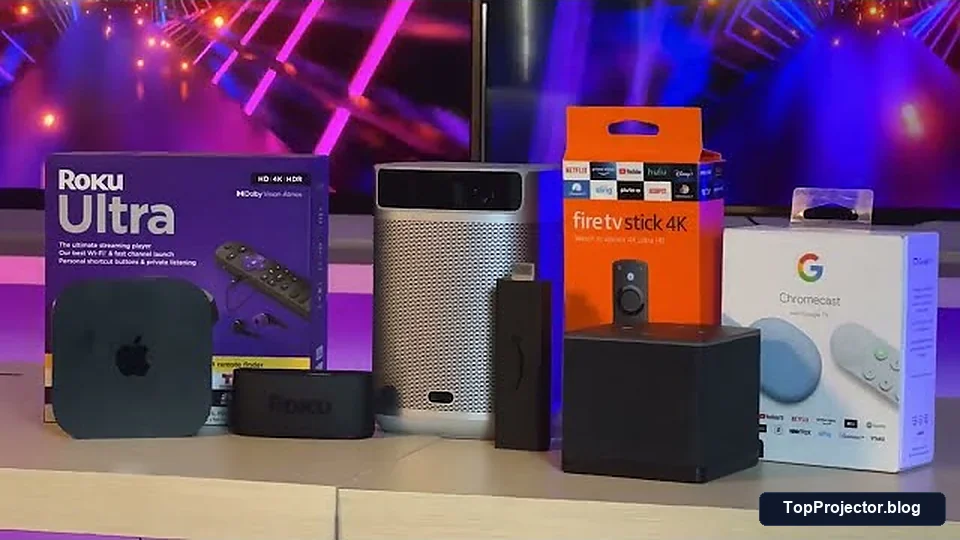
Compact streaming hardware, much like the unit evaluated in our Nebula Capsule 3 review, manages all HDCP encryption handshakes internally before outputting a clean 1080p video signal to your optical projection system.
This hardware decoupling guarantees access to high-dynamic-range content, Dolby Atmos soundtracks, and stable network connectivity without relying on the projector's internal processor.
- External media players handle complex HDCP encryption protocols effortlessly.
- Streaming sticks receive frequent automated firmware updates from manufacturers.
- Dedicated remote controls simplify navigation in dark home theater rooms.
- Compact form factors hide neatly behind ceiling-mounted or shelf-placed projectors.
Powering Streaming Sticks via Projector USB Ports
Many modern projectors feature powered USB ports designed specifically to supply electrical current to external streaming devices. This eliminates messy dangling power cords across walls.
Verify that your projector's USB port outputs at least one full amp of electrical current to prevent random reboots during intensive 4K video playback sessions.
- Check projector manual specifications for exact USB amperage output limits.
- Use short, flexible HDMI jumper cables for clean physical installations.
- Connect external wall adapters if the projector USB power proves insufficient.
Configuring HDMI-CEC for Unified Power Control
Enabling HDMI-CEC functionality allows your streaming remote to control both the media player and the projector simultaneously. Powering on the stick awakens the projection lamp automatically.
This convenience replicates traditional television behavior, streamlining your daily entertainment workflow in dedicated home theater environments and multipurpose living rooms.
- Navigate projector settings menus to activate consumer electronics control protocols.
- Ensure HDMI cables support full control data transmission features.
- Test remote synchronization immediately after completing physical hardware installation steps.
Video Walkthrough: Streaming Netflix on XGIMI Projector - It's Easier than You Think
Establishing Direct HDMI Connections From Laptops
Connecting a Windows or Mac laptop directly via an HDMI cable provides a foolproof backup option for streaming Netflix. Web browsers handle all DRM requirements natively.
Follow the steps outlined in our laptop projector setup guide to correctly configure your display settings and extend your workspace over a high-speed HDMI link.
This wired approach bypasses wireless network congestion and guarantees pixel-perfect clarity without dropping frames or suffering from audio desynchronization issues during movie marathons.
- Web browsers support high-resolution playback without specialized app installations.
- Wired connections eliminate Wi-Fi bandwidth bottlenecks during peak viewing hours.
- Laptops offer full keyboard and mouse control for fast title searching.
- Audio and video travel across a single unified digital cable.
Optimizing Computer Display Scaling and Refresh Rates
Configure your laptop display settings to match the native resolution of your projector chip. For standard 1080p units, set output parameters to 1920 by 1080 pixels exactly.
Matching refresh rates to twenty-four or sixty hertz prevents stuttering during fast camera pans and maintains cinematic motion cadence across large projected images.
- Access operating system display properties to verify active resolution settings.
- Disable unnecessary secondary monitors to conserve computer graphics processing resources.
- Set screen mode to duplicate or second screen only for clean output.
Managing Audio Output Destinations on Computers
Laptops often route audio to internal speakers by default when connecting an external display. You must manually switch your sound output device to the projector or receiver.
Open your operating system sound control panel and select the HDMI digital audio playback device to ensure dialogue emerges from your home theater speakers.
- Click system tray audio icons to inspect available playback destinations.
- Select the high-definition audio device matching your projector model.
- Test speaker volume levels before dimming room lights for viewing.
Navigating Wireless Casting And Miracast Limitations
Attempting to cast Netflix wirelessly from a phone or tablet to a projector frequently results in frustrating black screens or error messages. Digital rights management blocks this behavior.
While standard screen mirroring works well for web browsing or personal photos, encrypted video streaming services explicitly disable direct wireless casting to protect copyrighted media.
Understanding these software restrictions prevents wasted time troubleshooting incompatible casting protocols when trying to share mobile device screens onto large projection setups.
- DRM protection protocols block raw wireless screen mirroring of movies.
- Casting often introduces noticeable audio delay and choppy video frame rates.
- Wireless interference from household routers disrupts stable media streaming sessions.
- Dedicated streaming hardware outperforms native wireless casting methods consistently.
Why AirPlay and Miracast Fail With Protected Content
Miracast and Apple AirPlay protocols transmit raw video frames across local networks without re-encrypting them in ways that streaming providers authorize for external displays.
Consequently, applications detect an unauthorized output path and deliberately withhold the video stream, displaying generic playback failure codes instead of your movie.
- Encrypted video streams require secure hardware endpoints for decoding.
- Wireless mirror links lack the required HDCP validation handshakes.
- App developers restrict casting to certified smart television ecosystems.
Utilizing Dedicated App Casting Inside Walled Gardens
Some media apps permit casting only when both the source phone and the target projector run certified operating system builds connected to identical local Wi-Fi networks.
Even under ideal conditions, reliability remains poor compared to physical cable connections or dedicated plug-in streaming media player hardware solutions.
- Verify that both devices share the exact same network frequency band.
- Update mobile applications to the latest available software release versions.
- Expect occasional connection drops during extended video playback sessions.
Video Walkthrough: How to Access Netflix on Portable Projectors
Optimizing Native Projection Optics And Focus
Achieving a razor-sharp Netflix image requires careful physical placement of your projector relative to the screen surface. Optical geometry dictates overall clarity and perceived contrast.
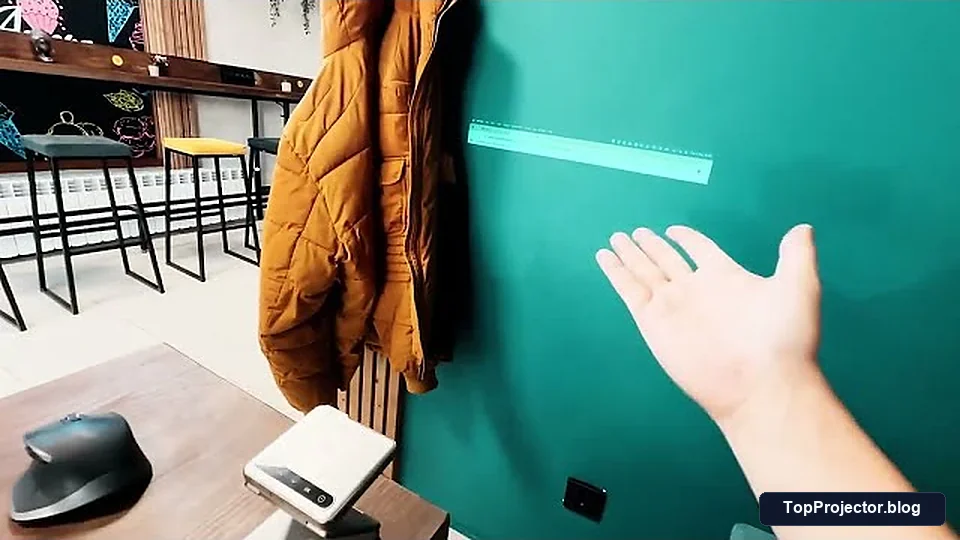
Always consult our throw distance calculator before mounting to determine the precise placement needed for a razor-sharp image across your projection surface.
Proper alignment minimizes geometric distortion and prevents eye fatigue during long viewing sessions in dark home theater rooms or dedicated media viewing spaces.
- Mount projectors squarely facing the screen to minimize digital keystone artifacts.
- Adjust manual focus rings slowly while viewing high-contrast menu text.
- Keep ambient room light levels as low as possible for optimal contrast.
- Clean glass lenses periodically using micro-fiber cloths and optical solutions.
Calculating Throw Ratios for Screen Size Matching
Measure your room dimensions and consult manufacturer throw ratio charts to determine the exact distance required to fill your specific projection screen surface completely.
Placing the projector too close yields a tiny, overly bright image, while mounting it too far away causes light spilling and washed-out black levels.
- Use online calculator tools to model room dimensions and screen sizes.
- Account for optical zoom ranges when positioning ceiling mounting brackets.
- Leave clearance behind input ports for thick high-speed HDMI cables.
Avoiding Digital Keystone Correction Degradation
Heavy reliance on digital keystone correction degrades image sharpness by shrinking the active resolution grid and introducing visible pixel artifacts around bright edges.
Always physical align your projector vertically and horizontally before resorting to digital correction tools to preserve maximum optical fidelity for high-definition streaming.
- Level mounting hardware carefully to eliminate the need for keystone adjustments.
- Keep digital geometry correction settings as close to zero as possible.
- Prioritize physical lens shift features over digital image scaling.
Calibrating Audio Outputs For Cinematic Soundbars
Projector built-in speakers rarely provide adequate audio quality for cinematic movie watching. Routing sound to an external soundbar or AV receiver transforms your home theater experience.
Connect your streaming device directly to an audio receiver using high-speed HDMI cables, then pass the video signal onward to your projector for clean separation.
This configuration ensures support for multi-channel surround sound formats and heavy bass tracks without placing undue thermal stress on your projector's internal amplifier.
- External soundbars deliver deeper bass and clearer dialogue intelligibility.
- HDMI audio return channels simplify multi-device wiring setups significantly.
- Optical audio cables provide reliable digital sound transmission alternatives.
- Calibrate speaker distance settings for balanced multi-channel soundstages.
Resolving Audio Delay and Lip Sync Issues
Video processing pipelines inside digital projectors often introduce slight processing delays, causing audio to arrive at your ears before matching visual mouth movements.
Access your receiver or streaming stick audio delay settings to add a few milliseconds of latency, perfectly synchronizing dialogue with actors on screen.
- Check media player settings menus for dedicated lip sync adjustment tools.
- Test synchronization using flashing test patterns and spoken dialogue.
- Minimize video processing features on the projector to reduce internal lag.
Selecting Audio Codecs for Surround Sound Pass-Through
Configure your streaming media player output settings to match the capabilities of your connected soundbar, choosing between standard stereo and advanced multi-channel formats.
Avoid forcing uncompressed bitstream formats if your audio equipment only supports basic stereo input channels to prevent complete sound dropouts during playback.
- Review audio receiver specifications for supported surround sound codecs.
- Test Dolby Digital and DTS pass-through modes with certified movie titles.
- Fallback to stereo audio if intermittent clicking or popping sounds occur.
Troubleshooting Common Handshake And Playback Failures
Encountering sudden black screens or cryptic error codes while launching Netflix usually points to HDCP handshake failures between your source device and projection hardware.
Power down all connected components completely, unplug the HDMI cables for ten seconds, and restart your equipment in logical sequence to reset digital security handshakes.
Maintaining updated firmware across your streaming sticks and projectors prevents recurring compatibility bugs and ensures smooth media playback throughout the device lifecycle.
- Unplug HDMI cables and restart equipment to reset HDCP handshakes.
- Replace damaged or outdated cables with certified high-speed alternatives.
- Check local network bandwidth speeds to prevent video buffering interruptions.
- Install available firmware updates across all home theater components.
Fixing HDCP Error Messages and Black Screens
HDCP version mismatches between older projectors and modern 4K streaming sticks frequently trigger blank screens. Ensure your HDMI switchers support current security standards.
Using compliant cables and verified active splitters eliminates decryption bottlenecks that prevent encrypted video streams from reaching your optical display panel.
- Verify that all HDMI switchers and extenders support HDCP 2.2 protocols.
- Disconnect intermediate audio extractors if video signal drops persist.
- Test direct point-to-point cable runs to isolate faulty hardware accessories.
Overcoming Network Buffering and Low Resolution
Slow Wi-Fi connections cause Netflix to drop video resolution automatically to prevent stuttering. Position wireless routers close to your streaming projector setup.
Hardwiring your streaming media player using an Ethernet adapter guarantees maximum data throughput for flawless high-definition and 4K HDR movie streaming.
- Run network speed tests to verify adequate internet bandwidth availability.
- Switch wireless routers to uncongested five gigahertz frequency bands.
- Use wired Ethernet adapters for rock-solid network stability.
Frequently Asked Questions
Why does Netflix show a black screen when I cast from my phone?
Digital rights management protocols block wireless screen mirroring for encrypted video content. Use a dedicated streaming stick plugged directly into the projector instead.
Can I plug a Fire TV Stick directly into my projector?
Yes, plugging a streaming stick into an HDMI port provides the most reliable connection. Ensure the USB port supplies enough power for stable operation.
Why is the image blurry when I stream Netflix?
Adjust the manual optical focus ring and verify your throw distance matches specifications. Check that your computer or streamer outputs native panel resolution.
How do I get better sound from my projector setup?
Route audio from your streaming device to an external soundbar or AV receiver. This bypasses weak internal speakers and enables multi-channel surround sound.
What should I do if my projector lacks smart apps?
Connect an external media player like a Roku or Apple TV via HDMI. This instantly adds full smart app capabilities without needing a new projector.