How to Reduce Projector Input Lag?
Eliminate frustrating display delays for competitive gaming and responsive home theater navigation. Learn how to configure your hardware for sub-30ms performance.

Always enable dedicated game mode on your digital projector and disable heavy video processing to achieve responsive, lag-free control.
Ready to compare verified models? Start with our Best Low Input Lag Projector: Top Gaming Picks.
Practical Quick-Reference Table
| Scenario / Metric | Recommended Target | Why It Matters |
|---|---|---|
| Competitive Gaming | Under 20ms | Eliminates visible delay between controller input and on-screen action. |
| Casual Console Play | Under 40ms | Provides smooth responsiveness for adventure and role-playing game titles. |
| Keystone Correction | Native Zero | Prevents processing lag and avoids degrading native projector pixel sharpness. |
| Refresh Rate | 120Hz Output | Cuts frame rendering times in half compared to standard 60Hz signals. |
| Signal Routing | Direct HDMI | Bypasses intermediary AV receivers that introduce unnecessary audio-video latency. |
| Video Processing | Completely Off | Disables motion interpolation, noise reduction, and aggressive edge enhancement. |
Deconstructing Input Lag Versus Response Time
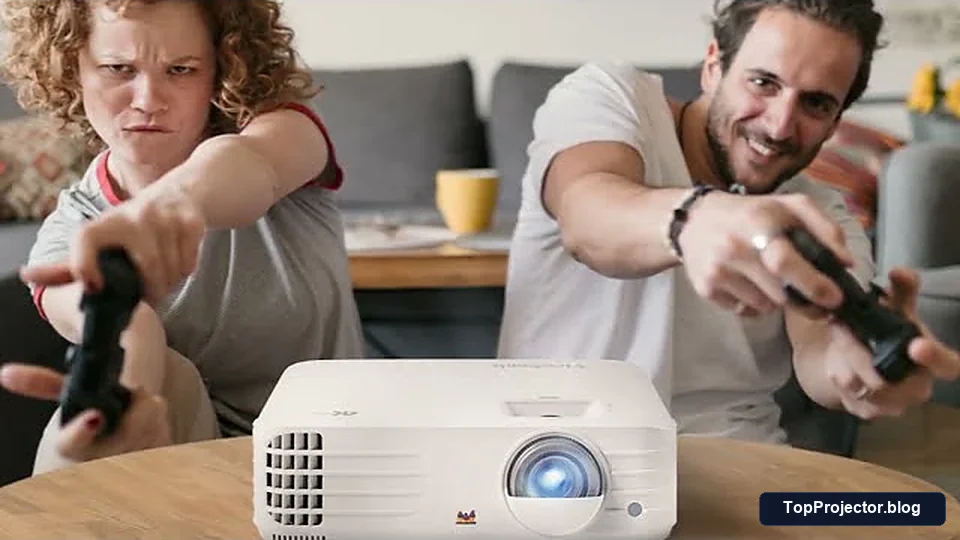
Modern projection enthusiasts frequently confuse display input lag with pixel response time or refresh rate limitations. Input lag measures the exact delay between pressing a controller button and seeing the resulting action on your massive screen.
Pixel response time simply tracks how quickly individual microscopic elements shift between colors. Meanwhile, refresh rate dictates how many distinct image frames your optical engine projects every single second of gameplay operation.
Understanding these distinct hardware metrics helps when shopping for equipment, including options found in our best projector under 200 guide. These budget models prioritize response times to minimize heavy input latency.
Competitive gamers require total signal delays well below thirty milliseconds for optimal performance. Exceeding this threshold results in a sluggish, disconnected feeling that severely damages your competitive shooting accuracy.
- Input lag measures total controller-to-screen transmission delay.
- Pixel response tracks color transition speed inside the chip.
- Refresh rate determines maximum frames projected per second.
- Cinematic processing modes often multiply total signal latency.
The Impact of Image Processing Pipelines
Every advanced image enhancement feature inside your projector requires precious computational time. Algorithms analyzing motion vectors or sharpening textures add multiple frames of buffered delay to your signal path.
Turning off unwanted enhancements strips away unnecessary computational overhead. This direct data pipeline ensures your graphics card feeds the projection engine with minimal processing interference.
- De-interlacing algorithms add measurable display lag.
- Noise reduction filters buffer incoming frames continuously.
Activating Specialized Low-Latency Game Modes
Enabling your projector's dedicated game mode preset drastically reduces lag. As noted in our XGIMI Horizon Pro review, this setting instantly bypasses complex color grading to speed up frame delivery.
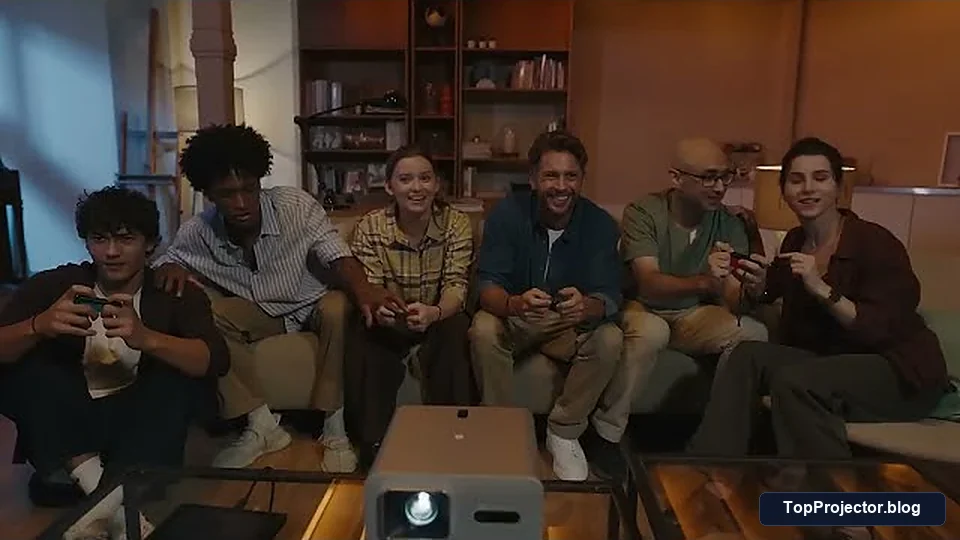
Manufacturers design these specialized profiles to strip away non-essential video enhancements. By shortening the internal digital pipeline, projectors achieve remarkably responsive input times suitable for fast-paced titles.
Check your remote control or on-screen display menu immediately for gaming labels. Some manufacturers bury this vital toggle deep within advanced picture calibration submenus rather than primary viewing options.
Keep in mind that enabling low-latency profiles might slightly alter color accuracy or sharpness. You must weigh absolute visual fidelity against the critical need for instantaneous controller feedback.
- Game mode bypasses heavy internal frame buffering algorithms.
- Latency often drops from eighty milliseconds down below twenty.
- Manufacturers hide this setting in advanced picture menus.
- Minor color shifts may occur when activating raw low-latency.
Locating Hidden Gaming Presets
Many modern laser and lamp projectors utilize unique terminology for gaming optimization. Look for manufacturer-specific labels like enhanced gaming, fast response, or ultra-low latency within your setup options.
Navigating through dense menu trees requires patience during initial system calibration. Once activated, save your custom profile to avoid repeating this tedious configuration process.
- Search for enhanced gaming or fast response toggles.
- Save configured profiles to permanent user memory slots.
Video Walkthrough: What is Input Lag? And how to avoid it? All you need to know
Eliminating Keystone Distortion and Digital Scaling
Physical projector placement matters immensely when targeting the absolute lowest input lag metrics. Utilizing heavy digital keystone correction forces the internal processor to remap every single incoming pixel coordinate.
This aggressive geometric resampling introduces significant input latency. Before mounting, verify your setup using our screen size and viewing distance calculator to maintain pristine native geometry.
Physical lens shift mechanisms offer a much cleaner alternative to digital keystone adjustment. Optical lens shift moves the glass elements physically without adding any computational delay or resolution loss.
Squaring your projector by hand prevents your video processor from working overtime. Achieving proper alignment physically guarantees both maximum sharpness and minimal controller response delay.
- Digital keystone processing adds measurable display lag.
- Optical lens shift preserves native pixel mapping quality.
- Mount projectors perpendicular to eliminate geometric distortion.
- Manual physical alignment keeps the processing pipeline clean.
Why Optical Alignment Beats Digital Correction
Relying on physical ceiling mounts and adjustable feet avoids digital resampling altogether. Your graphics processor sends native resolution data straight to the display chip without intermediate scaling steps.
This direct mapping preserves fine text readability and intricate game graphics. Avoiding digital distortion keeps your optical system running at peak performance efficiency.
- Ceiling mounts maintain ideal perpendicular projection angles.
- Native resolution mapping preserves crisp texture details.
Configuring Console and PC Video Output Parameters
Your gaming hardware must output native signals without conversion overhead. You can review optimal display standards in our projector lumens testing guide to avoid scaling lag spikes.
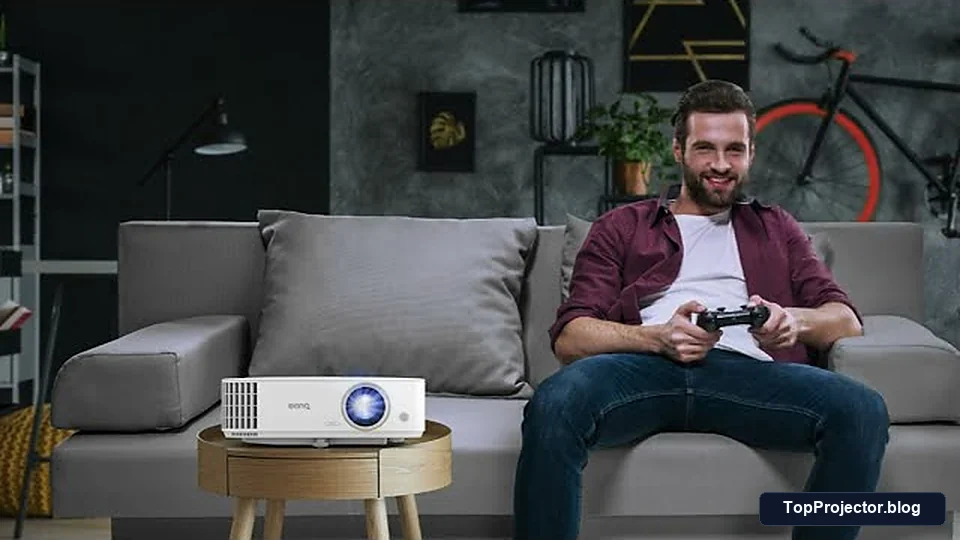
Configure your PlayStation, Xbox, or gaming PC to output native 4K or 1080p at the exact refresh rate your projector supports. Avoid letting external devices handle arbitrary resolution upscaling tasks.
Enable high refresh rate outputs such as 120Hz when your specific projector model supports it. Higher refresh rates cut frame delivery times in half, providing exceptionally smooth motion rendering.
Always verify that variable refresh rate technologies are configured correctly in your source menu. Matching source frame rates to projection capabilities eliminates stutter and reduces perceived input lag.
- Match source resolution strictly to projector native capabilities.
- Enable 120Hz output to cut frame delivery times down.
- Configure variable refresh rates to minimize motion stutter.
- Disable unnecessary device-level video upscaling features.
Optimizing HDMI and EDID Handshakes
Proper EDID communication ensures your source device knows the projector's exact limitations. Faulty cable handshakes can default to sluggish compatibility modes that ruin responsiveness.
Use certified high-speed cables to guarantee flawless uncompressed signal transmission. Faulty cables often drop packets or force heavy error correction protocols.
- Verify proper EDID handshakes between source and display.
- Deploy certified ultra high-speed cables for stability.
Direct Signal Routing Versus AV Receiver Latency
Routing your video signals through an intermediary audio-video receiver often introduces hidden latency. Many older surround sound amplifiers add multiple frames of processing delay before passing video onward.
Plug your gaming console directly into the projector whenever possible to bypass receiver lag completely. Route audio separately via optical outputs or dedicated audio return channels.
Modern AV receivers featuring dedicated pass-through modes can mitigate some of this routing penalty. However, direct connections remain the gold standard for competitive gaming performance and reliability.
Inspect your signal chain meticulously to remove any unnecessary video splitters or converters. Every extra hardware bridge in the path risks adding precious milliseconds of input delay.
- AV receivers often add hidden video processing latency.
- Plug consoles directly into projectors for best results.
- Utilize audio return channels for independent sound routing.
- Eliminate uncertified video splitters and switch boxes.
Managing Audio Return Channel Delay
Using eARC for sound transmission keeps your video path completely direct and unburdened. This advanced protocol handles lossless audio formats without interfering with your visual pipeline.
Verify that your audio delay lip-sync settings are properly calibrated. Separating audio management from video routing protects your gaming responsiveness.
- Leverage eARC for clean, independent audio routing.
- Calibrate lip-sync parameters to maintain sound timing.
Firmware Updates and Hardware Performance Limits
Sometimes lag issues stem from outdated internal firmware rather than incorrect user settings. Manufacturers frequently release software patches that optimize processing pipelines and improve game mode response times.
Check your projector manufacturer's support website regularly for available firmware installation packages. Updating your system software can unlock significantly lower input latency metrics.
Understand that every projection technology possesses intrinsic hardware performance boundaries. Standard lamp-based units and advanced laser models have varying baseline processing limitations.
If your projector lacks a low-latency mode and runs older processing chips, hardware limits apply. Upgrading to a modern gaming-focused projector remains the only permanent solution for stubborn lag.
- Manufacturer firmware patches often reduce input latency.
- Check support portals regularly for system software updates.
- Lamp and laser models have distinct processing limits.
- Outdated hardware architectures cannot be software modified.
Evaluating Hardware Upgrade Thresholds
When software optimizations fail to reach acceptable thresholds, hardware replacement becomes necessary. Modern ultra-short-throw and traditional gaming projectors now achieve incredible sub-20ms performance.
Prioritize models specifically marketed with low-latency gaming certifications. Review independent testing data before investing in new projection hardware.
- Target modern models featuring sub-20ms latency metrics.
- Review independent laboratory test data before purchasing.
Troubleshooting Wireless Casting and Mirroring Delay
Attempting to game via wireless screen mirroring or phone casting introduces massive latency. Wireless protocols encode, transmit, and decode video streams, creating hundreds of milliseconds of delay.
Never rely on Wi-Fi casting solutions for interactive gaming applications or competitive titles. Wireless projection works adequately for static presentations but fails completely for real-time control.
Always utilize physical wired connections using high-speed HDMI or DisplayPort cables. Physical cabling guarantees the fastest possible data transfer speeds without wireless packet drops.
Disable background wireless sharing features on your devices to free up processing power. Keeping your signal path purely wired ensures zero wireless interference or decoding lag.
- Wireless screen casting introduces massive input delay.
- Wi-Fi mirroring fails for interactive gaming applications.
- Always use physical wired cables for gaming setups.
- Disable background wireless streaming to free resources.
Understanding Wireless Encoding Overhead
Wireless protocols require heavy compression algorithms to stream video data across networks. This encoding and decoding cycle creates an unavoidable bottleneck that ruins controller responsiveness.
Stick strictly to physical copper or fiber connections for all latency-sensitive tasks. Saving wireless casting exclusively for casual media viewing prevents endless frustration.
- Compression algorithms create unavoidable streaming bottlenecks.
- Reserve wireless casting strictly for casual media viewing.
Frequently Asked Questions
What is the ideal input lag target for competitive gaming on a projector?
Aim for an input lag measurement under twenty milliseconds for fast-paced competitive titles. Exceeding thirty milliseconds introduces noticeable control delays that hinder rapid shooter accuracy.
Does turning on game mode negatively affect overall picture quality?
Game mode disables heavy video processing to reduce lag, which may slightly alter color calibration. However, the dramatic boost in responsiveness far outweighs minor visual trade-offs.
Why does keystone correction increase my projector's input lag?
Digital keystone adjustment forces the internal processor to remap every incoming pixel coordinate mathematically. This continuous geometric resampling adds multiple frames of latency to your display.
Can I fix high input lag by updating my projector firmware?
Many manufacturers release software updates that specifically optimize internal processing pipelines and lower latency. Check your specific model's support portal for available system upgrade packages.
Does wireless phone mirroring work well for playing video games?
Wireless casting introduces massive encoding and decoding delays that ruin interactive controller responsiveness. You should always use a direct wired connection for gaming.