How to Play Netflix on Projector?
Streaming Netflix through a home theater projector requires proper HDCP compliance and reliable interface bandwidth. Master these technical connections to ensure crisp, artifact-free cinematographic playback on your screen.
Always connect an external streaming box or use certified HDMI 2.0 cables to bypass mobile casting compression. This guarantees full 4K HDR fidelity and low input lag during movie sessions.
Ready to compare verified models? Start with our Best Games To Play On Projector: Top Picks.
Practical Quick-Reference Table
| Scenario / Metric | Recommended Target | Why It Matters |
|---|---|---|
| Cable Bandwidth | 18 Gbps minimum | Prevents signal drops during high-bitrate video streaming. |
| HDCP Compliance | Version 2.2 support | Required by Netflix to prevent encrypted black screen errors. |
| Throw Distance | 2.5 to 3.5 meters | Achieves an optimal 100-inch diagonal cinematic image size. |
| Ambient Light | Under 50 lumens/sq ft | Preserves ANSI contrast ratios and shadow detail. |
| Audio Routing | HDMI eARC or Optical | Eliminates frustrating lip-sync latency and audio lag. |
| Resolution Setting | Native 1080p or 4K | Stops scaling artifacts and maintains sharp subtitle text. |
Selecting Hardware Streaming Architecture for Projection
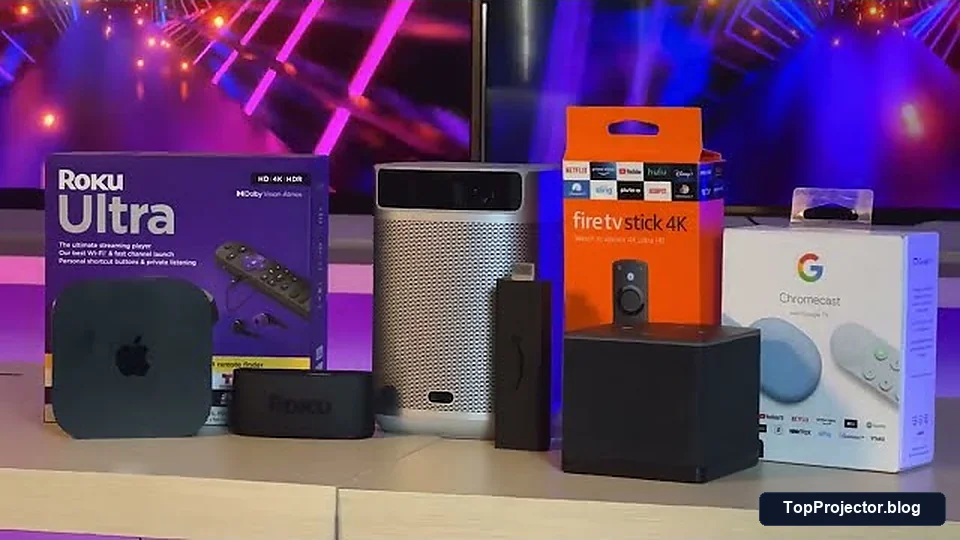
Modern home theater setups demand robust streaming devices to decode high-bitrate video streams efficiently. Dedicated media boxes provide superior codec support compared to primitive smartphone casting adapters.
Standard Roku and Apple TV units deliver stable HDCP 2.2 handshakes necessary for encrypted video. This eliminates common black screen errors when launching protected streaming content.
Choosing standalone hardware ensures your processing power remains dedicated entirely to image rendering. Avoid low-powered generic dongles that lack official streaming service software certifications.
When evaluating streaming devices for our best projector under 600 options, prioritize models supporting 4K Dolby Vision decoding and native Android TV environments to bypass built-in firmware limits cleanly.
- Prioritize devices supporting native 4K HDR video decoding.
- Verify official Netflix app certification before purchasing gear.
- Ensure stable Wi-Fi 6 or ethernet connection availability.
- Check for dedicated HDMI output ports with audio return.
Standalone Streaming Sticks Versus Dedicated Media Hubs
Streaming sticks plug directly into rear HDMI ports, saving valuable equipment rack space. They rely on USB power or wall adapters for stable processing currents.
Dedicated media hubs offer superior thermal management and gigabit ethernet ports for buffering heavy 4K streams smoothly without wireless interference.
- Streaming sticks excel in portable travel environments.
- Media hubs provide superior port selection and thermal cooling.
Evaluating Media Player Power Delivery Specifications
Most high-performance streaming devices demand stable 5V/1.5A USB power outputs. Directly utilizing your projector’s standard service port often causes intermittent reboots during high-bitrate HDR decoding sequences.
- Verify USB port wattage specifications before mounting streaming hardware internally.
- Always route external media players through powered wall adapters for peak stability.
Establishing Hardwired Connections via HDMI Interfaces
Hardwired connections remain the gold standard for transmitting uncompressed digital video to distant ceiling-mounted projectors. Ensure your cabling supports at least 18 Gbps bandwidth for modern HDR formats.
Long cable runs exceeding fifteen meters require active fiber-optic HDMI repeaters to prevent signal attenuation. Passive copper wires suffer catastrophic packet loss over extended architectural distances.
Always secure cable strain reliefs to prevent damaging fragile internal circuit boards on your projector. Inspect connector pins regularly for dust or oxidation buildup.
For long cable runs exceeding 15 feet, standard copper HDMI cords suffer severe signal attenuation. Deploy active fiber optic HDMI 2.1 cables to guarantee pristine 4K/60Hz transmission without data packet degradation.
- Use certified high-speed HDMI cables for flawless signal transmission.
- Avoid sharp cable bends that degrade internal fiber strands.
- Install active repeaters for cable runs over fifteen meters.
- Keep power lines separated to minimize electromagnetic interference.
Managing HDCP 2.2 Handshake Requirements
High-bandwidth digital content protection enforces strict encryption across connected displays. Review our laptop projection setup guide before connecting legacy AV receivers that might break this secure HDCP chain unexpectedly.
Always route your primary streaming box directly into the projector input when experiencing persistent HDCP handshake dropouts during high-definition playback.
- Update all firmware on switchers and AV receivers.
- Bypass uncertified splitters that strip encryption data.
Securing Directional Fiber Optic HDMI Runs
Fiber optic HDMI cables are strictly directional. Connecting the source end to your media player and the display end to the projector input is mandatory for proper handshake initialization.
- Inspect printed source and display labels on cable jacket connectors carefully.
- Avoid sharp 90-degree bends that can fracture internal glass fiber strands.
Video Walkthrough: Explain: Why Can't I Find Netflix on XGIMI Projectors (Even Nebula)?
Utilizing Mobile Adapters and Wireless Casting Protocols
Wireless screen mirroring introduces noticeable input latency and frame drops when streaming heavily encrypted video codecs. Physical adapter cables offer vastly superior playback stability.
Apple users can utilize lightning or USB-C digital AV adapters to bridge mobile devices securely. Android alternatives rely on Miracast protocols or dedicated hardware casting dongles.
Direct mirroring often restricts video resolution to match the source smartphone screen dimensions. Hardwired desktop outputs yield much cleaner pixel mapping.
Direct wireless casting often introduces noticeable audio sync latency. Hardwiring a Lightning-to-HDMI adapter directly into your phone ensures zero-latency 1080p video transmission without reliance on congested local Wi-Fi frequencies.
- Favor hardwired USB-C adapters over wireless casting apps.
- Ensure phone charging ports remain accessible during playback.
- Verify protocol compatibility with your specific projector model.
- Disable aggressive power saving modes on mobile sources.
Lightning and USB-C Cable Limitations
Mobile adapters frequently downscale native resolution to match constrained smartphone hardware graphic limits. Battery drain during extended movie sessions also requires auxiliary power input.
Verify that your specific adapter supports HDCP content streaming protocols before attempting to launch subscription video services outdoors or indoors.
- Connect external power to adapters during long movie sessions.
- Check for official manufacturer certification on dongles.
Mitigating Network Congestion During Wireless Casting
Wireless casting protocols demand robust router bandwidth. Transition your projector and source device to a dedicated 5GHz Wi-Fi band to eliminate packet loss and reduce annoying buffering interruptions.
- Keep streaming devices within direct line of sight to your wireless access point.
- Disable background app refreshes on mobile casting devices to preserve bandwidth.
Configuring Native App Sign-In and Stream Initialization
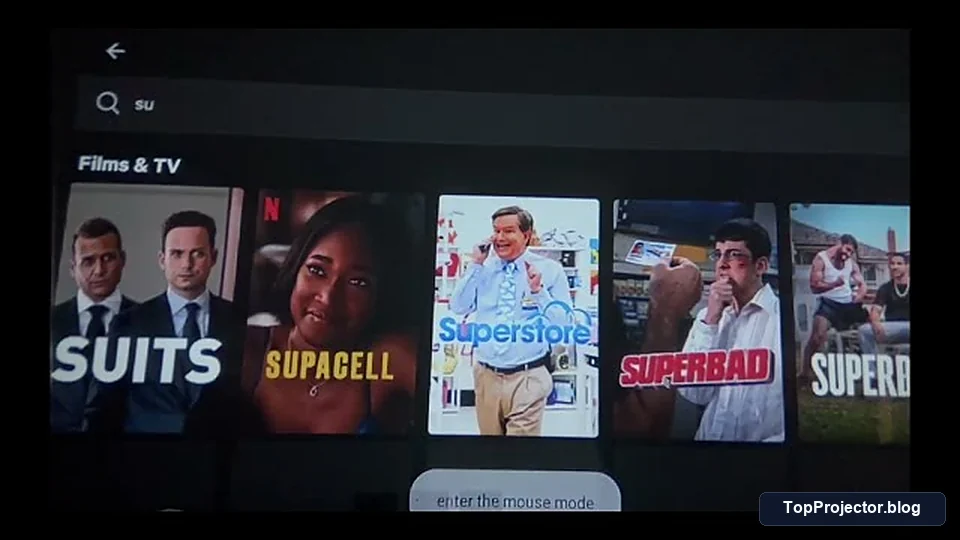
Navigating subscription interfaces requires precise pointer control using standard remote clickpads or Bluetooth gamepads. Projector keystoning should be completely dialed in before typing credentials.
Enter your account credentials carefully while maintaining an accurate throwing distance for readable onscreen typography. Two-factor authentication prompts demand immediate access to secondary verification devices.
Save your login credentials within dedicated hardware profiles, much like we observed during our Anker Nebula Capsule 3 review, to expedite future sessions without repeated password typing.
Navigating projector-based Android TV interfaces requires precise remote positioning. Utilize a wireless USB air mouse to streamline email authentication and accelerate complex password entries inside the Netflix application.
- Pair a Bluetooth keyboard for fast email and password entry.
- Disable automatic background updates during movie playback.
- Clear app cache files periodically to prevent memory leaks.
- Confirm user profile selections before starting playback.
Video Walkthrough: How to watch Netflix on Epson Projector
Optimizing Optical Focus, Throw Distance, and Brightness
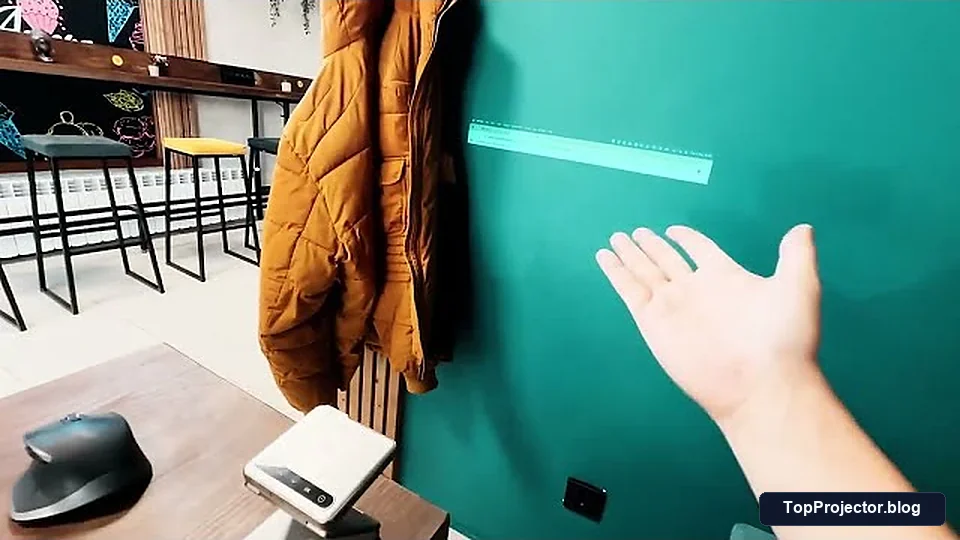
Precise optical focus ensures subtitle legibility across massive projection surfaces exceeding one hundred inches diagonally. Adjust your mechanical focus ring while viewing static menu grids.
Ambient light management directly impacts perceived contrast ratios during dark cinematic scenes. Use our ANSI lumens room calculator to determine exact requirements and close curtains for maximum black level depth.
Align your projector perpendicularly to the screen surface to prevent geometric distortion and trapezoidal artifacts that degrade image sharpness.
Achieving razor-sharp edge-to-edge focus requires calculating precise throw ratios. Measure your lens-to-screen distance meticulously to maintain crisp 1080p pixel grids across large 120-inch projection surfaces without optical distortion.
- Calculate exact throw ratios before mounting your projector.
- Use a specialized calibration pattern to set manual focus.
- Control ambient room light using dark curtains or paint.
- Clean glass lenses gently using micro-fiber optical cloths.
Routing High-Fidelity Audio to External Amplification Systems
Internal projector speakers rarely deliver the dynamic range required for immersive cinematic sound experiences. Connect an external soundbar or AV receiver via optical or eARC ports.
Audio-video synchronization prevents frustrating lip-sync delays caused by complex digital signal processing inside intermediate switchers or long cables.
Test surround sound channel separation using built-in diagnostic test tones on your streaming media player before launching feature films.
Standard projector audio return channels often limit multi-channel soundtracks. Route your streaming device directly into an AV receiver using eARC HDMI ports to decode uncompressed Dolby Atmos safely.
- Prioritize HDMI eARC connections for lossless audio formats.
- Use dedicated audio extractors for older optical amplifiers.
- Adjust audio delay settings to fix lip-sync discrepancies.
- Position external speakers away from reflective wall boundaries.
Troubleshooting Common HDCP and Resolution Faults
Black screen errors typically stem from incompatible resolution handshakes between the source device and projector display chip. Force a standard 1080p output resolution in device settings.
Inspect physical pin connections and power supplies if flickering occurs during peak dynamic contrast scenes. Persistent stuttering often indicates overheating hardware or insufficient bandwidth.
Power cycle your entire equipment chain sequentially when stubborn protocol lockups prevent successful video decoding.
HDCP handshakes frequently fail when bridging older AV receivers with modern 4K projectors. Force your streaming source into HDCP 2.2 compliant modes to eliminate blank screens during Netflix playback.
- Power down all connected units before swapping HDMI cables.
- Switch input ports to reset digital EDID communication channels.
- Lower dynamic range settings if color banding becomes visible.
- Check cooling vents for accumulated dust or airflow blockages.
Frequently Asked Questions
Why is my projector showing a black screen when I open Netflix?
This usually indicates an HDCP 2.2 encryption failure between your source device and the projector. Try replacing your HDMI cable with a certified high-speed model or plugging the streaming box directly into the unit.
Can I stream Netflix wirelessly from my smartphone to a projector?
Yes, but wireless casting often introduces noticeable input lag and drops video resolution due to heavy compression. Using a physical streaming box or hardwired adapter provides vastly superior playback stability.
What cable do I need to connect my laptop to a projector for Netflix?
You need a high-quality HDMI 2.0 cable or a certified USB-C to HDMI adapter. Ensure the cable supports digital content protection standards to prevent playback blocking.
How do I fix blurry subtitles when watching Netflix on a big screen?
Manually adjust the mechanical focus ring on your projector lens while viewing a static menu grid. Proper throw distance alignment also prevents digital keystone distortion blur.
Why is there an audio delay when watching Netflix on my projector setup?
Audio lag occurs when video processing takes longer than audio routing through intermediate devices. Connect your streaming source directly to an AV receiver or use an HDMI eARC port.