How to Mirror Chromebook to Projector?
Master wireless casting and physical adapter links for flawless chromeos projection. Achieve pristine text clarity and zero-latency desktop mirroring.
Always verify your Chromebook physical ports support DisplayPort Alt Mode before purchasing conversion cables, or utilize reliable local network casting for cable-free projection setups.
Ready to compare verified models? Start with our Best Home Projectors Guide.
Practical Quick-Reference Table
| Connection Method | Maximum Resolution | Latency Impact |
|---|---|---|
| USB-C to HDMI Direct | 4K at 60Hz | Negligible (<5ms) |
| Standard HDMI Cable | 1080p to 4K | Negligible (<5ms) |
| Wireless Chromecast | 1080p at 30Hz | Noticeable (50-150ms) |
| Miracast / Wi-Fi Direct | 1080p at 60Hz | Moderate (30-80ms) |
| USB-A DisplayLink Adapter | 1080p at 60Hz | Low (15-30ms) |
| VGA Analog Converter | 1080p at 60Hz | Negligible (Analog conversion) |
Fundamental Hardware Requirements for Projector and Chromebook Integration
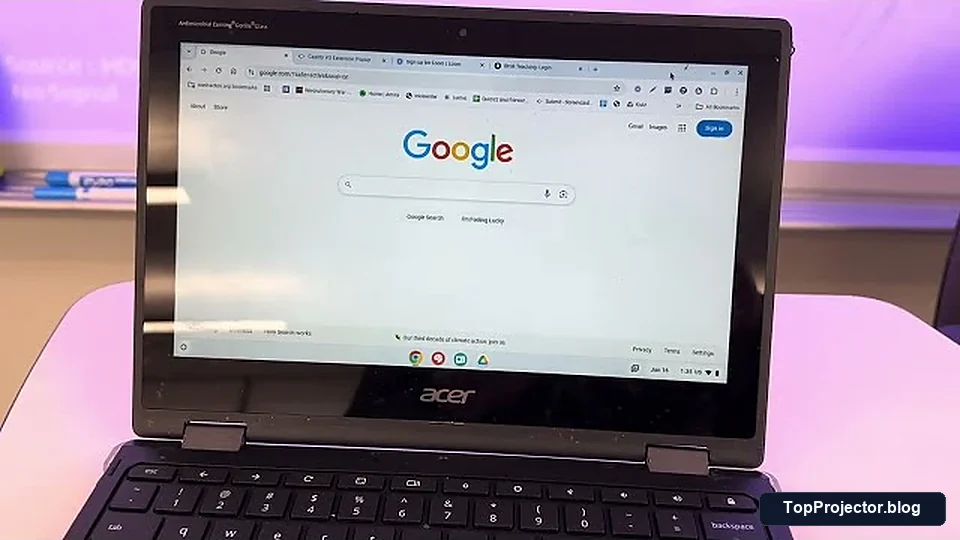
Connecting modern ChromeOS devices to a projection display requires understanding specific physical and wireless capabilities. Chromebook hardware varies widely regarding video output support across different manufacturers.
Budget educational models often feature minimal port arrays, restricting external signals. Pairing your device with one of our best small projector for bedroom picks ensures optimal layout compatibility.
Modern projection optics demand clean digital signals to preserve fine text legibility. Checking your projector native resolution prevents scaling artifacts during extended desktop sessions.
- Verify physical video output ports on your specific Chromebook model.
- Check projector native resolution matching capabilities (1080p vs 4K).
- Inspect cable connectors for bent pins or damaged shielding.
- Ensure power delivery is adequate when using multi-port hubs.
Identifying Your Chromebook Video Ports
Most current ChromeOS laptops rely exclusively on USB-C ports that handle power, data, and video simultaneously. Older legacy models might include standard HDMI or micro-HDMI connections.
Confirming port protocols prevents frustrating troubleshooting sessions before important presentation tasks begin in professional office spaces.
- Look for lightning or DisplayPort symbols next to USB-C ports.
- Measure port dimensions if unsure between standard HDMI and mini-HDMI.
Establishing a Reliable Wired Connection via USB-C and HDMI Ports
Wired connections offer the most stable pathway for mirroring your Chromebook screen without interference. A direct USB-C to HDMI cable eliminates adapter signal loss entirely.
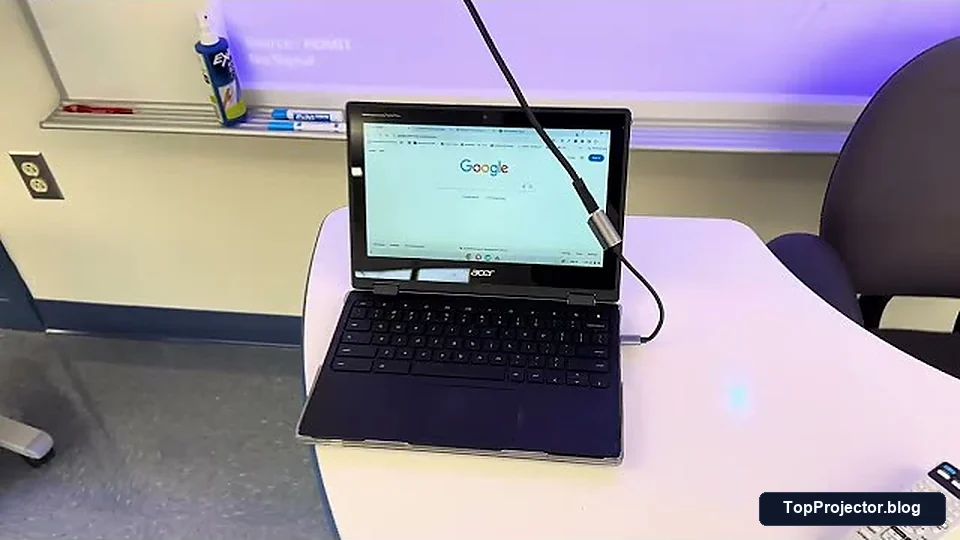
Always plug the source end into a fully functional Thunderbolt or DisplayPort Alt Mode certified port. Secure physical latching prevents accidental disconnections during high-stakes presentations.
Inexpensive passive adapters frequently fail when transmitting high refresh rate video signals. Invest in high-speed rated cables supporting 4K at 60Hz throughput standards.
- Use certified premium high-speed HDMI cables under fifteen feet.
- Avoid daisy-chaining multiple cheap adapters together in series.
- Plug the projector power cord into a grounded surge protector.
- Ensure the projector input source matches your active physical port.
Selecting the Correct Physical Adapters
Choosing the right dongle prevents handshake failures between ChromeOS and the projector's internal scaler. Active conversion chips are necessary when bridging legacy analog VGA displays.
Inspect manufacturer compatibility lists to ensure seamless driver handshakes without requiring manual software intervention from users.
- Prioritize braided nylon cables for enhanced physical durability.
- Select aluminum-shelled adapters to improve thermal dissipation.
Video Walkthrough: Start by logging into your Chromebook and locating an HDMI cord to connect to the projector.
Navigating ChromeOS Display Settings and Resolution Scaling
Once physically linked, you must configure how ChromeOS handles the secondary display output. Access settings via the status area to toggle between mirroring and extended desktop modes.
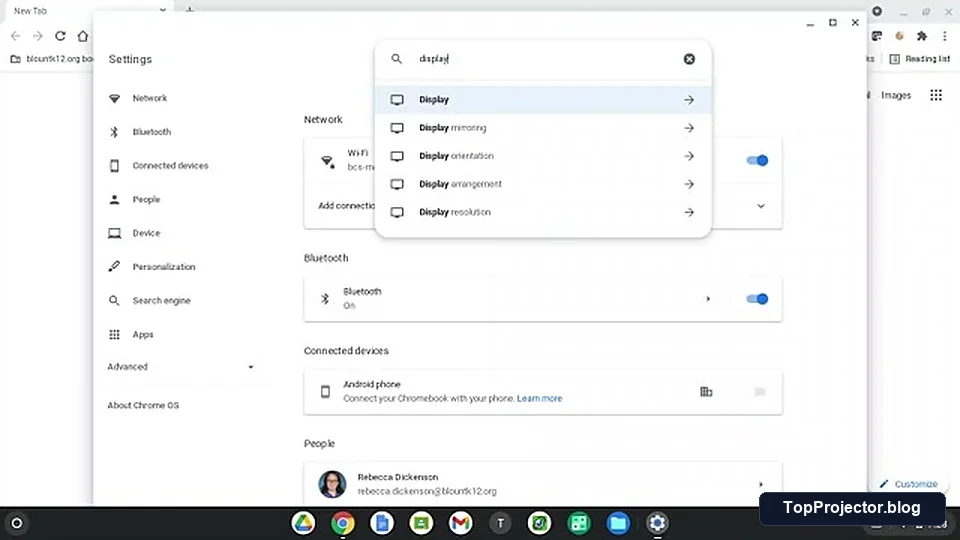
Default resolution matching often defaults to the lower common denominator between devices. Manually adjust the scaling slider to match your projector native pixel grid.
Overscan issues frequently crop up on older projectors, cutting off taskbars and window borders. Adjust the display zoom settings within ChromeOS to fit the projected canvas perfectly.
For deeper room-fit context, see our Throw Distance Calculator.
- Press Search plus the display key to cycle projection modes quickly.
- Set refresh rates to match projector capabilities to eliminate judder.
- Disable hardware acceleration in browser if tearing occurs.
- Calibrate overscan settings directly in the projector menu.
Fine-Tuning Aspect Ratios for Presentations
Widescreen content looks distorted if your projector expects a traditional 4:3 aspect ratio format. Match your ChromeOS resolution to the exact native panel dimensions.
This prevents frustrating letterboxing and ensures crisp rendering of complex spreadsheet data and detailed infographics.
- Verify native projector aspect ratio before launching slide shows.
- Use custom resolution tools if standard presets cause warping.
Utilizing Wireless Mirroring and Network Casting Protocols
Wireless projection liberates you from cable clutter during presentations. Checking out our detailed Nebula Capsule 3 review reveals how portable smart displays handle wireless casting.
Ensure both your Chromebook and the receiving projection device share the same Wi-Fi network. Network congestion on crowded 2.4GHz bands can trigger severe frame drops.
Modern enterprise projectors often support enterprise-grade wireless protocols for secure device pairing. Enter the displayed PIN code accurately to establish encrypted transmission streams.
- Connect network equipment to the uncongested 5GHz frequency band.
- Disable VPN services locally to prevent casting protocol blockages.
- Keep router firmware updated to optimize multicast data packet handling.
- Position wireless access points within direct line-of-sight.
Troubleshooting Cast Discovery Failures
If your Chromebook fails to locate the wireless projector, check local firewall configurations. AP isolation settings on network routers frequently block device-to-device discovery packets.
Restarting both the casting laptop and the receiving network adapter often clears temporary routing cache corruption.
- Verify device IP addresses belong to the same local subnet.
- Temporarily disable client isolation on wireless router setups.
Advanced Multi-Display Configurations and Extended Desktop Layouts
Presenters frequently benefit from utilizing extended desktop mode rather than simple screen mirroring. This setup allows you to view speaker notes while projecting clean presentation slides full screen.
Dragging display icons within ChromeOS matches physical projector placement. Following our laptop mirroring guide ensures seamless multi-display configuration and accurate cursor movement.
Performance can dip when driving high-resolution external projectors alongside internal displays. Close background browser tabs to conserve valuable system RAM and processor cycles.
- Organize display arrangements vertically or horizontally in settings.
- Assign the primary display menu bar to your laptop screen.
- Test full-screen video playback on the projected canvas first.
- Monitor system resource usage via the Chrome task manager.
Managing Speaker Notes During Live Presentations
Running slideshow software in presenter view keeps your notes hidden from the main audience. Dual-screen workflows elevate professional delivery standards during critical corporate pitches.
Practice switching focus windows beforehand to prevent accidental exposure of private browser notifications.
- Enable do-not-disturb mode to block incoming chat pop-ups.
- Verify presentation software supports secondary display output.
Diagnosing Signal Drops, Latency Spikes, and Aspect Ratio Mismatches
Intermittent black screens usually stem from substandard cables or loose physical port connections. Upgrading to certified high-bandwidth hardware resolves most recurring transmission instability.
Audio sync drift during video playback indicates heavy processor load or wireless network latency. Lowering the streaming resolution often restores smooth audio-visual synchronization instantly.
Color reproduction errors can make projected slides look washed out and illegible. Adjust projector contrast and color temperature settings to match standard sRGB profiles.
- Replace damaged cables showing exposed braiding or bent connectors.
- Power cycle both devices to reset corrupted video handshake states.
- Adjust ANSI lumen output settings to match ambient room lighting.
- Update ChromeOS to the latest stable release channel version.
Resolving HDCP Handshake Errors
Protected media content can trigger blank projection screens due to security protocol mismatches. HDCP compliance failures require reseating physical HDMI cables securely.
Restarting the streaming media application usually re-establishes a valid encryption key exchange successfully.
- Check that all inline splitters support proper HDCP standards.
- Disconnect unauthorized capture devices placed in the signal chain.
Optimizing ANSI Lumens and Throw Geometries for Sharp Text
Achieving legible text requires balancing projector brightness against ambient room illumination levels. Darker environments allow lower ANSI lumen ratings to deliver punchy, high-contrast imagery.
Calculate your precise throw distance to fill the projection screen without wasting light margins. Keystone correction should be avoided when possible to prevent digital resolution loss.
Clean your projector optics regularly using microfiber cloths to maintain pristine image clarity. Dust accumulation on internal glass elements severely degrades overall contrast performance.
- Control ambient light using blackout curtains during daytime viewing.
- Position the projector perpendicular to the screen to eliminate distortion.
- Use manual lens shift features instead of digital keystone adjustments.
- Keep projection throw ratios matched to screen diagonal sizes.
Balancing Contrast Ratios for Data Readability
Spreadsheets and text documents require high native contrast ratios to remain legible. Dynamic iris settings can sometimes pump brightness distractingly during slide transitions.
Lock your projector picture mode to a calibrated presentation preset for consistent text rendering.
- Select high-contrast color palettes for presentation slides.
- Avoid dark background themes in brightly lit presentation rooms.
Frequently Asked Questions
Why is my Chromebook not detecting the projector when plugged in?
This usually happens because the USB-C port lacks video output capabilities or the cable is faulty. Verify your port supports DisplayPort Alt Mode and test with a certified high-speed cable.
Can I mirror my Chromebook wirelessly without a Chromecast device?
Yes, many modern smart projectors support Miracast, DLNA, or proprietary browser casting apps. However, Google Chromecast offers the most native and reliable wireless integration within ChromeOS.
How do I fix lagging video playback when casting wirelessly?
Wireless lag is typically caused by network congestion on crowded 2.4GHz Wi-Fi frequencies. Switch both your Chromebook and projector to an uncongested 5GHz network band for better performance.
How can I prevent my projector from cutting off the edges of my screen?
Overscan settings on the projector often crop the outer borders of incoming video signals. Access your projector display menu to disable overscan or adjust the ChromeOS display scaling percentage.
Is it possible to use an extended desktop instead of simple mirroring?
Yes, you can easily change display behavior within your ChromeOS status settings menu. Select extended desktop to keep your speaker notes private while projecting clean presentation slides full screen.