How to Get Sound from Projector to Bluetooth Speakers?
Achieve seamless lip-sync accuracy and robust wireless audio connectivity between your high-performance home theater projector and external Bluetooth speakers.
Always verify whether your projector features built-in Bluetooth transmission or requires an external adapter to eliminate frustrating audio latency during movie playback.
Ready to compare verified models? Start with our Best Speakers For Projector: Top Picks for Clear Movie Audio.
Practical Quick-Reference Table
| Scenario / Metric | Recommended Target | Why It Matters |
|---|---|---|
| Bluetooth Version | Bluetooth 5.0 or higher | Reduces latency and maintains stable connection range |
| Audio Latency | Under 100 milliseconds | Prevents noticeable lip-sync delay during dialogue scenes |
| Projector Output | Audio-Out / HDMI ARC | Provides alternative hardwired path if wireless fails |
| Codec Support | aptX Low Latency | Minimizes audio processing lag over wireless links |
| Speaker Distance | Within 10 feet | Avoids signal dropouts and physical interference |
| Source Device | Direct Media Streamer | Bypasses projector processing delay entirely |
Demystifying Wireless Audio Protocols in Projection Systems
Modern projection systems frequently separate image processing from sound reproduction. Understanding how wireless protocols handle data streams helps prevent frustrating playback errors during movie nights.
Traditional home theater setups rely on heavy copper cabling, but ultra-short throw models like those tested in our Hisense PX2-PRO review seamlessly bridge digital audio codecs across wireless radio frequencies.
Bluetooth technology compresses audio signals before transmission. This compression introduces a slight delay that home theater enthusiasts must actively manage for optimal viewing.
Evaluating your projection hardware clarifies whether wireless transmission is natively supported. Many budget models only accept incoming Bluetooth signals rather than transmitting sound outward.
- Identify whether your projector functions as a Bluetooth receiver or transmitter.
- Note the maximum supported Bluetooth version in your projector specifications.
- Recognize that audio compression affects overall high-frequency detail reproduction.
- Factor in potential radio frequency interference from nearby Wi-Fi routers.
Understanding Bluetooth Audio Profiles
Standard Advanced Audio Distribution Profile handles stereo music streaming effectively. However, home video requires lower latency profiles to maintain proper synchronization.
Advanced audio codecs reduce transmission delay significantly when supported by both devices. Check your speaker specifications for compatible low-latency transmission modes.
- A2DP remains the standard profile for stereo audio streaming.
- Look for aptX or similar low-latency codecs in hardware spec sheets.
Receiver Versus Transmitter Modes
Smart projectors often include Bluetooth chips designed to receive audio from smartphones. This inward-only capability prevents direct pairing to external wireless speakers.
Confirming outward transmission capability ensures you do not waste time attempting unsupported device pairings in the system settings menu.
- Inward pairing lets you use the projector as a wireless speaker.
- Outward pairing is strictly required to send projector audio elsewhere.
Hardware Evaluation and Assessing Projector Compatibility
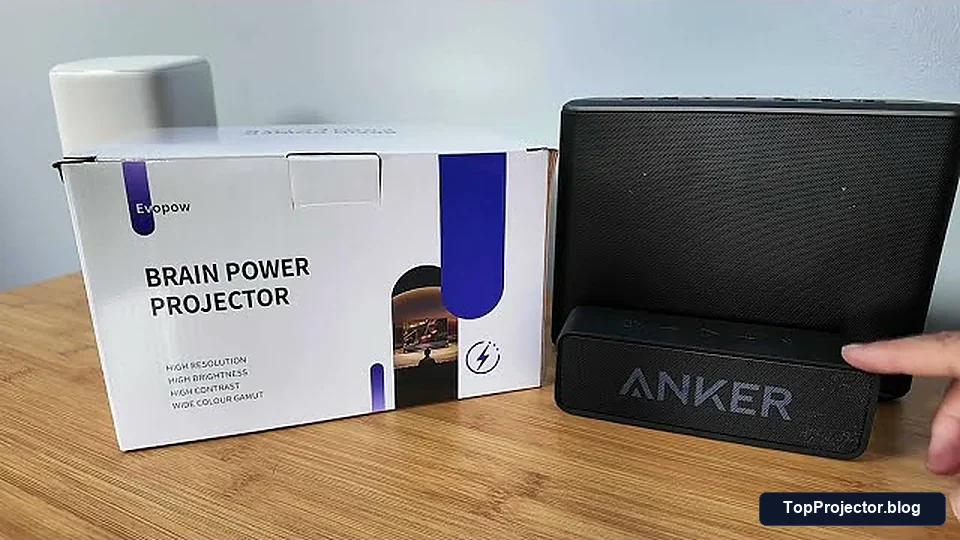
Before establishing wireless connections, consult hardware specifications found within our best data projector for church rankings to confirm if your specific model natively supports Bluetooth audio transmission.
Many high-end home theater projectors omit Bluetooth entirely due to potential latency complaints. Manufacturers often prioritize pure optical performance and low-latency hardwired paths.
Reading the user manual reveals hidden audio routing options within deep system menus. Never assume wireless capability exists without checking official manufacturer documentation.
External media streaming sticks plugged into HDMI ports often bypass projector audio limitations entirely. These smart sticks can pair directly with Bluetooth speakers independently.
- Inspect physical input and output ports on your projector chassis.
- Review official manufacturer firmware update logs for added Bluetooth features.
- Check streaming stick settings for direct Bluetooth speaker pairing menus.
- Verify if an auxiliary audio jack is available as a backup option.
Identifying Native Transmitter Support
Navigate through the main settings dashboard to locate dedicated sound configurations. Look specifically for terms like audio output, Bluetooth pairing, or wireless audio.
Absence of these specific menu items confirms your projector lacks native wireless transmitting hardware. You will need an external adapter for wireless sound.
- Scan the audio settings menu for wireless device options.
- Look for active scanning indicators in the Bluetooth submenu.
Evaluating Connected Source Devices
Blu-ray players, laptops, and streaming boxes frequently feature independent Bluetooth transmitters. Connecting your speaker directly to the source device bypasses the projector completely.
This alternative routing strategy eliminates projector processing lag and delivers remarkably stable wireless audio performance during critical movie viewings.
- Pair Bluetooth speakers directly to laptops or streaming boxes.
- Bypass projector audio routing to avoid unnecessary processing delays.
Video Walkthrough: How to Connect a Speaker to a Projector (Super Easy)
Step-by-Step Pairing Protocols for Internal Bluetooth
Once you confirm native transmitter support, preparing both devices for pairing is straightforward. Proper sequencing prevents connection timeouts and synchronization failures.
Begin by powering on your wireless speaker and entering its dedicated pairing mode. Look for a flashing blue indicator light signifying active discovery status.
Navigate to the projector wireless settings menu and initiate a fresh device scan. Select your specific speaker model from the detected hardware list.
Confirm the connection prompt on screen to finalize the audio handshake. Test the link immediately using a video file featuring distinct spoken dialogue.
- Turn on the Bluetooth speaker and hold the pairing button.
- Open the projector wireless settings and start device scanning.
- Select the correct speaker name from the discovered hardware list.
- Verify successful audio output by playing a test video clip.
Preparing the Bluetooth Speaker
Most portable speakers require holding a physical Bluetooth button for three seconds. This action clears existing device memory and opens a fresh broadcast channel.
Ensure the speaker is positioned close to the lens before measuring optimal throw distances using our throw distance calculator to prevent connection handshakes from failing repeatedly.
- Hold the Bluetooth button until the LED indicator flashes rapidly.
- Keep the speaker within three feet of the projector during pairing.
Executing the Projector Pairing Menu
Access the network or accessory menu within your projector operating system. Select the Bluetooth sub-menu and toggle the master switch to active.
Allow the system adequate time to discover nearby broadcasting audio hardware. Click connect once your speaker model appears on the display list.
- Toggle the projector Bluetooth master switch to the on position.
- Wait patiently while the system scans for compatible audio gear.
Mitigating Lip-Sync Latency and Audio Delay Issues
Wireless audio transmission inherently introduces fractional processing delays between video and sound. Uncorrected latency results in dialogue appearing out of sync with actor mouth movements.
Advanced home theater projectors include dedicated audio delay calibration sliders within their menus. Adjusting these numerical values helps realign picture and sound perfectly.
Measuring the exact millisecond offset requires specialized test patterns or careful visual observation. Even minor adjustments dramatically improve the overall immersion factor.
If your projector lacks internal audio delay controls, route sound through an external AV receiver after reviewing clean cabling strategies outlined in our ceiling projector cable concealment guide for proper synchronization.
- Test for lip-sync delay using high-contrast dialogue clips.
- Utilize projector audio sync sliders to offset processing lag.
- Keep wireless distance minimal to reduce packet transmission delay.
- Consider hardwired alternatives if wireless latency proves uncorrectable.
Adjusting Delay Settings in Projector Menus
Locate the audio synchronization slider inside your advanced video settings. Increase or decrease the delay value while watching test footage carefully.
Aim for absolute visual alignment between actor lip movement and audio arrival. Stop adjusting once dialogue matches mouth action seamlessly.
- Find the audio delay slider in advanced projector settings.
- Modify millisecond values iteratively during playback tests.
Understanding Codec Influence on Latency
Standard SBC Bluetooth codecs introduce noticeable audio lag exceeding two hundred milliseconds. Upgrading to specialized low-latency hardware cuts this delay drastically.
Verify that both your transmitter and speaker support matching high-performance audio codecs. This technical alignment ensures minimal latency during playback.
- Standard codecs introduce high latency during video playback.
- Low-latency codecs keep audio delay under usable thresholds.
Video Walkthrough: HDMI Splitter
External Transmitters and Alternative Wireless Solutions
When projectors lack native Bluetooth transmission, external adapters solve the problem efficiently. These compact hardware dongles plug directly into audio output ports.
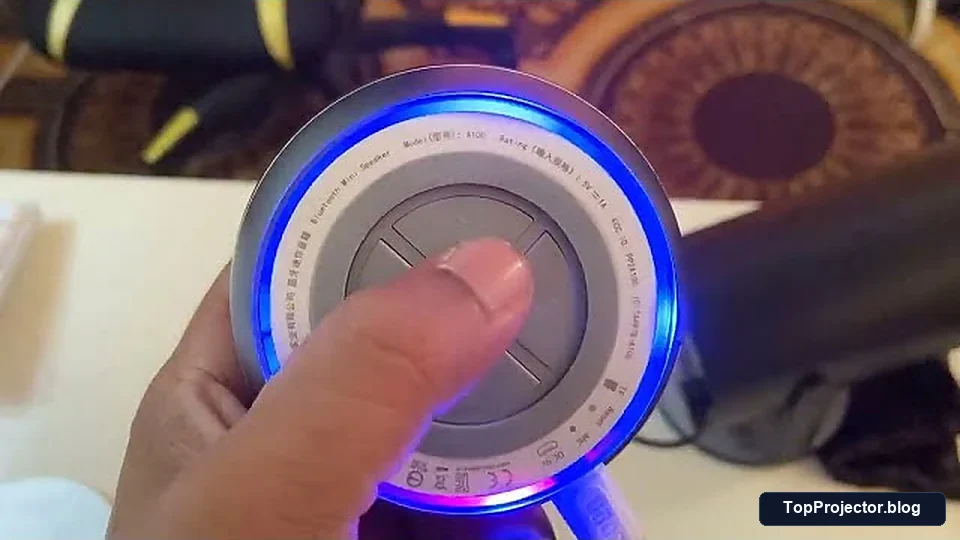
Connect an analog or digital audio transmitter to your projector headphone jack. The adapter converts hardwired signals into broadcasted Bluetooth audio streams.
Pair your wireless speaker to the external transmitter rather than the projector. This clever workaround brings wireless sound to legacy projection equipment effortlessly.
Ensure your external transmitter supports low-latency protocols to prevent severe lip-sync issues. Quality adapters maintain rock-solid audio synchronization during extended movie sessions.
- Purchase a dedicated Bluetooth audio transmitter with low-latency support.
- Plug the transmitter into the projector audio-out or headphone port.
- Pair your wireless speaker directly to the external adapter unit.
- Power the transmitter via a nearby USB port for continuous operation.
Choosing the Right Audio Transmitter Dongle
Select transmitters featuring physical pairing buttons and clear status indicator lights. Reliable units simplify the initial connection process significantly.
Check for optical digital inputs if your projector features fiber optic audio output. Digital connections deliver cleaner sound quality than standard analog cables.
- Look for dongles with straightforward button pairing controls.
- Prioritize optical digital inputs for superior audio fidelity.
Powering and Positioning External Adapters
Connect the adapter to a stable power source using a standard USB cable. Avoid sharing power strips that introduce electrical hum or ground loop noise.
Position the transmitter away from large metal objects and Wi-Fi routers. Clear line-of-sight ensures maximum wireless signal stability and range.
- Supply clean USB power to the external transmitter unit.
- Keep the adapter away from radio frequency interference sources.
Optimizing Sound Settings for Home Theater Performance
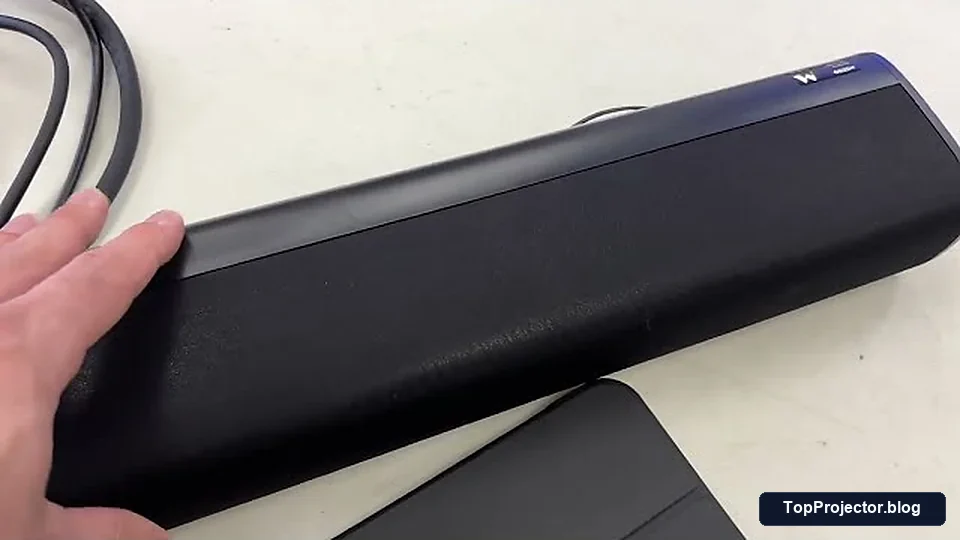
Getting sound to your speaker is only the first step toward cinematic audio immersion. Fine-tuning equalizer profiles unlocks the true acoustic potential of your setup.
Disable any artificial surround sound processing modes on portable Bluetooth speakers. Stereo mode provides cleaner dialogue clarity and balanced frequency response.
Adjust bass and treble levels to match the acoustic environment of your viewing room. Hard surface floors often require slight bass reductions to prevent muddy sound.
Regularly check firmware updates for both your projector and wireless speaker. Manufacturers frequently release software patches that improve Bluetooth stability and audio codecs.
- Turn off exaggerated digital sound processing on portable speakers.
- Balance equalizer settings for clear dialogue reproduction.
- Account for room acoustics when tuning bass and treble output.
- Install available firmware updates to enhance wireless stability.
Configuring Equalizer and Sound Modes
Select movie or cinema sound presets rather than music or gaming modes. Cinema profiles prioritize vocal frequency clarity over booming bass enhancement.
Fine-tune individual frequency bands if your speaker companion app permits custom profiling. This custom touch elevates home theater dialog intelligibility.
- Use cinema sound presets for enhanced movie dialogue clarity.
- Avoid aggressive music bass boosts during dramatic film scenes.
Managing Volume Levels Across Devices
Set your source device volume to roughly eighty percent before adjusting speakers. This prevents digital clipping and audio distortion during loud action sequences.
Control final listening volume directly on your Bluetooth speaker hardware. Maintaining proper gain staging protects your speaker drivers from damage.
- Keep source volume around eighty percent to prevent clipping.
- Use the speaker volume controls for final output adjustment.
Troubleshooting Connection Drops and Interference Bottlenecks
Wireless audio dropouts ruin immersive home theater sessions unexpectedly. Identifying common interference sources helps maintain a rock-solid listening environment.
Bluetooth and Wi-Fi networks share the same 2.4 gigahertz radio frequency band. Heavy network traffic can disrupt your wireless speaker connection during streaming.
Relocate your wireless speaker closer to the projector to strengthen signal reception. Eliminating physical obstacles like furniture improves transmission reliability instantly.
Reset both devices completely if persistent pairing failures occur during startup. Clearing device memory caches often resolves stubborn handshake errors permanently.
- Move wireless speakers closer to eliminate signal dropouts.
- Switch home Wi-Fi routers to the 5 gigahertz frequency band.
- Clear device memory and repeat the initial pairing sequence.
- Keep Bluetooth transmitters away from heavy electrical appliances.
Resolving Frequency Interference Conflicts
Crowded wireless airwaves cause audio stuttering and sudden connection drops. Transitioning your home network to 5 gigahertz relieves local spectrum congestion.
Keep Bluetooth speakers away from active microwave ovens and cordless phones. These household electronics emit strong interference across similar radio frequencies.
- Migrate Wi-Fi traffic to 5GHz bands to free up airwaves.
- Keep wireless audio gear away from household appliances.
Performing Hard Resets on Audio Gear
Power down your projector and speaker, then unplug them for one minute. This complete power cycle clears temporary memory buffers and stuck processes.
Forget existing Bluetooth pairings on both devices before starting fresh. Reconnecting from scratch frequently resolves stubborn synchronization bugs.
- Unplug both devices for sixty seconds to clear memory.
- Delete old pairing profiles before setting up new connections.
Frequently Asked Questions
Can all projectors connect to Bluetooth speakers directly?
No, many projectors feature inward Bluetooth receivers meant only for music streaming from phones. Always check specifications for outward audio transmission capability before purchasing.
Why is the audio out of sync with the video on screen?
Wireless audio compression inherently introduces fractional processing latency. Use projector audio delay settings or low-latency codecs to align dialogue perfectly.
What should I do if my projector lacks built-in Bluetooth?
Purchase an external Bluetooth audio transmitter dongle and plug it into the audio-out port. This adapter broadcasts wireless sound to your speaker easily.
How can I prevent Bluetooth audio dropouts during movies?
Keep your speaker within ten feet of the projector with a clear line of sight. Moving home network routers to the 5GHz band also helps.
Is it better to connect the speaker to the projector or source?
Connecting your speaker directly to the media streaming source often bypasses projector latency. This direct routing ensures superior lip-sync accuracy.