How to Connect Xgimi to Bluetooth Speaker?
Unlock superior home theater sound by seamlessly pairing your XGIMI projector with external Bluetooth speakers for an immersive cinematic experience.
Always access the system settings menu directly through your XGIMI interface to initiate Bluetooth pairing mode and eliminate frustrating audio latency delays during movie playback.
Ready to compare verified models? Start with our Best Speakers For Projector: Top Picks for Clear Movie Audio.
Practical Quick-Reference Table
| Scenario / Metric | Recommended Target | Why It Matters |
|---|---|---|
| Bluetooth Version | Bluetooth 5.0 or higher | Ensures lower latency and stable audio range. |
| Audio Codec | aptX Low Latency or AAC | Prevents noticeable lip-sync errors during movies. |
| Projector Distance | Under 10 feet from speaker | Minimizes wireless interference and packet drop. |
| Fan Noise Threshold | Below 30 dB in Eco Mode | Keeps ambient projector hum from masking audio. |
| Wired Fallback | 3.5mm AUX or HDMI ARC | Provides a reliable zero-latency backup connection. |
| Firmware Status | Latest available OTA update | Patches known Bluetooth dropouts and bugs. |
Evaluating XGIMI Audio Output Infrastructure
Modern XGIMI smart projectors integrate advanced wireless communication modules running tailored versions of Android TV. Understanding your specific firmware version ensures seamless connectivity with external wireless speakers.
Most high-end models like the Horizon and Elfin series natively support wireless audio output protocols. Before mounting your hardware, use our throw distance calculator to achieve exact placement geometry.
Wireless audio transmission relies heavily on stable radio frequency signals operating around the standard two gigahertz spectrum. Minimizing physical obstructions between devices directly improves overall acoustic reliability.
- Verify your projector model supports native Bluetooth transmission rather than input-only reception.
- Check that your external speaker is not currently paired to another active smartphone or tablet.
- Keep the wireless speaker within direct line of sight during the initial pairing process.
- Inspect system sound settings to confirm the internal speakers are ready to switch outputs.
Distinguishing Audio Input Versus Output Modes
Many users mistakenly assume all smart projectors can transmit audio wirelessly straight out of the box. Ensuring your device supports audio output mode is critical for success.
Some older or entry-level smart displays only accept Bluetooth audio from phones. Always check the official manufacturer manual to confirm true dual-directional or transmission capability.
- Look for remote audio sink configurations within the main settings panel.
- Avoid confusing phone-to-projector music streaming features with actual projector-to-speaker routing.
Navigating Android TV and Horizon OS Pairings
Accessing system menus on your XGIMI projector is essential when choosing a high lumen display or upgrading from our best 4k projector for daylight viewing options. Navigate directly to the gear icon to configure your settings.
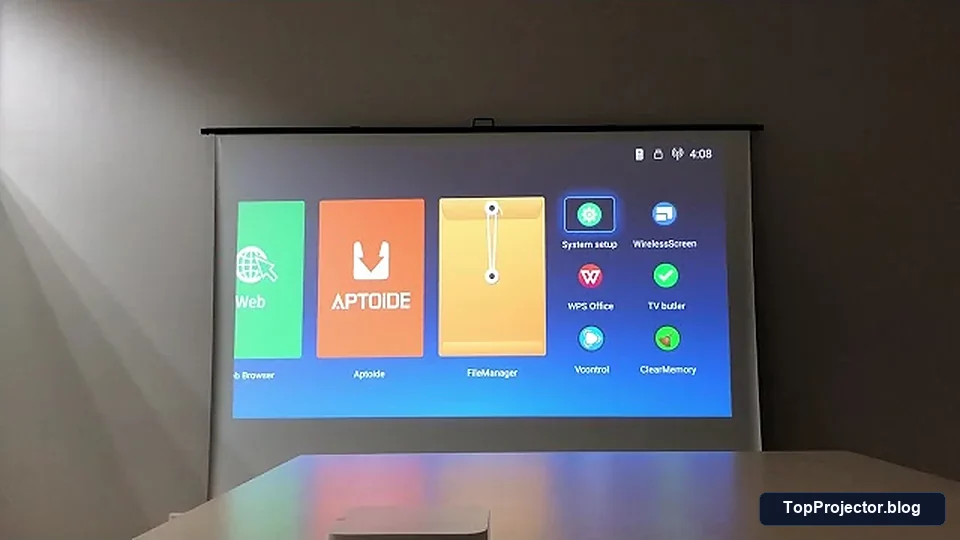
Scroll down until you locate the remote and accessories tab within the main display menu. This dedicated submenu manages all external wireless peripherals including game controllers and speakers.
Put your target Bluetooth speaker into active pairing mode by holding its dedicated sync button. Look for blinking indicator lights confirming the speaker is actively broadcasting its signal.
Select add accessory on your projector interface and wait for the system to scan nearby devices. Once your speaker name appears on screen, click it to finalize the connection.
- Power on your Bluetooth speaker and ensure the battery level is sufficiently charged.
- Press and hold the Bluetooth button until the status LED flashes rapidly.
- Select the correct device name from the scanned list on your projection screen.
- Accept any pairing confirmation prompts that appear on the user interface.
Completing the Handshake Protocol Successfully
The initial Bluetooth handshake can occasionally time out due to localized radio interference. Restarting both devices often clears temporary cache memory glitches instantly.
Ensure no other Bluetooth enabled electronics are nearby causing unwanted signal congestion during pairing. Patience during this initial discovery phase prevents endless reconnection loops.
- Power cycle both the projector and the external speaker.
- Disable Bluetooth on nearby smartphones to clear channel congestion.
Video Walkthrough: How to Connect Bluetooth Speakers and Earphones
Overcoming Input Lag and Audio Desynchronization
Wireless audio transmission inherently introduces slight processing delays known commonly as audio latency. Compensating for this lag requires adjusting the internal delay settings inside your media player.
Lip-sync issues occur when visual frames render faster than compressed Bluetooth audio packets arrive. Fine-tuning these milliseconds ensures dialogue matches mouth movements perfectly during critical scenes.
Many advanced streaming apps feature built-in audio offset sliders to correct timing mismatches. Experimenting with these values during dialogue-heavy sequences resolves synchronization discrepancies quickly.
Using speakers that support low-latency codecs significantly reduces the burden on your projector's processor. Follow our guide on XGIMI laptop connections for optimal display mapping.
- Test synchronization using a standard dialogue test clip on YouTube.
- Adjust millisecond delay sliders incrementally until audio matches visual cues.
- Avoid using low-tier wireless adapters that lack optimized audio processing chips.
- Keep streaming app caches cleared to prevent compounding processing delays.
Calibrating Millisecond Offsets Manually
Manual audio calibration demands careful observation of clapping test videos or sharp visual impacts. Adjusting offsets by twenty millisecond increments yields precise results.
Take your time testing various cinematic sequences to ensure synchronization holds across different apps. Different streaming platforms sometimes handle audio codecs slightly differently.
- Look for clapperboard test clips in high definition.
- Save your customized offset profile if the operating system permits.
Implementing Hardwired Audio Alternatives When Bluetooth Fails
Wireless connections can occasionally fail due to environmental interference or hardware incompatibilities. Utilizing a stable physical cable guarantees uninterrupted sound delivery for your home cinema.
Most XGIMI projectors feature a standard three point five millimeter audio jack for analog line-out connections. Plugging an auxiliary cable directly into powered speakers bypasses wireless issues completely.
Consider using HDMI audio extractors if your speaker setup relies entirely on optical inputs. These handy adapters strip audio signals straight from the video stream with zero latency.
Physical cabling eliminates interference entirely, making it the preferred choice for permanent home theater setups. Reliability trumps wireless convenience when mounting equipment securely to ceilings.
- Inspect the back panel of your projector for available analog audio ports.
- Use shielded auxiliary cables to prevent electrical hum and ground loop noise.
- Ensure volume levels on intermediate hardware are balanced correctly before playback.
- Test the physical connection with a secondary audio source to rule out cable faults.
Utilizing Optical and HDMI ARC Workarounds
Advanced setups often require digital audio routing rather than simple analog connections. Leveraging HDMI ARC ports delivers uncompressed multichannel sound effortlessly.
Check if your specific XGIMI model features audio return channel support before purchasing extra adapters. Proper port selection maximizes your surround sound speaker capabilities.
- Connect high-speed HDMI cables to designated ARC enabled ports.
- Configure digital output settings within the projector audio menu.
Video Walkthrough: How to enter Bluetooth Spearker Mode--#XGIMIPortableProjector#MoGoSeries\u0026Halo
Maximizing Acoustic Placement and Projector Fan Noise
Projector placement plays a massive role in overall home theater audio perception and clarity. Placing your Bluetooth speaker too close to the unit exposes it to intrusive fan noise.
Positioning wireless speakers closer to the projection screen creates a natural directional soundstage. You can also consult our Nebula Capsule 3 review for portable audio tips and compact brightness metrics.
Avoid placing speakers inside enclosed TV cabinets that muffle high frequencies and muddy bass response. Open acoustic environments allow sound waves to disperse evenly across your room.
Experiment with speaker elevation using dedicated stands to lift tweeters to ear level. Proper vertical alignment drastically improves speech intelligibility during quiet cinematic conversations.
- Keep wireless speakers at least three feet away from the projector body.
- Elevate bookshelf speakers using foam pads to reduce unwanted surface vibrations.
- Ensure acoustic paths between the listener and speakers remain entirely unobstructed.
- Balance channel output levels if utilizing a multi-speaker wireless array.
Managing Thermal Fan Hum Interference
High lumen output generates significant internal heat requiring aggressive cooling fan speeds. Operating in Eco Mode reduces fan noise significantly for quieter listening.
Strategic speaker placement drowns out residual mechanical hum without requiring deafening master volumes. Balance your projector lamp settings with comfortable listening thresholds.
- Switch to quieter projection modes during dramatic movie scenes.
- Clean dust filters regularly to prevent fans from spinning at maximum RPM.
Troubleshooting Advanced Pairing Failures and Codecs
Persistent connection drops usually stem from outdated Bluetooth firmware or incompatible audio codecs. Ensuring both devices share a common codec baseline prevents sudden disconnections.
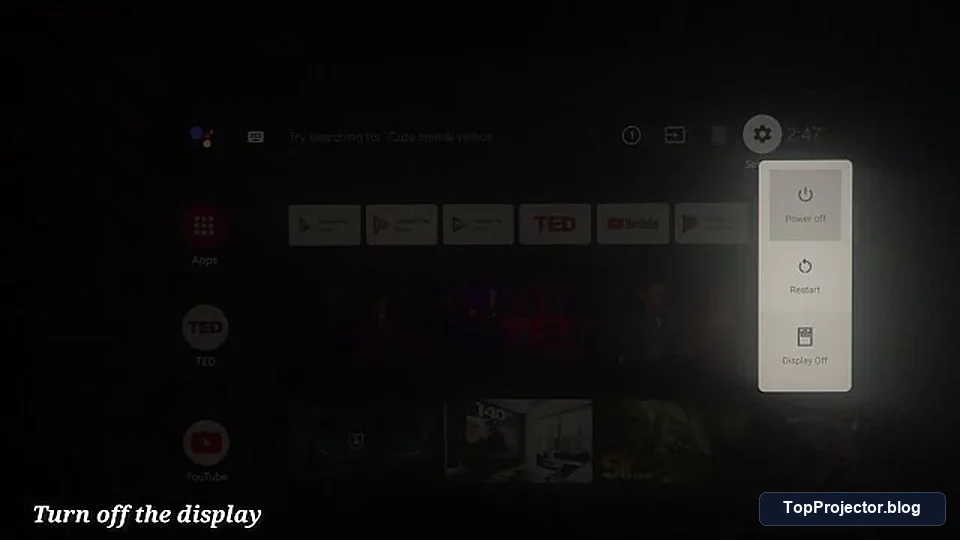
Perform a factory reset on your Bluetooth speaker if it refuses to recognize the projector. Clearing saved device histories resolves stubborn handshaking errors in most consumer electronics.
Check for wireless interference from neighboring Wi-Fi routers operating on similar frequencies. Shifting your home network to less congested channels clears up erratic audio dropouts.
Consult official XGIMI support forums for model-specific patch notes and known software workarounds. Community troubleshooting often provides rapid solutions for rare hardware quirks.
- Forget the paired device profile on both the projector and speaker.
- Toggle Bluetooth off and on within the system menu to reset the radio.
- Move wireless routers further away from your main home theater seating area.
- Test connecting a different Bluetooth headset to isolate the faulty hardware component.
Clearing Corrupted System Cache Files
Cached temporary files within the Android TV operating system can corrupt Bluetooth daemons over time. Clearing these system cache files restores normal wireless functionality.
Navigate to storage settings and clear application caches associated with system sound services. A subsequent system reboot finalizes the internal software refresh cleanly.
- Access storage settings through the main Android TV dashboard.
- Select system apps and clear cached data safely.
Performing Firmware Maintenance for Signal Stability
Manufacturers frequently release over-the-air firmware updates addressing known Bluetooth stability vulnerabilities. Keeping your XGIMI projector updated ensures optimal wireless performance over time.
Check for pending software updates regularly within the system upgrade menu panel. Stable operating system builds prevent unexpected audio dropouts during long movie marathons.
Ensure your internet connection remains stable during large firmware downloads to prevent file corruption. Interrupted updates can cause severe operating system software malfunctions.
Reboot your projector immediately following a successful firmware installation to apply new audio drivers. Proper system initialization guarantees seamless peripheral integration moving forward.
- Navigate to system info and select check for updates manually.
- Connect your projector to a stable Wi-Fi network before downloading files.
- Never unplug the power cable while a firmware installation is underway.
- Verify Bluetooth functionality immediately after completing the system restart.
Validating Patch Notes Before Upgrading
Reviewing official firmware changelogs helps identify specific audio stability improvements included in the patch. Knowing what changed helps you verify new features quickly.
Exercise caution with beta system software releases unless troubleshooting a specific documented bug. Stable production builds offer the best reliability for daily entertainment.
- Read release notes posted on official manufacturer support portals.
- Stick to official production firmware for guaranteed system stability.
Frequently Asked Questions
Why won't my XGIMI projector detect my Bluetooth speaker?
Your speaker might still be connected to another nearby active phone or tablet device. Ensure you disable competing connections and put the speaker into active pairing mode before scanning.
How do I fix audio delay when watching movies wirelessly?
Audio lag is a common Bluetooth limitation caused by wireless data compression processing times. Adjust the millisecond audio offset slider within your streaming app or projector settings menu.
Can I connect multiple Bluetooth speakers simultaneously to an XGIMI projector?
Most XGIMI models support a single active Bluetooth audio output connection at any given time. Trying to stream to multiple wireless speakers simultaneously causes severe latency and dropouts.
What should I do if my Bluetooth audio keeps stuttering during playback?
Stuttering usually indicates physical interference or weak signal strength between devices. Move your Bluetooth speaker closer to the projector and clear away surrounding wireless obstructions.
Are there wired alternatives if Bluetooth pairing fails completely?
Yes, you can utilize the physical three point five millimeter auxiliary headphone jack. This wired fallback guarantees zero-latency audio transmission without wireless interference issues.