How to Connect Multiple Projectors to One Laptop?
Connecting multiple projectors to a single laptop requires specialized hardware splitters and careful GPU bandwidth management. Proper configuration ensures seamless panoramic projection without frame tearing or color shifts.
Always utilize a dedicated powered HDMI splitter or multi-stream transport hub rather than passive adapters. This guarantees stable EDID handshakes and prevents signal degradation across long cable runs.
Ready to compare verified models? Start with our Best Laptop Projector For Movies: Top Cinematic Picks.
Practical Quick-Reference Table
| Scenario / Metric | Recommended Target | Why It Matters |
|---|---|---|
| Interface Type | Thunderbolt 4 / USB4 | Provides high bandwidth for multiple high-resolution video streams. |
| Splitter Hardware | Active Powered Distribution Hub | Prevents signal attenuation over long cable runs to projectors. |
| GPU Load | Dedicated Mobile Workstation GPU | Handles multi-display rendering without triggering thermal throttling. |
| Refresh Rate | 60Hz Synchronized | Eliminates visual stutter and frame mismatches across screens. |
| Throw Distance | Matched Focal Lengths | Ensures uniform image geometry and scaling across surfaces. |
| Color Calibration | Hardware Spectrophotometer | Matches white points and ANSI lumens output across units. |
Understanding Multi-Projector Hardware Architecture
Driving multiple projection units from one mobile workstation demands a deep understanding of graphics processing unit capabilities. Most modern laptop GPUs support external display arrays through DisplayPort Alt Mode or high-speed docking stations.
When expanding your desktop across multiple screens, graphics hardware must render distinct video feeds. Consult our guide on the best resolution for outdoor projector choices to prevent severe frame drops.
Signal distribution methods vary depending on whether you require cloned video feeds or an expansive desktop workspace. Matrix switchers and active hubs provide the necessary TMDS bandwidth required for uncompressed video distribution.
- Verify GPU display output limits before connecting hardware.
- Ensure discrete graphics are prioritized over integrated chipsets.
- Calculate total pixel clock requirements for multi-display setups.
- Monitor GPU thermal output during extended rendering sessions.
Evaluating Laptop GPU Display Limits
Laptop graphics processors feature strict physical limitations regarding the number of active external displays they can drive. Integrated graphics processors often struggle when rendering multiple uncompressed video streams at native resolutions.
Using a discrete mobile GPU ensures your system maintains consistent frame rates without forcing aggressive downscaling. Always check manufacturer specifications for maximum supported external resolution thresholds.
- Check discrete GPU multi-monitor specifications.
- Avoid exceeding maximum pixel clock limitations.
Essential Physical Interfaces and Video Distribution Hardware
Selecting the correct physical cabling and distribution hardware dictates the overall stability of your multi-projector configuration. Inferior cables introduce high attenuation rates that corrupt digital packets over extended physical distances.
Active fiber optic HDMI cables represent the gold standard for long-run connections exceeding ten meters. These specialized cables maintain full bandwidth integrity without requiring external signal boosters or repeaters.
Power distribution across multiple display endpoints requires careful management to prevent ground loop interference. Isolated power conditioners protect sensitive projection electronics from electrical noise and voltage fluctuations.
- Deploy active fiber optic HDMI cables for long runs.
- Incorporate power conditioners to eliminate ground loops.
- Verify HDCP compliance across all distribution hardware.
- Secure connection points with locking cable fasteners.
USB-C and Thunderbolt Hub Architecture
Thunderbolt 3 and USB4 ports offer exceptional data transfer speeds capable of driving multiple high-refresh video outputs. Utilizing a multi-port dock equipped with dual HDMI outputs bypasses single-port limitations on standard laptops.
Ensure your docking station supports DisplayPort Multi-Stream Transport if you plan to daisy-chain your projection equipment. Without MST support, your operating system will only mirror the primary display instead of extending it.
- Prioritize Thunderbolt 4 docks with multiple video outputs.
- Confirm MST support for extended desktop configurations.
Powered HDMI and DisplayPort Splitters
Passive splitters invariably fail when attempting to drive long cable runs to separate projection devices. A robust powered distribution amplifier regenerates the digital video signal to maintain signal integrity over extended distances.
Always verify that your hardware splitters support HDCP 2.2 protocols to prevent compatibility conflicts with protected media sources. Inadequate hardware often results in blank screens or unstable EDID communication loops.
- Use active powered splitters instead of passive adapters.
- Ensure strict HDCP 2.2 protocol compatibility.
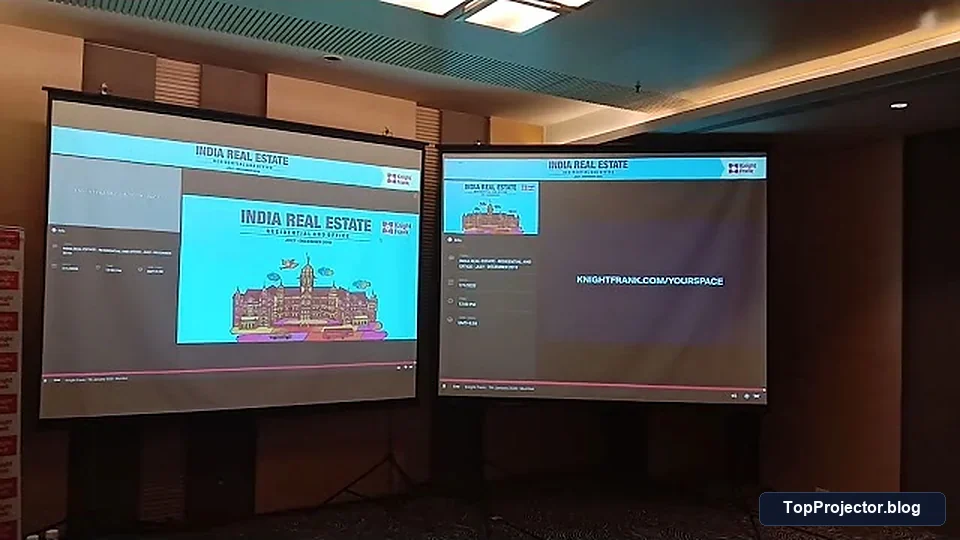
Video Walkthrough: One Laptop, Two Projectors (same image) (3 Solutions!!)
Configuring Operating System Display Settings
Operating system display management tools dictate how your laptop maps video outputs. Use our screen size and viewing distance calculator alongside proper display arrangement for intuitive mouse navigation across screens.
Windows and macOS handle multi-display scaling differently, requiring manual intervention to match text sizes across dissimilar throw setups. Setting a unified refresh rate of sixty hertz prevents stuttering during motion scenes.
Virtual desktop software allows advanced users to merge multiple physical projectors into a single ultra-wide canvas. This technique simplifies application window management during complex live presentation environments.
- Align physical display icons precisely within OS settings.
- Lock refresh rates to a uniform sixty hertz target.
- Disable automatic display scaling to maintain sharp text.
- Test cursor movement across all screen boundaries.
Advanced Windows Display Arrangements
Windows provides robust multi-monitor configuration tools accessible through standard advanced display settings menus. Users can freely rearrange display thumbnails to match the physical placement of each projector in the room.
Enabling hardware acceleration within display properties reduces CPU overhead during complex video playback sequences. Maintaining clean EDID profiles prevents Windows from resetting display arrangements after reboots.
- Use advanced display properties for precise arrangement.
- Save custom display layouts to prevent reset issues.
Achieving Precise Geometric Alignment and Edge Blending
Multi-projector installations projecting onto a single surface require meticulous physical alignment and digital geometry correction. Misaligned lenses create distracting double-vision artifacts and uneven brightness zones across the viewing area.
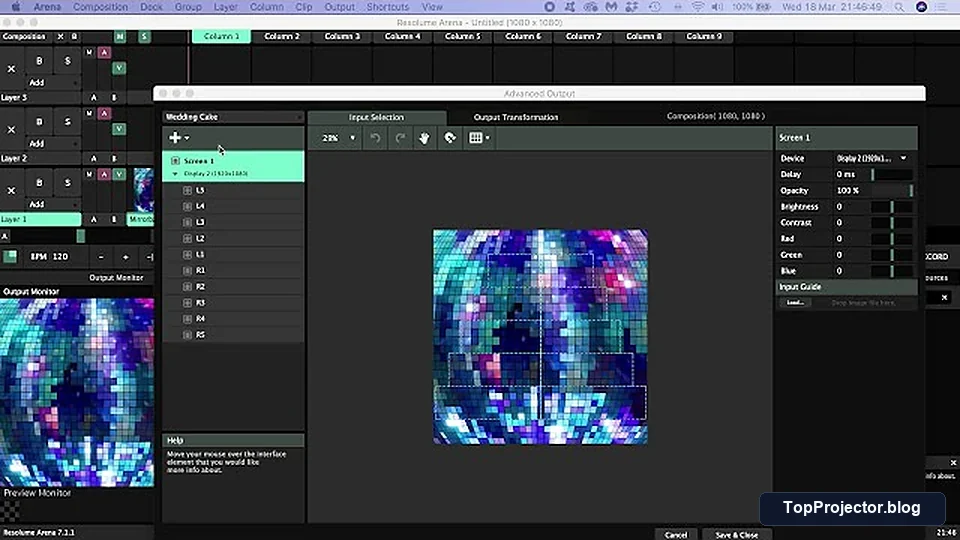
Utilize built-in projector warp controls or external image processors to correct keystone distortion and lens shift inaccuracies. Professional edge blending software smooths the overlapping luminescence zones between adjacent projection fields.
Maintaining consistent throw ratios across all deployed projectors ensures uniform image scaling and sharp focus characteristics. Even minor variations in projection distance will disrupt geometric continuity across your canvas.
- Deploy hardware lens shift before utilizing digital keystone.
- Calibrate overlapping zones using professional edge blending tools.
- Maintain identical throw ratios across all projection units.
- Secure projector mounts to prevent vibration-induced drift.
Keystone and Lens Shift Calibration
Digital keystone correction degrades native pixel resolution by resampling the incoming video frame digitally. Whenever possible, rely on optical lens shift mechanisms to adjust image position without sacrificing fidelity.
Precise physical positioning minimizes the need for aggressive digital warping algorithms that introduce artifacting. Always project test grids to verify edge-to-edge focus uniformity across every connected device.
- Prioritize optical lens shift over digital keystone.
- Project test grids to verify edge-to-edge focus.
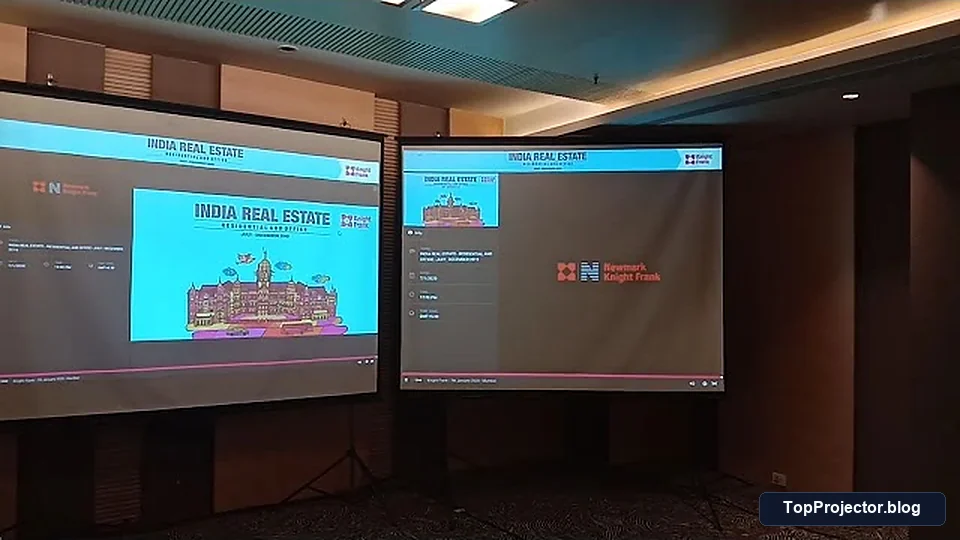
Video Walkthrough: Two Projectors connected with one laptop on Rent at Hitachcity
Overcoming Latency Bandwidth and Resolution Bottlenecks
Pushing multiple high-definition video streams through a single laptop interface creates significant data bottlenecks. Network-based video distribution systems often suffer from noticeable input lag that disrupts interactive presentation workflows.
Direct hardware routing via dedicated physical ports eliminates compression artifacts and reduces input latency significantly. Monitoring your system's bandwidth utilization helps prevent dropped frames during high-motion playback.
Optimizing video container formats and reducing color subsampling can alleviate heavy graphics processing workloads. Lowering chroma subsampling from four-four-four to four-two-two preserves bandwidth without noticeable visual loss.
- Prioritize direct physical connections over wireless streaming.
- Monitor system bandwidth utilization during active playback.
- Adjust chroma subsampling to conserve interface data rates.
- Test end-to-end input latency before live deployment.
Advanced Calibration for Color and Brightness Matching
No two projectors exhibit identical color reproduction or light output straight out of the manufacturing box. Achieving visual harmony across multiple units requires thorough calibration using a spectrophotometer and color profiling software.
Matching ANSI lumens output prevents noticeable brightness disparities between adjacent projection screens. For an extreme upgrade, read our Hisense PX3 Pro review to see how triple-laser engines normalize luminance values.
Custom color profiles ensure white points and gamma curves match seamlessly across all active display devices. This meticulous process eliminates distracting color shifts when objects move between projection zones.
- Use a calibrated spectrophotometer for accurate color profiling.
- Normalize brightness output by adjusting laser or lamp power.
- Match white points across all connected projection units.
- Verify gamma curves for smooth tonal transitions.
Troubleshooting Common Synchronization and Handshake Failures
Signal handshake failures frequently disrupt multi-projector setups when connecting legacy hardware. Review bridging generations: how to connect an old projector to a modern laptop to prevent frustrating resolution drops.
Implementing hardware EDID emulators forces your laptop to maintain a stable, persistent display profile. This simple solution prevents operating systems from resetting display arrays when power states change.
Systematic troubleshooting involves isolating each cable, splitter, and projector individually to locate faulty components. Maintaining spare certified cables ensures rapid recovery during unexpected technical failures on site.
- Deploy EDID emulators to prevent display dropouts.
- Isolate individual components during handshake failures.
- Keep certified spare cables readily available on site.
- Update laptop graphics drivers to the latest stable release.
Frequently Asked Questions
Can a standard laptop connect to three projectors simultaneously?
Yes, provided your laptop features sufficient GPU performance and multiple video outputs. Utilizing a Thunderbolt dock or active multi-stream transport hub easily expands your connection capabilities.
Why do my connected projectors show duplicate screens instead of an extended desktop?
This occurs when your operating system defaults to screen mirroring mode or your hardware lacks MST support. Access your display settings to change the multi-monitor mode from duplicate to extend these displays.
How can I prevent input lag when running multiple displays from one laptop?
Avoid wireless video transmitters and heavy USB displaylink adapters that introduce processing delay. Direct physical connections using high-speed HDMI or DisplayPort cables ensure minimal input latency.
What causes color mismatches between two identical projector models?
Lamp aging, varying thermal conditions, and individual optical tolerances cause subtle color drift over time. Performing a hardware calibration using a spectrophotometer restores uniform color accuracy across both units.
Do I need active splitters or can I use passive adapters?
Passive splitters only work for short distances and simple mirroring applications without degradation. Active powered distribution amplifiers are essential for maintaining stable signal integrity across extended multi-projector runs.