How To Connect Laptop To Projector Without Cable
Cutting the cord from your laptop requires stable Wi-Fi bandwidth and compatible projection protocols. Eliminate clutter for smoother, cleaner presentations.
Connect your laptop to a projector wirelessly using Miracast, AirPlay, or dedicated hardware dongles. Ensure both devices share the same network to minimize latency and dropped frames.
Ready to compare verified models? Start with our Best Laptop Projector For Movies: Top Cinematic Picks.
Practical Quick-Reference Table
| Scenario / Metric | Recommended Target | Why It Matters |
|---|---|---|
| Windows Laptop | Miracast / Wi-Fi Direct | Provides native, low-latency screen mirroring without third-party apps. |
| MacBook Pro / Air | AirPlay Protocol | Ensures seamless display extension across Apple ecosystem displays. |
| Network Bandwidth | 5 GHz Wi-Fi Band | Reduces interference and prevents stuttering during high-definition video. |
| Hardware Dongles | HDMI Wireless Kits | Bypasses network dependency for rock-solid point-to-point connections. |
| Input Latency | Under 50 Milliseconds | Maintains responsive cursor movement for presentations and casual use. |
| Resolution Target | Native 1080p or 4K | Preserves fine text legibility and prevents image scaling artifacts. |
Understanding Wireless Projection Protocols and Network Bandwidth
Dropping physical video cables demands a thorough grasp of wireless transmission protocols. Modern corporate spaces and home theaters increasingly rely on robust Wi-Fi networks instead of traditional copper wiring.
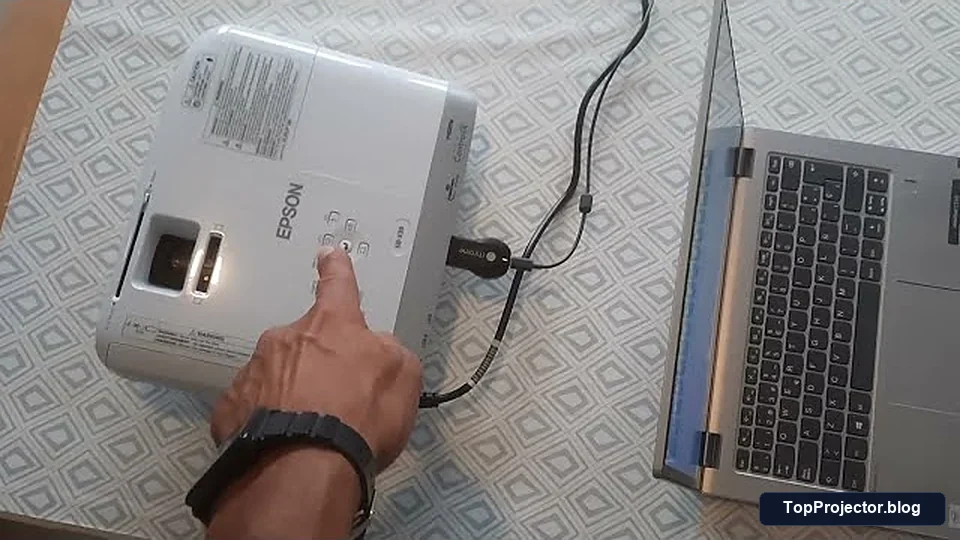
Native operating system mirroring protocols bypass cumbersome third-party software. Windows utilizes Miracast technology, while Apple devices depend on proprietary AirPlay architecture for seamless high-definition display extension.
Bandwidth bottlenecks frequently degrade video quality during wireless transmission. A stable 5 GHz network prevents stuttering, ensuring high refresh rates and crisp 1080p or 4K presentation graphics.
Wireless projection relies heavily on Wi-Fi 6 standards and robust local bandwidth. A stable 5GHz band is mandatory to prevent stuttering during high-definition video playback or intensive presentations.
- Check 5 GHz router proximity to avoid radio interference.
- Verify native OS wireless display support before starting.
- Minimize physical obstructions between laptop and projector.
- Disable heavy background downloads to preserve network bandwidth.
- Network congestion from neighboring routers operating on overlapping channels will severely degrade your wireless projection stability and introduce noticeable frame drops during critical business slideshows.
Network Infrastructure Requirements
Your wireless router acts as the vital bridge between devices. When optimizing space, consider our best projector for small screen picks to avoid isolated guest networks blocking handshakes.
Ensure both your laptop and projector connect to the same frequency band. Cross-band communication introduces unnecessary latency and connection instability.
- Disable AP isolation on your router settings.
- Keep distance under thirty feet for optimal signal.
Bandwidth Allocation Strategies
When streaming uncompressed 4K content, network congestion can ruin your presentation. Always isolate your projector and laptop on a dedicated 80-MHz channel to maximize data throughput.
- Disable background cloud syncing applications on your operating system to preserve at least 50Mbps of continuous network throughput for your active wireless display connection.
- Configure your advanced wireless router Quality of Service rules to carefully favor real-time video streaming data packets over heavy background file download internet traffic.
Miracast and Windows Wireless Display Setup
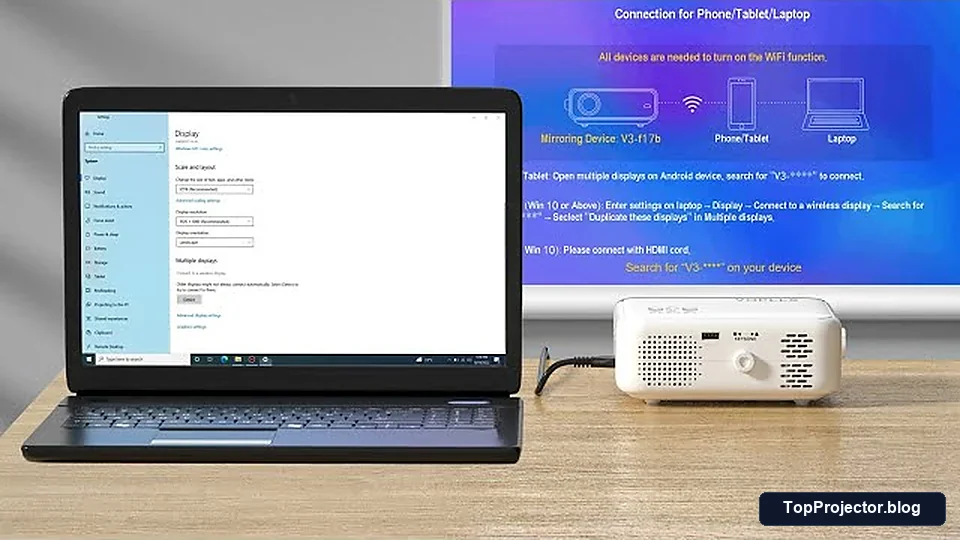
Windows laptops natively support wireless projection via the Miracast standard. For a hardware upgrade, read our Epson 2350 review detailing smart 4K 3LCD performance and seamless casting.
Select your compatible smart projector from the discovered device list. Ensure the projector is set to its wireless receiver mode before initiating the handshake.
Older Windows laptops may lack integrated Wi-Fi Direct hardware. Purchasing a dedicated USB Miracast receiver bridges this hardware gap without requiring expensive system upgrades.
Windows users must verify that their hardware supports Miracast over Wi-Fi Direct. Open your diagnostic tool and confirm that the driver supports graphics kernel model requirements.
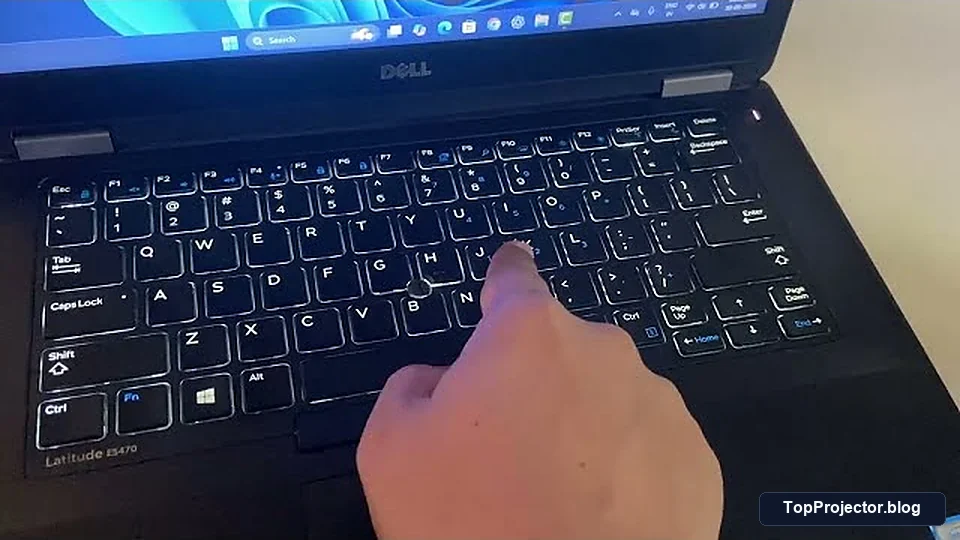
- Press Windows Key plus K to open quick connect.
- Ensure Wi-Fi and Bluetooth remain enabled during pairing.
- Update graphics drivers to prevent display handshake errors.
- Select duplicate or extend mode within display settings.
- Outdated network interface card drivers frequently block seamless discovery of compatible wireless display receivers inside enterprise office environments or increasingly crowded residential home networks.
Addressing Driver and Adapter Limitations
Outdated network adapter drivers frequently cause handshake timeouts between laptops and modern projectors. Updating your system firmware resolves most persistent connection failures.
Dedicated external USB Wi-Fi adapters can supplement older machines lacking native Miracast compatibility for seamless classroom and boardroom presentations.
- Download latest Intel or Realtek wireless drivers.
- Verify Wi-Fi Direct capability in device manager.
Advanced Miracast Troubleshooting
If your projector fails to appear in the casting menu, restart the Wireless Display optional feature via the Windows control panel and check firewall permissions.
- Ensure your corporate VPN software is temporarily disabled because strict security tunnels routinely block local subnet broadcasting required for successful direct wireless display pairing.
- Always verify that your system firewall rules do not restrict incoming connections from external unknown devices trying to communicate over standard multicast network ports.
Video Walkthrough: Wirelessly Connect \u0026 Mirror Laptop on Projector Without Using on Same WiFi Network
Apple AirPlay Integration for macOS Laptops
Apple laptops streamline wireless projection through built-in AirPlay protocols. Before projecting, use our ANSI lumens room calculator to match screen brightness with your ambient lighting conditions.
Select your AirPlay-enabled projector or connected Apple TV device. Enter the secure onscreen passcode when prompted to establish a stable encrypted video link.
Traditional projectors lack native AirPlay receiver capabilities out of the box. Connecting an Apple TV box or AirPlay-compatible streaming stick resolves this limitation instantly.
Apple AirPlay requires both your MacBook and smart projector to connect onto the exact same Wi-Fi network. Bluetooth must remain active to facilitate initial device handshakes.
- Open Control Center from the top menu bar.
- Click Screen Mirroring and select target device.
- Input the four-digit security PIN when requested.
- Choose whether to mirror or extend your desktop.
- Legacy older macOS hardware lacking native hardware acceleration for video encoding will experience significantly elevated CPU temperatures when casting extended desktop workspace displays wirelessly.
Troubleshooting AirPlay Discovery Issues
Network security settings occasionally block peer-to-peer AirPlay discovery requests. Verify that your router permits local device communication across separate wireless subnets.
Restarting the macOS firewall or toggling Wi-Fi off and on clears stuck bonjour service caches affecting projector visibility.
- Ensure firewall allows incoming local connections.
- Verify devices share identical local IP subnets.
Optimizing AirPlay Resolution and Scaling
Navigate to your display preferences to adjust the native refresh rate, ensuring smooth motion reproduction matching the 60Hz capability of modern home theater projectors.
- Switching from desktop mirroring to a separate extended display workspace effectively prevents awkward letterboxing issues on ultra-wide projection screens during critical movie playback sessions.
- Always check that your audio output device is correctly mapped to the projection receiver rather than built-in laptop speakers before starting important conference presentations.
Hardware Dongles and External Transmitters
Hardware-based wireless HDMI kits bypass network dependency entirely. These transmitter and receiver pairs establish a point-to-point connection operating on the 5 GHz band.
Plug the transmitter dongle directly into your laptop port. For alternative setups, read our connection guide ensuring uncompressed video with minimal input lag.
Affordable Miracast and Google Cast dongles plug directly into projector HDMI ports. Power them via USB and mirror your laptop browser or desktop instantly.
Zero-latency hardware transmitters bypass operating system networking overhead by utilizing dedicated 5GHz radio frequencies packaged inside proprietary HDMI dongles plugged directly into source laptops.
- No Wi-Fi network password required for direct kits.
- Plug transmitter into laptop HDMI and USB power.
- Connect receiver to projector HDMI input port.
- Pair devices using dedicated hardware sync buttons.
- Uncompressed zero-latency HDMI wireless kits eliminate software installation hurdles but require an independent USB power source supplying at least 5 volts of electrical current.
Evaluating Transmitter Bandwidth Specs
Check the maximum supported resolution before purchasing external dongle hardware. Premium models handle 4K video streaming without compressing delicate color gradients.
Ensure your laptop USB port supplies sufficient power to drive high-output wireless HDMI transmitters without causing random system reboots.
- Look for zero-latency 60Hz transmission specs.
- Verify power draw requirements for dongle units.
Selecting Enterprise Wireless HDMI Kits
Look for transmitter kits supporting a reliable 30-meter line-of-sight transmission range without experiencing signal attenuation through standard interior drywall partitions in residential living rooms.
- Avoid very cheap analog RF transmitters that frequently introduce severe color banding and noticeable audio sync drift during high-motion cinematic action video sequence playback.
- Ensure carefully that your chosen wireless hardware transmitter supports pass-through charging so your laptop battery does not drain rapidly during lengthy movie viewing sessions.
Managing Input Lag and Latency Over Wi-Fi
Wireless video transmission introduces inherent input lag compared to copper cables. Fast-paced gaming suffers significantly, while static spreadsheets remain entirely unaffected by minor delays.
Game mode settings on modern projectors reduce internal image processing overhead. Enabling this feature trims valuable milliseconds from your total glass-to-glass latency.
Network congestion drastically spikes frame drop rates during video playback. Prioritize your laptop traffic using Quality of Service settings within your home router dashboard.
Wireless video transmission inherently adds latency, often ranging between 40ms and 120ms. Competitive gaming over wireless projection setups remains impractical due to input delays.
- Enable projector game mode to reduce processing lag.
- Disconnect heavy bandwidth hogs like torrent clients.
- Maintain a clear radio frequency channel for stability.
- Accept minor cursor lag during fast mouse movements.
- Enable game mode on your modern home theater projector to disable heavy video processing pipelines and shave precious milliseconds off your total input lag.
Optimizing Frame Rates Wirelessly
Lowering your laptop desktop refresh rate from 120Hz to 60Hz reduces wireless bandwidth demands. This adjustment prevents frame skipping over congested Wi-Fi links.
Avoid streaming high-framerate video content over weak wireless connections to maintain smooth playback consistency throughout your presentation.
- Lock desktop output to steady 60Hz refresh.
- Close background video streams before mirroring.
Minimizing Audio-Visual Desync
When dialogue fails to match lip movements, adjust the audio delay settings inside your media player or external soundbar to restore complete perceptual synchronization.
- Proactively lowering your wireless streaming resolution from native 4K to 1080p resolution significantly reduces packet processing overhead and tightens overall system display response times.
- Always close unessential background browser tabs and resource-heavy applications on your laptop to guarantee maximum processor allocation for smooth real-time video encoding task performance.
Troubleshooting Connection Failures and Dropouts
Persistent connection drops often stem from Wi-Fi channel interference. Switching your router to a less congested channel restores reliable wireless projection stability.
Restarting both the laptop and the projector clears temporary cache corruption. This simple reboot resolves most stubborn HDCP handshaking errors instantly.
Wireless setups frequently suffer from noticeable audio and video desynchronization. Adjusting the lip sync delay within your projector audio menu corrects this issue.
Severe intermittent connection dropouts usually stem from physical obstructions or wireless channel interference from competing neighboring residential routers operating on heavily congested radio frequencies.
- Switch router wireless channel to avoid congestion.
- Reboot both laptop and projector units fully.
- Adjust audio delay settings to fix sync issues.
- Verify native resolution matches projector grid.
- Clearing the operating system network socket cache via command-line utilities often resolves stubborn authentication loops preventing your laptop from establishing a secure display link.
Resolving Resolution Mismatches
Native resolution mismatches can distort your projected desktop workspace. Force your laptop display settings to match the projector's exact native pixel grid.
Disable automatic scaling features on your laptop to prevent blurry text rendering across wide projection screens.
- Force 1080p or 4K output matching projector specs.
- Turn off display scaling in operating system.
Resolving IP Address Conflicts
Always assign static IP addresses to both network-enabled projectors and source laptops to prevent dynamic lease renewal failures from dropping your important presentation mid-stream.
- Safely power cycling both the projection unit and the transmitting computer completely clears corrupted handshake buffers and reestablishes clean local network socket communication channels.
- Inspect physical HDMI dongle connections to ensure there is no thermal throttling occurring due to inadequate ventilation behind tight enclosed home theater equipment mounts.
Frequently Asked Questions
Can I connect my laptop to any projector wirelessly?
Only projectors with built-in Wi-Fi or connected wireless receivers support cable-free laptop pairing. Older analog models require an external wireless HDMI kit to function properly.
Why is my wireless projector screen lagging so much?
High network congestion or a weak 2.4 GHz Wi-Fi signal typically causes severe input lag. Switch both devices to an uncongested 5 GHz network band for smoother performance.
Do I need an internet connection for wireless projection?
An active internet connection is not required for local screen mirroring using Wi-Fi Direct or Miracast. Devices communicate directly using local radio frequencies without external routers.
How do I fix audio not playing through the projector wirelessly?
Check your laptop sound output settings and ensure the wireless display receiver is selected as the default playback device. Adjust audio sync settings if voices drift.
Can I play fast-paced video games using a wireless laptop connection?
Wireless connections introduce minor latency that makes competitive gaming difficult. Use a direct wired HDMI cable if you require instantaneous input response times.