How to Connect Laptop to Projector Via Bluetooth?
Discover how wireless protocols interact with projection optics to stream audio and video without signal dropouts.
Bluetooth is strictly designed for audio transmission and cannot carry video signals, meaning you must use Wi-Fi casting or physical cables for screen mirroring.
Ready to compare verified models? Start with our Best Affordable Bluetooth Projector: Top Picks for 2026.
Wireless Protocol Comparison for Projector Connections
| Protocol Type | Primary Function | Typical Latency |
|---|---|---|
| Bluetooth 5.0+ | Audio Output Only | 150ms - 300ms |
| Miracast / Wi-Fi Direct | Screen Mirroring | 80ms - 150ms |
| AirPlay 2 | Video and Audio Streaming | 50ms - 100ms |
| HDMI 2.0 Hardwired | Uncompressed Audio/Video | Under 15ms |
| USB-C DisplayPort Alt | High-Bandwidth Video | Under 10ms |
| Chromecast Built-In | Media Casting | 100ms - 200ms |
Understanding Bluetooth Limitations in Projection Environments
Many home theater enthusiasts mistakenly assume that Bluetooth can transmit both video and audio feeds from a laptop to a projector. In reality, standard Bluetooth bandwidth is completely insufficient for high-definition video streaming.
Because Bluetooth protocols prioritize audio compression profiles like SBC and AAC, attempting to push display frames results in severe connection failure. You must understand these hard hardware boundaries before configuring your gear.
Modern home theater projectors, similar to models featured in our best projector for small church guide, use Bluetooth modules exclusively for connecting external Bluetooth speakers. The unit acts purely as an audio source.
When streaming audio wirelessly to a projector, standard codecs introduce 150ms to 300ms of audio delay. This severe lip-sync desynchronization ruins cinematic immersion during high-speed action scenes.
- Bluetooth handles audio output synchronization only.
- Video transmission requires Wi-Fi casting or physical cables.
- Bandwidth limits prevent uncompressed 1080p or 4K frame transfer.
- Interference from 2.4GHz routers can disrupt wireless pairing.
- Inspect projector manual for supported audio transmission profiles
- Test connection with alternative source devices to isolate bottlenecks
Audio Transmission Versus Video Streaming Protocols
Audio signals require minimal data rates compared to high-resolution display outputs. This fundamental engineering difference explains why Bluetooth audio works reliably while video casting requires dedicated Wi-Fi channels.
When pairing your laptop to a Bluetooth-enabled projector, remember you are only routing sound. The actual video feed must travel through a separate HDMI cable or a dedicated Wi-Fi screen mirroring protocol.
- Audio data rates sit below 2 Mbps.
- 1080p video streams exceed 15 Mbps easily.
- Use Wi-Fi protocols for visual data transfer.
Audio Codec Compression Overhead
Bluetooth bandwidth constraints force lossy compression like SBC, which degrades dynamic range. For pristine surround sound, rely on dedicated AV receivers rather than direct projector speaker pairing.
- Disable unnecessary background audio enhancement software on host laptop
- Prioritize aptX Low Latency certified peripherals when available
Verifying Hardware Capabilities Before Initial Pairing
Before attempting wireless connections, inspect your specification sheets. Check if your hardware, such as the unit tested in our Hisense PX3 Pro review, features a two-way Bluetooth transceiver or standard input-only receiver.
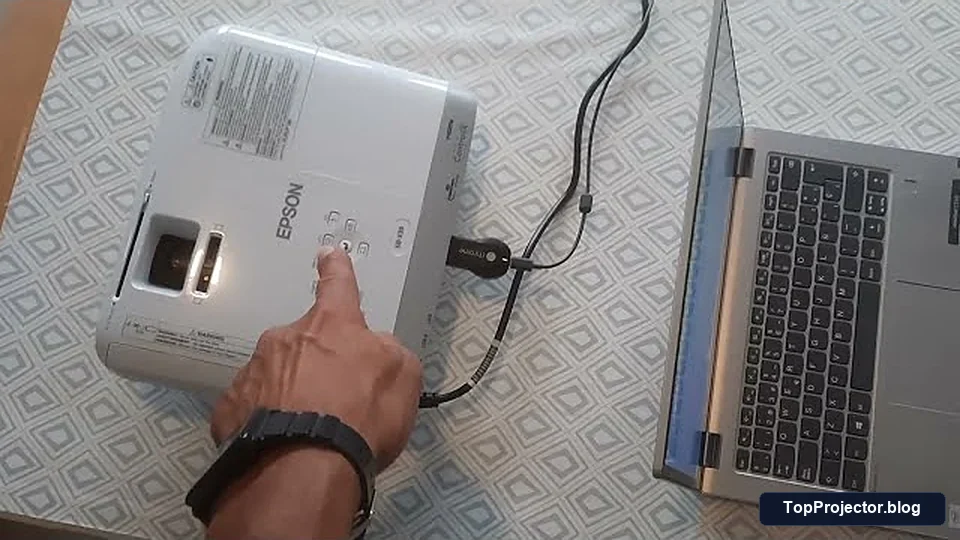
Many budget projectors omit Bluetooth entirely, requiring external USB adapters for basic wireless audio routing. Checking these manufacturer specifications prevents hours of frustrating troubleshooting sessions in your living room.
Your operating system also dictates how easily external peripherals discover your projection hardware. Ensure your laptop runs updated wireless drivers to maintain stable handshakes during active device pairing sequences.
Always check your laptop's integrated Bluetooth controller version before troubleshooting connection failures. Modern systems require Bluetooth 5.0 or newer to maintain stable low-latency transmission ranges up to 30 feet.
- Inspect projector input ports and wireless specifications.
- Verify laptop Bluetooth version supports 4.2 or higher.
- Update operating system network drivers regularly.
- Confirm whether the projector supports audio output mode.
- Verify driver updates using native operating system update utilities
- Restart networking services if hardware discovery stalls repeatedly
Checking Laptop and Projector Specifications
Open your laptop device manager and review the wireless adapter properties. You need assurance that your internal hardware supports both Bluetooth pairing and Miracast Wi-Fi display protocols simultaneously.
Consult the projector user manual to identify dedicated pairing buttons. Some smart projectors require navigating an on-screen menu to activate discoverable pairing modes before laptops can detect them.
- Review Windows Device Manager or macOS System Report.
- Locate physical pairing buttons on smart projectors.
- Enable discoverable modes within projector settings.
Checking Projector Bluetooth Profiles
Many business projectors feature Bluetooth chips strictly limited to peripheral input devices like mice. Verify your optical device supports A2DP audio output profiles before attempting wireless music streaming.
- Consult manufacturer specifications for hidden profile limitations
- Update projector firmware to unlock hidden media streaming codecs
Video Walkthrough: Wirelessly Connect \u0026 Mirror Laptop on Projector Without Using on Same WiFi Network
Step-by-Step Procedure to Pair Windows and Mac Laptops
To connect your laptop audio to a Bluetooth projector, open your operating system settings menu. Navigate to the Bluetooth section and select add new device to begin scanning for nearby hardware.
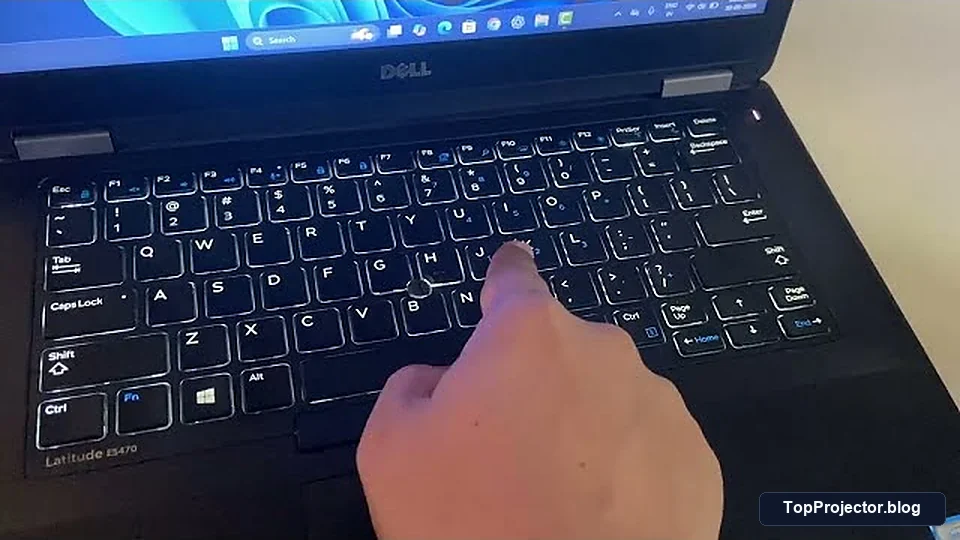
Put your projector into pairing mode using its remote interface. Once the name appears on your screen, click it to finalize the secure cryptographic handshake while utilizing our screen size and distance calculator.
After pairing completes successfully, navigate to your system sound settings. Select the projector as your default playback device to route laptop audio straight through the optical throw speakers.
Windows users can bypass nested menus by pressing the Win + K shortcut to instantly open the Cast and Bluetooth peripheral connection flyout panel for rapid device discovery.
- Access operating system Bluetooth settings menu.
- Activate discoverable pairing mode on the projector.
- Select and connect to the identified projector profile.
- Assign the projector as the default audio playback output.
- Ensure discoverability mode remains active on the projector side
- Toggle laptop Bluetooth adapter power cycles to clear caches
Configuring Audio Routing on Windows and macOS
Windows users can quickly toggle audio outputs via the taskbar quick settings panel. Select the Bluetooth icon and ensure the connected projector is highlighted as your active sound output.
Mac users must open System Settings, select Sound, and choose the projector under output devices. Adjust the output volume carefully to prevent audio distortion across the room.
- Use taskbar shortcuts for rapid audio switching.
- Verify macOS sound output preferences carefully.
- Manage volume levels to avoid speaker clipping.
macOS Terminal Diagnostics
If macOS fails to recognize your projector, reset the internal Bluetooth module via terminal commands. Force a hardware restart using sudo pkill bluetoothd to clear cached pairing profiles.
- Verify administrator credentials when executing system-level network resets
- Clear bluetooth plist preference files if persistent drops occur
Utilizing Wi-Fi Direct and Miracast for Screen Mirroring
Because Bluetooth cannot carry video, you must rely on Wi-Fi protocols for wireless projection. Windows laptops utilize Miracast technology to mirror desktop displays onto smart projectors without physical cables.
Press the Windows key plus K to open the Cast menu. Select your compatible wireless projector from the detected device list to initiate smooth 1080p screen duplication across your room.
Ensure your laptop and projector share the same local wireless network for streaming, much like setups detailed in our VGA connection guide. Strict network isolation can block device discovery entirely.
While Bluetooth handles audio, actual video transmission requires higher bandwidth protocols like Miracast. This standard allows direct 1080p wireless streaming without routing traffic through local network routers.
- Use Miracast for zero-router direct screen casting.
- Connect both devices to identical Wi-Fi networks.
- Press Windows plus K to open quick casting options.
- Disable router client isolation if discovery fails.
- Confirm both devices share compatible wireless projection standards
- Disable aggressive VPN tunnels that block local device discovery
Bandwidth Interference Management
Wireless casting operates primarily on the congested 2.4GHz and 5GHz frequency bands. Switch your laptop connection to an uncongested 5GHz channel to prevent stuttering during high-bitrate video playback.
- Position wireless access points away from projection optical paths
- Monitor channel utilization metrics using network diagnostic tools
Video Walkthrough: How to connect a computer and a projector with no cables- Send image wifi without cable. Chromecast
Resolving Common Wireless Latency and Interference Bottlenecks
Wireless video and audio transmissions are notoriously susceptible to environmental interference. Thick concrete walls, metal studs, and crowded 2.4GHz wireless bands severely degrade connection stability.
Switch your home network to the 5GHz frequency band to minimize packet loss and reduce input lag. Reducing physical distance between your laptop and projector also dramatically improves overall signal integrity.
If audio desynchronization occurs during media playback, adjust the AV sync settings within your projector menu. Correcting these milliseconds of delay ensures lipsync accuracy during movie watching sessions.
Physical obstructions significantly degrade wireless signal integrity between your laptop and projector. Ensure clear line-of-sight positioning to minimize packet loss and reduce frustrating audio dropouts.
- Relocate devices to clear interference obstacles.
- Switch local routers to less crowded 5GHz channels.
- Calibrate internal projector audio delay settings.
- Minimize physical distance between laptop and screen.
- Avoid placing thick concrete walls between transmitter and receiver
- Elevate laptops above metallic furniture to improve signal bounce
Mitigating USB 3.0 Interference
Unshielded USB 3.0 external storage drives generate strong radio frequency interference in the 2.4GHz spectrum. Keep wireless receivers physically separated from high-speed peripheral ports to maintain connection stability.
- Use braided shielded cables for all connected computer peripherals
- Move Bluetooth dongles to USB 2.0 extension ports away from drives
Alternative Hardwired Configurations for Zero-Lag Performance
When wireless connections fail to meet your performance standards, hardwired cables remain the gold standard. A high-speed HDMI 2.0 cable delivers uncompressed video and multi-channel audio with virtually zero input lag.
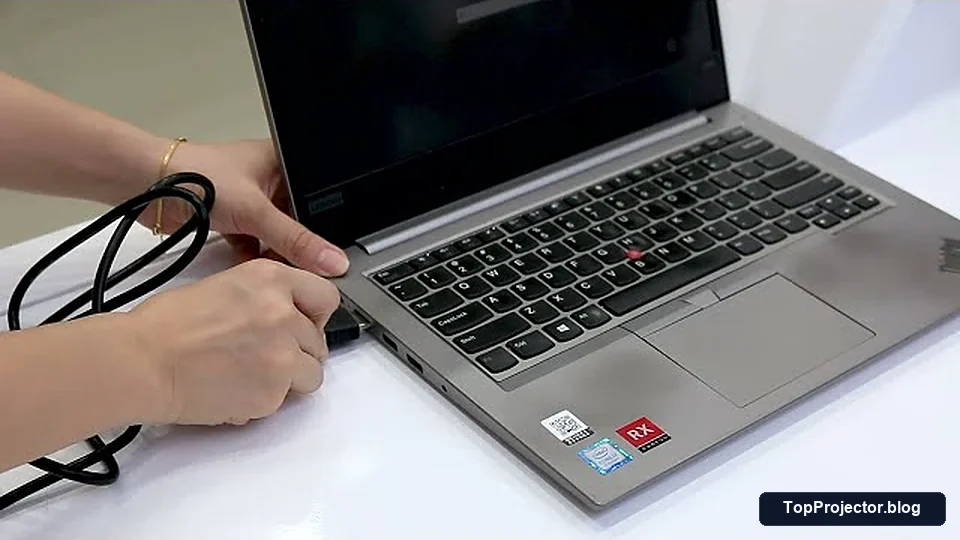
USB-C to HDMI adapters offer exceptional convenience for modern laptops lacking legacy ports. These physical links eliminate wireless dropouts entirely during critical presentations or competitive gaming sessions.
Investing in quality shielded cabling protects your signal from electromagnetic interference across long cable runs. Hardwired setups guarantee consistent brightness, resolution, and flawless frame synchronization every single time.
When wireless streaming proves unreliable, switching to physical cabling eliminates latency completely. Utilize an HDMI 2.1 cable capable of transmitting uncompressed high-definition video and multi-channel audio instantly.
- Use certified HDMI 2.0 cables for 4K video feeds.
- Leverage USB-C DisplayPort alt-mode for sleek connections.
- Eliminate wireless lag entirely with physical links.
- Protect signal integrity across long living room runs.
- Inspect connector pins for bent contacts or dust accumulation
- Secure cable strain relief clamps near heavy projector inputs
Optical HDMI Advantages for Long Runs
For projector setups exceeding 15 feet, standard copper cables suffer severe signal attenuation. Deploy an active fiber optic HDMI cable to maintain full bandwidth integrity without signal degradation.
- Observe directional arrows printed on active optical cable housings
- Avoid sharp cable bend radii exceeding manufacturer safety limits
Frequently Asked Questions
Can I connect my laptop video to a projector using Bluetooth?
No, Bluetooth bandwidth is far too limited to transmit video signals. You must use a Wi-Fi casting protocol or a physical HDMI cable for screen mirroring.
Why is there an audio delay when using Bluetooth speakers?
Wireless audio encoding and decoding introduce inherent processing latency. You can often correct this desynchronization by adjusting the audio delay settings in your projector menu.
What should I do if my projector does not detect my laptop Bluetooth?
Ensure the projector is actively set to discoverable pairing mode. Verify that your laptop Bluetooth drivers are fully updated through your operating system settings.
Can I use Miracast without an active internet router?
Yes, Miracast utilizes Wi-Fi Direct technology to establish a peer-to-peer connection. Your laptop and projector communicate directly without needing an internet access point.
How do I fix stuttering video when screen mirroring wirelessly?
Move closer to the projector to strengthen the signal and switch your Wi-Fi network to the less congested 5GHz band. Close background network applications on your laptop.