How to Connect Iphone to Epson Projector with HDMI?
Connect your iOS device seamlessly to any Epson home theater projector using reliable digital HDMI cabling and certified hardware adapters for pristine high-definition presentations.
Achieving a rock-solid mobile projection link requires an Apple MFi certified adapter combined with a high-bandwidth HDMI 2.0 cable to maintain uncompressed digital signal integrity.
Ready to compare verified models? Start with our Best Epson Best Projector: Top Picks (2026).
Practical Quick-Reference Table
| Scenario / Metric | Recommended Target | Why It Matters |
|---|---|---|
| iPhone Connection | Lightning/USB-C to HDMI | Ensures zero-latency uncompressed video. |
| Cable Length | Under 15 Feet | Prevents signal degradation without active boosters. |
| Projector Input | HDMI 1 (ARC/HDCP 2.2) | Supports secure modern HDCP handshake protocols. |
| Native Resolution | 1080p or 4K Scaling | Matches iOS aspect ratio without artifacting. |
| Audio Routing | Direct to AV Receiver | Avoids latency associated with projector pass-through. |
| Refresh Rate | 60Hz Stable Output | Eliminates stutter during fast-moving panning shots. |
Hardware Compatibility and Technical Prerequisites
Before attempting any physical connection, verify your specific iPhone hardware version and your Epson projector model specifications to ensure complete video format compatibility.
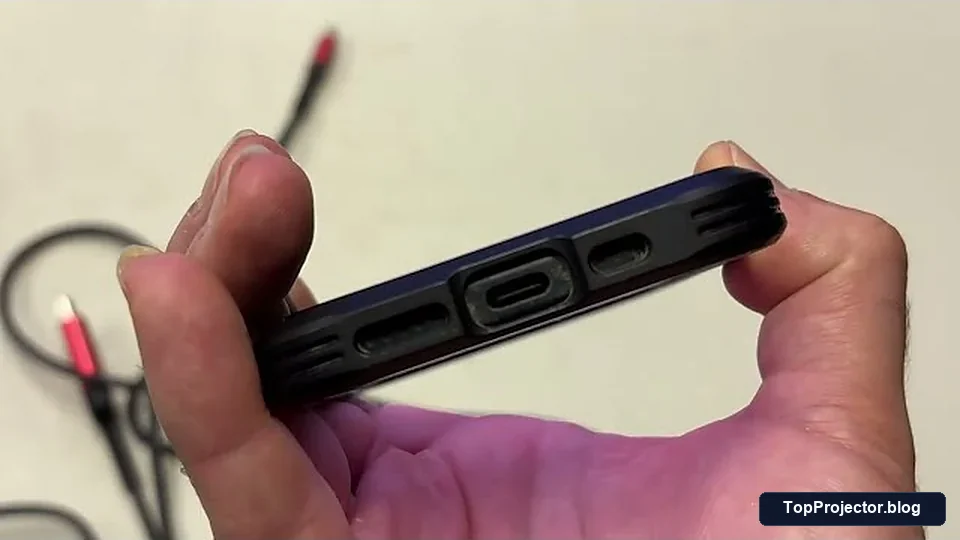
Older legacy iOS devices utilize proprietary 8-pin Lightning ports, whereas newer models embrace universal USB-C standards requiring entirely distinct adapter hardware configurations.
Epson home theater projectors rely on standard HDMI inputs supporting various HDCP security revisions to protect copyrighted digital media during playback.
- Verify iPhone hardware generation (Lightning vs USB-C).
- Check Epson projector model native resolution specs.
- Inspect HDMI port version compatibility (HDMI 1.4 vs 2.0).
- Confirm HDCP encryption protocol support.
Identifying Your iPhone Connector Type
Inspect the bottom charging port of your iPhone to determine whether you need a Lightning or a USB-C video adapter.
iPhone 14 and older iterations feature the legacy Lightning interface, demanding specialized active conversion chips to translate video data.
- iPhone 15 and newer utilize standard USB-C ports.
- Older iterations rely on proprietary 8-pin Lightning connections.
Evaluating Epson Projector Port Availability
Examine the rear I/O panel of your Epson projector to locate available HDMI ports before deploying any best portable projector for classroom setup in your educational space.
Most modern Epson units feature dual HDMI inputs, allowing permanent connection of streaming sticks alongside temporary mobile adapter links.
- Locate primary HDMI 1 input for standard video sources.
- Identify secondary HDMI ports for auxiliary hardware.
Selecting the Proper MFi Certified Video Adapter
Never purchase cheap unverified third-party adapters because they frequently lack essential HDCP decryption chips required for streaming protected video apps.
Apple MFi certified adapters ensure seamless hardware handshakes, preventing frustrating error messages and sudden black screens during critical viewing sessions.
Look for accessories that incorporate a secondary lightning or USB-C pass-through charging port to power your iPhone during extended presentations.
- Prioritize Apple MFi certified hardware adapters exclusively.
- Ensure the adapter includes a power pass-through port.
- Check for maximum supported resolution outputs like 1080p.
- Avoid generic unbranded accessories lacking HDCP support.
The Importance of Power Pass-Through
Mirroring your iPhone screen to an Epson projector consumes substantial battery power, quickly draining your mobile device during long viewing sessions.
Using an adapter with simultaneous charging capability keeps your battery fully topped up throughout extended movie nights or business meetings.
- Connect a wall charger to the adapter pass-through port.
- Prevent sudden device shutdowns during critical media playback.
Understanding HDCP Handshake Requirements
High-bandwidth Digital Content Protection prevents unauthorized recording of commercial movies streamed from popular applications like Netflix or Disney Plus.
Uncertified adapters fail this secure handshake protocol, resulting in blank projection screens despite successful physical cable linkage.
- Ensure both adapter and cable support HDCP 2.2 standards.
- Reboot components if authentication errors occur.
Video Walkthrough: Epson Projector : How to Connect Phone Using HDMI
Step-by-Step Physical Cabling Order for Epson Units
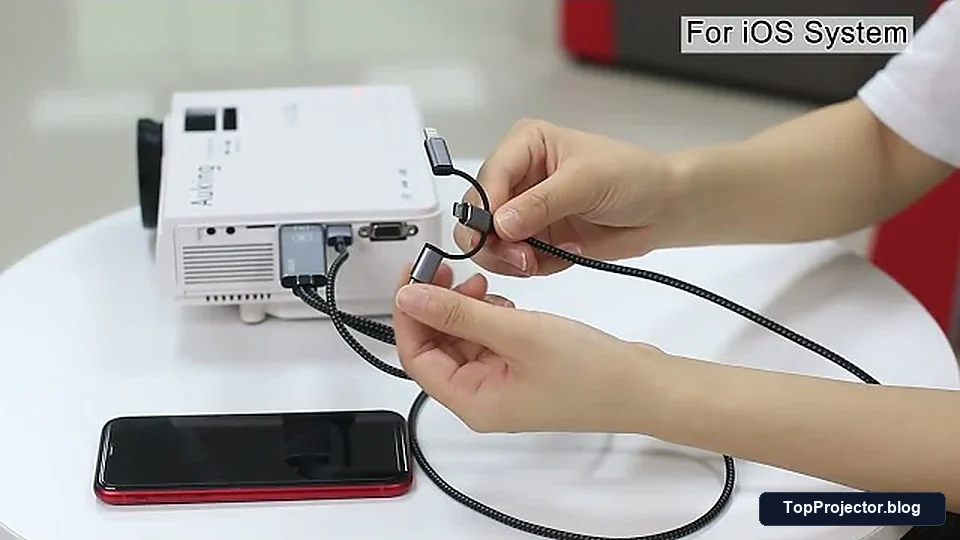
Establish your physical connections in a precise sequence to prevent electrostatic discharge damage and ensure proper digital handshakes occur instantly.
Begin by plugging your certified adapter directly into the data port located at the bottom of your iPhone or mobile device.
Next, attach a high-speed HDMI cable securely to the female output port on the adapter, ensuring the locking pins engage.
- Plug the video adapter into the iPhone first.
- Connect the high-speed HDMI cable to the adapter.
- Insert the opposite HDMI end into the Epson projector.
- Power on the projector after all cables are secured.
Connecting to the Epson Projector Rear Panel
Take the free end of your high-speed HDMI cable and plug it firmly into HDMI Port 1 on your Epson projector.
Ensure the cable connector is pushed all the way in to prevent intermittent signal drops caused by loose physical contact.
- Firmly seat the HDMI connector into the projector port.
- Route cables cleanly to avoid accidental tripping hazards.
Powering Up in Correct Sequence
Turn on your Epson projector and allow the laser engine to reach peak operating brightness, much like our Epson Home Cinema 3800 review highlights, before waking your iPhone.
Wake your mobile device and unlock the screen to trigger the automatic external display recognition sequence.
- Power on the Epson projector and wait for warm-up.
- Unlock the iPhone screen to initiate video output.
Navigating Epson Input Source Selection
Once all physical cables are securely attached, you must select the correct digital input channel using your Epson projector remote control.
Press the Source Search or HDMI button on your remote to cycle through active hardware connections until your iOS screen appears.
If the projector displays a no-signal warning, double-check your physical connections and ensure the adapter is receiving adequate external electrical power.
- Press Source Search on the Epson remote control.
- Select the specific HDMI port corresponding to your cable.
- Verify power delivery to the active video adapter.
- Confirm the iPhone trust prompt if connecting for the first time.
Using the Epson Remote Control Effectively
Point your remote directly at the front or rear infrared receiver window on the Epson chassis for reliable command execution.
Navigate the onscreen input menu to manually select HDMI 1 or HDMI 2 depending on your specific cabling layout.
- Direct infrared remote toward projector sensor windows.
- Select manual HDMI input channels to bypass auto-detect delays.
Addressing No-Signal Error Messages
A persistent no-signal warning usually indicates an insecure cable connection or an unpowered video adapter lacking sufficient wall current.
Disconnect all cables, inspect the contact pins for dust or debris, and reconnect each component in the recommended sequence.
- Inspect physical cable seating at both ends.
- Verify power supply to active adapter units.
Optimizing Aspect Ratio and Keystone Correction
Projecting mobile content often results in unwanted black letterbox bars due to the mismatch between iPhone and projector native aspect ratios.
Access your Epson projector display settings menu to adjust the zoom, aspect ratio, and lens shift parameters for a clean picture.
Utilize physical lens shift and digital keystone correction tools carefully to square up the image, verifying your placement using our throw distance calculator beforehand.
- Adjust aspect ratio settings to eliminate black side bars.
- Use lens shift mechanisms to position the image optically.
- Apply keystone correction sparingly to minimize digital scaling artifacts.
- Calibrate focus rings for maximum text sharpness.
Correcting Geometric Image Distortion
Severe projector placement angles introduce trapezoidal distortion that ruins circular shapes and distorts text legibility across your projection screen.
Adjust the horizontal and vertical keystone sliders in your Epson menu until the projected image forms a mathematically perfect rectangle.
- Center the projector perpendicular to the screen when possible.
- Use internal digital keystone tools to square off edges.
Fine-Tuning Optical Focus Rings
Rotate the manual focus barrel located around the Epson projection lens until menu text appears crisp and razor-sharp.
Avoid relying entirely on digital zoom features, as optical adjustments preserve native panel resolution without introducing annoying interpolation artifacts.
- Manually rotate the lens barrel for optimal focus.
- Check corner-to-corner sharpness across the entire projection surface.
Audio Routing Over HDMI and External Sound Integration
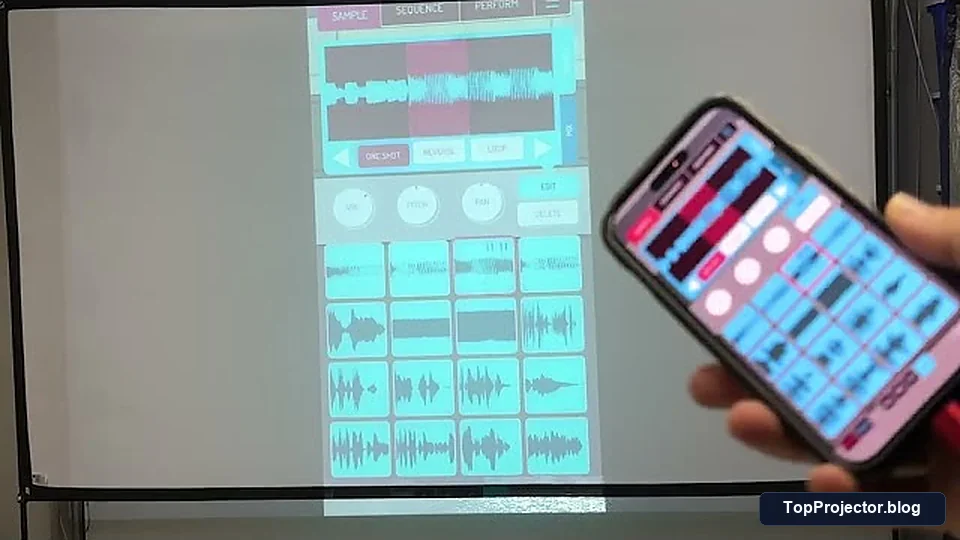
Standard HDMI cables transmit both high-definition video and multi-channel digital audio simultaneously from your mobile device to the projector, much like our HDMI connection guide outlines.
While most Epson projectors feature built-in mono speakers, their audio output quality is typically inadequate for immersive home theater viewing.
Route your audio signal independently to an external soundbar or AV receiver using optical cables or dedicated audio extractor boxes.
- Check internal projector volume levels if audio is missing.
- Connect external speakers to the Epson audio out jack.
- Utilize an HDMI audio extractor for advanced surround sound.
- Verify iPhone silent switch is disabled during media playback.
Managing Projector Internal Speakers
Built-in projector speakers serve adequately for casual presentations but lack the dynamic bass response required for cinematic movie experiences.
Adjust the volume settings using your Epson remote control to ensure audio signals are passing successfully through the HDMI cable.
- Raise internal projector volume levels to test continuity.
- Disable internal speakers when using dedicated external soundbars.
Integrating External Soundbars and AV Receivers
Connect an optical audio cable from your Epson projector's audio output port directly into your dedicated home theater sound system.
This setup ensures high-fidelity sound reproduction while keeping your video cleanly projected on the main viewing screen.
- Run optical audio cables to external sound systems.
- Test multi-channel audio output before starting media playback.
Comprehensive Troubleshooting for Handshake Failures
Digital handshake failures can occasionally interrupt your viewing experience, manifesting as flashing screens, audio dropouts, or complete signal loss.
Perform a complete system power cycle by shutting down the Epson projector, unplugging the adapter, and restarting your iPhone completely.
Replace damaged HDMI cables showing visible wear or bent pins to restore robust uncompressed digital data transmission across the link.
- Perform a full hardware power cycle to reset handshakes.
- Inspect HDMI cables for physical damage or wear.
- Test alternative HDMI input ports on the Epson chassis.
- Update iOS software to resolve underlying protocol bugs.
Resolving HDCP Authentication Errors
App-specific black screens usually indicate an HDCP authentication failure between your iPhone streaming app and the Epson projector.
Switching to a different HDMI input or restarting the iOS streaming application frequently clears these stubborn digital encryption roadblocks.
- Restart streaming apps to clear encryption glitches.
- Verify MFi certification compliance on video adapters.
Combating Persistent Flickering Issues
Signal flickering is often caused by electromagnetic interference or substandard HDMI cables failing to handle high-bandwidth 1080p data.
Upgrade to a certified high-speed HDMI cable featuring robust multi-layer shielding to eliminate electrical interference in residential environments.
- Upgrade to shielded high-speed HDMI 2.0 cables.
- Keep signal cables away from heavy power cords.
Frequently Asked Questions
Why is my iPhone screen not showing up on the Epson projector?
Ensure you are using an Apple MFi certified adapter and that the projector input is set to the correct HDMI port. Unplug all cables, reboot both devices, and reconnect in the proper sequence to restore signal.
Can I charge my iPhone while connected to the Epson projector?
Yes, provided you use an adapter featuring a built-in power pass-through port. Simply plug your standard wall charger into the adapter to maintain battery life during extended viewing sessions.
Why is there video but no sound coming from my projector?
Check that your iPhone silent mode switch is turned off and raise the volume level using the Epson remote control. If audio remains absent, route sound directly to external speakers.
Do I need a special HDMI cable to connect my iPhone?
Standard high-speed HDMI cables work perfectly when paired with a certified digital video adapter. Ensure your cable supports uncompressed 1080p or 4K signals without excessive physical length.
How do I fix black bars on the sides of my projected image?
Adjust the aspect ratio settings within your Epson projector display menu to match mobile output formats. Proper scaling eliminates letterbox bars and maximizes your viewing area.