How to Connect Airplay to Projector?
Achieve seamless wireless projection from your Apple devices. Master network stability, device handshakes, and low-latency display mirroring for pristine home entertainment setups.
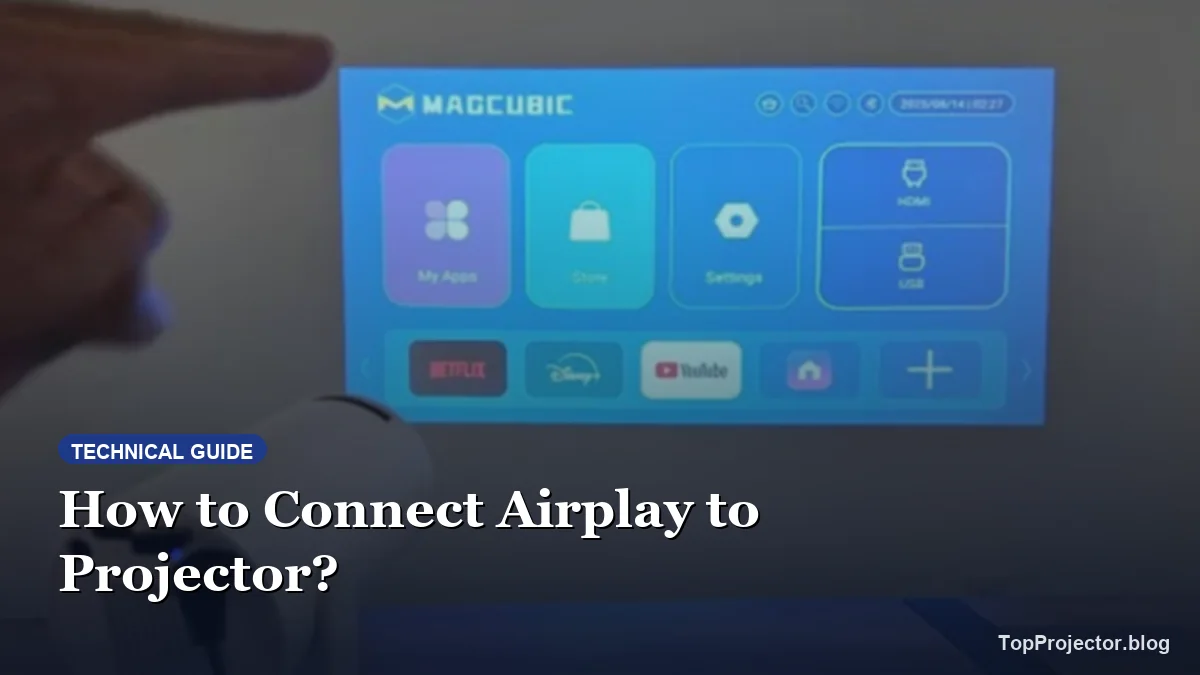
Connecting Apple AirPlay to your projector requires native receiver support or an external media streamer like an Apple TV to bridge the proprietary wireless display protocol seamlessly onto large projection screens.
Ready to compare verified models? Start with our Best Home Projectors Guide.
Practical Quick-Reference Table
| Connection Method | Latency / Input Lag | Best Use Case |
|---|---|---|
| Apple TV 4K | 15ms - 25ms | High-end home theater and gaming |
| Built-in Smart Projector OS | 40ms - 70ms | Casual presentations and casual viewing |
| External Roku/Fire Stick | 50ms - 80ms | Standard video streaming applications |
| Lightning to HDMI Adapter | 5ms - 10ms | Zero-latency wired iPhone mirroring |
| USB-C to HDMI Converter | 5ms - 10ms | Direct MacBook Pro video transmission |
| Chromecast Receiver Bridge | 30ms - 50ms | Cross-platform Android and iOScasting |
Understanding AirPlay Technology and Projector Display Protocols
Apple AirPlay is a proprietary wireless streaming suite designed to transmit high-definition video and audio. Modern home theater projectors increasingly integrate this protocol directly into their internal operating systems.
Unlike standard Bluetooth audio links, AirPlay utilizes local Wi-Fi networks to handle heavy bandwidth requirements. This stability also benefits any outdoor projector for pool setups during backyard movie nights.
Understanding how this wireless handshake functions helps eliminate frustrating stutter. Signal packet loss remains the primary culprit behind dropped frames during high-resolution wireless video transmission sessions.
AirPlay relies on dedicated Bonjour discovery protocols operating over multicast DNS to establish direct peer-to-peer data streams between your Apple source device and the target display hardware in your home theater room.
When mirroring across long projection distances, wireless packet loss directly impacts frame pacing stability and introduces noticeable stutter during high-motion panning shots in cinematic content or fast-paced gaming sessions.
- AirPlay utilizes dual-band Wi-Fi for stable transmission.
- Mirrors both device audio and high-definition video simultaneously.
- Requires compatible receiver hardware or dedicated streaming dongles.
- Operates independently of cellular data networks.
- Ensure direct line-of-sight between wireless antennas and mobile devices.
- Verify multicast traffic is fully enabled on network switches.
The Mechanics of Wireless Display Mirroring
Wireless mirroring compresses your device screen in real-time. The encoded stream travels across your local router before reaching the projector's internal decoding chipset for display.
Processor speed directly impacts overall input lag during screen mirroring sessions. Faster internal processors reduce rendering delays significantly for smoother gaming and navigation experiences.
- Real-time video compression reduces bandwidth strain.
- Local router performance dictates overall streaming stability.
Network Packet Overhead and Display Latency
Uncompressed 1080p video streams demand robust Wi-Fi throughput exceeding 45 Mbps sustained bandwidth to prevent compression artifacts from degrading fine text rendering on large motorized projector screens.
- Verify wireless channel width settings on your router.
- Disable aggressive power-saving modes on projection network adapters.
Verifying Native AirPlay Compatibility vs External Streaming Dongles
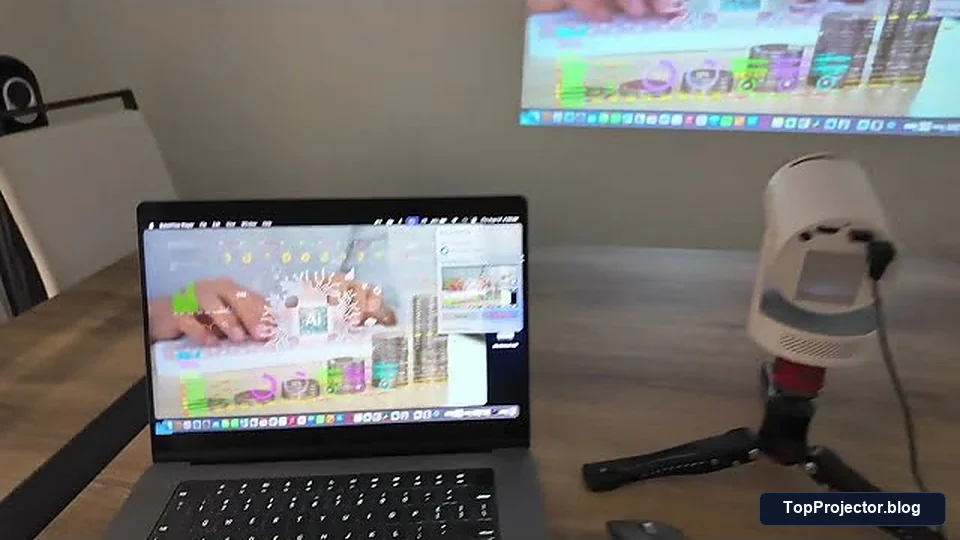
Many budget smart projectors claim wireless smartphone connectivity without true AirPlay support. Premium models featured in our Hisense PX3-Pro review include certified AirPlay receivers for reliable device mirroring.
Generic casting applications often introduce severe audio sync drift and choppy framerates. Investing in a dedicated Apple TV 4K guarantees flawless AirPlay integration regardless of projector OS limitations.
Projectors running specialized Android TV builds can often download AirPlay receiver utilities. These third-party software additions bridge compatibility gaps for unsupported projector hardware quite effectively.
Native projector integration eliminates HDMI cable clutter but often limits video processing capabilities, resulting in higher input lag metrics exceeding 60 milliseconds during competitive console gaming evaluations.
Integrating an Apple TV 4K receiver via an ultra-high-speed HDMI 2.1 cable unlocks superior color space mapping, Dolby Vision passthrough, and rock-solid AirPlay stability compared to built-in smart TV operating systems.
- Check manufacturer specifications for official AirPlay licensing.
- Avoid unbranded dongles prone to frequent overheating.
- Apple TV provides the most stable native receiver experience.
- Third-party apps require robust processor performance.
- Inspect HDMI port bandwidth specifications before connecting external units.
- Verify HDR metadata handshakes are properly recognized by displays.
Evaluating Built-In Smart Projector Operating Systems
Smart projector operating systems vary widely in performance and codec support. Proprietary firmware builds frequently lack regular security updates and protocol enhancements.
External media players eliminate reliance on outdated projector software. Reviewing our wireless Apple TV connection guide ensures you access the latest video codecs and audio formats.
- Built-in apps often suffer from limited codec support.
- External streamers offer superior long-term software updates.
Evaluating External HDMI Receiver Integration
Dedicated streaming hardware offloads complex decoding tasks from your projector's internal SoC, preserving optimal ANSI contrast ratios and preventing thermal throttling during extended movie marathons.
- Check HDMI port EDID version settings for 4K support.
- Ensure external dongles receive stable isolated DC power.
Video Walkthrough: How to Use Apple AirPlay 2 with Epson Projectors | Wireless Projection Guide
Ensuring Network Parity for Seamless Wireless Mirroring
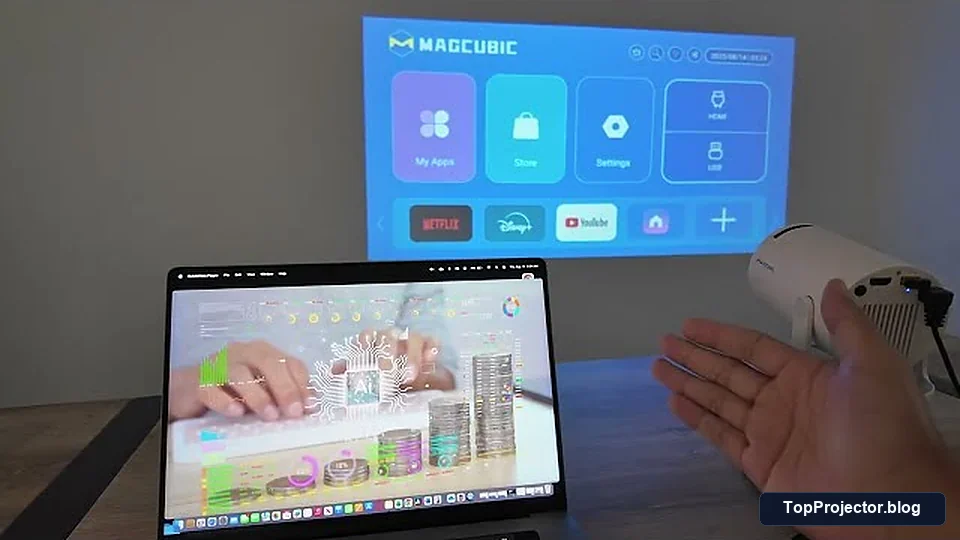
AirPlay strictly requires all participating devices to share the exact same local network. Connecting your iPhone to a 5GHz Wi-Fi band while your projector uses the 2.4GHz band breaks discovery.
Modern mesh Wi-Fi routers often route devices across different access points. Disabling AP isolation settings in your router configuration panel prevents device communication blocking issues.
Network congestion directly impacts video bitrate and compression artifact levels. Clear wireless channels ensure your projection surface remains free from unexpected stuttering pauses.
Seamless wireless projection requires absolute network parity, meaning your source device and receiver must reside on the exact same 5GHz Wi-Fi band or isolated VLAN without AP isolation enabled.
Deploying a dedicated enterprise-grade wireless access point near your primary seating position drastically minimizes signal attenuation caused by drywall and acoustic treatment panels common in dedicated media rooms.
- Verify both devices connect to the identical SSID.
- Prefer 5GHz or Wi-Fi 6 bands for higher bandwidth.
- Disable client isolation to allow direct device discovery.
- Minimize physical barriers between router and projector.
- Test ping response times between source devices and projection targets.
- Keep wireless firmware updated to prevent frequent dropped connections.
Troubleshooting Common Wi-Fi Handshake Failures
Network interference frequently disrupts the initial AirPlay discovery handshake process. Restarting local network hardware often clears temporary routing cache errors instantly.
Assigning static IP addresses to your projector prevents connection drops. Furthermore, balancing your layout with our screen size and viewing distance calculator ensures stable network assignment during extended viewing sessions.
- Power cycle routers and projectors to reset caches.
- Avoid congested wireless channels in crowded apartment complexes.
SSID Band Steering and Channel Optimization
Modern mesh networks often cause intermittent AirPlay drops by dynamically shifting devices between frequency bands; lock your projector to a fixed 80 MHz channel width for maximum throughput.
- Disable automated band steering on primary home routers.
- Monitor local wireless interference using professional spectrum analysis tools.
Step-by-Step Configuration for iOS and iPadOS Devices
Begin by unlocking your iPhone or iPad and verifying Wi-Fi connectivity. Swipe down from the top-right corner to open the iOS Control Center menu quickly.
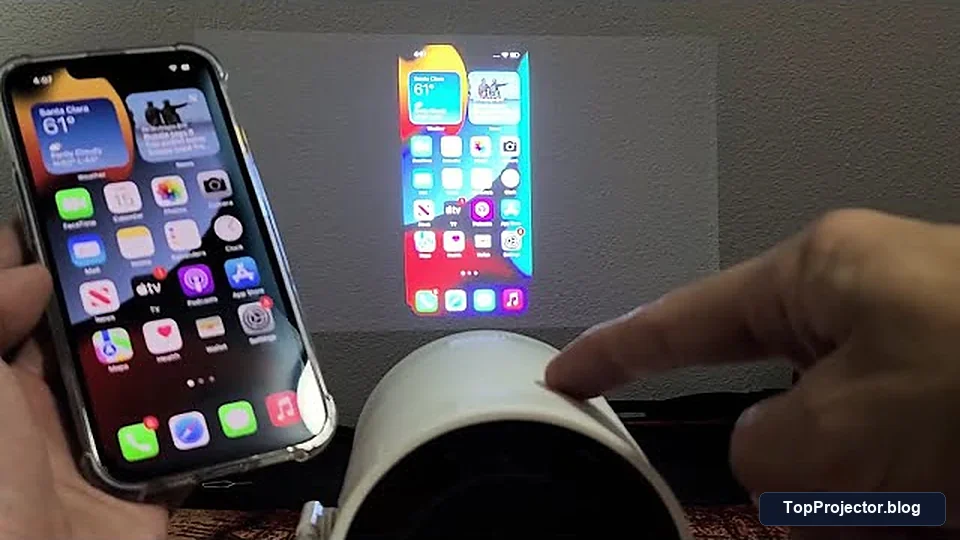
Tap the Screen Mirroring icon, which resembles two overlapping rectangular displays. Select your compatible projector device from the populated list of available network receivers.
Enter the mandatory four-digit onscreen passcode if prompted by your projector. This security measure prevents unauthorized users from hijacking your large-format display feed unexpectedly.
Accessing the iOS Control Center requires a precise diagonal swipe from the top-right corner, revealing the Screen Mirroring icon which initiates immediate local network discovery sequences.
Entering the dynamically generated four-digit on-screen passcode prevents unauthorized casting attempts from neighboring rooms while securing your native resolution output against downscaling anomalies.
- Access Control Center via swipe-down gesture.
- Locate and tap the Screen Mirroring toggle.
- Select correct receiver name from discovery list.
- Input security PIN code to finalize connection.
- Confirm device pairing permissions in iOS system settings.
- Restart mobile hardware if network discovery fails completely.
Adjusting Aspect Ratios and Display Settings
Smartphones utilize tall aspect ratios that mismatch standard projection screens. Adjusting your projector scaling settings prevents unwanted pillarboxing during playback.
Locking your phone orientation ensures full-screen landscape video output. Landscape mode utilization maximizes your projector's native resolution utilization efficiently.
- Match projector native aspect ratio to content.
- Use orientation lock for stable horizontal viewing.
Advanced Aspect Ratio and Overscan Adjustments
Correcting projector overscan settings ensures native 16:9 widescreen content fills your fixed-frame projection screen accurately without clipping critical interface elements or subtitling text blocks.
- Disable digital keystone correction to preserve pixel sharpness.
- Match iOS display scaling settings to native projector resolutions.
Troubleshooting Common Handshake Failures and Latency Issues
Experiencing audio delay during AirPlay mirroring ruins cinematic immersion completely. Audio-video sync calibration tools within external media players help correct minor timing discrepancies.
If your iPhone fails to discover the projector, check firewall rules. Router security settings occasionally block device-to-device streaming traffic by default.
Overheating projectors can throttle internal wireless adapter performance significantly. Adequate ventilation clearance prevents thermal throttling during marathon projection sessions.
HDCP digital copy protection mismatches frequently trigger black screen errors during AirPlay sessions; resetting the physical HDMI HDCP handshake resolves most stubborn synchronization blocks instantly.
Excessive audio delay during wireless projection stems from network buffer bloat; lowering audio sample rates in source settings minimizes lip-sync error margins during critical viewing periods.
- Adjust audio sync offsets via media player settings.
- Review router firewall and isolation configurations.
- Ensure proper ventilation around projector cooling vents.
- Update device firmware to resolve known software bugs.
- Clear active network caches on malfunctioning streaming devices.
- Verify cable integrity when routing through AV receivers.
Resolving HDCP Copy Protection Black Screens
Protected streaming applications often display a black screen during mirroring. HDCP compliance protocols restrict wireless capture of premium subscription video content.
Use native projector apps for streaming services instead of mirroring. Direct app execution bypasses copy protection blocks imposed on wireless transmissions.
- HDCP encryption blocks unauthorized wireless capture.
- Utilize native smart apps for reliable video playback.
Isolating Multicast DNS and Firewall Bottlenecks
Network switches that block IGMP snooping can suffocate Bonjour discovery packets, halting AirPlay connections entirely until you configure proper multicast forwarding rules within router management panels.
- Power cycle both projection hardware and Apple source devices.
- Verify firmware versions match current manufacturer stability guidelines.
Alternative Casting Protocols for Non-Apple Environments
When Apple AirPlay proves unreliable, alternative protocols offer viable backup paths. Google Chromecast technology supports cross-platform casting across Android, Windows, and iOS devices seamlessly.
Miracast provides direct wireless display mirroring without requiring an active router. Point-to-point connections reduce latency by eliminating local network intermediary hops entirely.
Hardwired adapters remain the ultimate fallback for zero-latency projection needs. HDMI cable connections eliminate wireless dropouts entirely for critical presentations.
Mixed-ecosystem households benefit from configuring universal casting standards like Miracast or Chromecast alongside AirPlay to accommodate Windows and Android hardware without maintaining separate adapter dongles.
Open-source streaming protocols frequently support higher bitrates and lower compression artifacts when projecting complex technical spreadsheets or high-refresh-rate desktop applications onto large surfaces.
- Chromecast delivers reliable cross-platform casting support.
- Miracast utilizes direct peer-to-peer wireless links.
- Wired HDMI adapters guarantee zero latency performance.
- Multi-protocol receivers maximize hardware versatility.
- Review client hardware compatibility before deploying alternative apps.
- Test local firewall exceptions for third-party casting tools.
Evaluating Wired Alternatives for Critical Tasks
Wireless connections always introduce minor latency unsuitable for competitive gaming. Wired HDMI connectivity ensures instantaneous response times for demanding applications.
USB-C to HDMI adapters support high refresh rate video transmission. Reliable physical links eliminate wireless interference concerns in busy environments.
- Physical cables eliminate wireless interference risks.
- High-speed HDMI supports uncompressed multi-channel audio.
Implementing Universal DLNA and Miracast Solutions
Hardware-based media streamers running customized Android TV software bridge cross-platform gaps effectively, providing reliable multi-protocol support with minimal hardware switching latency penalties.
- Test local network throughput before deploying cross-platform apps.
- Check projector specifications for built-in Miracast licensing.
Optimizing Video Bitrate and Display Scaling for Large Screens
Projecting compressed wireless feeds onto large screens magnifies compression artifacts. Selecting high video bitrates preserves fine detail in complex cinematic scenes.
Ensure your projector's sharpness and noise reduction settings are calibrated properly. Balanced image processing prevents digital ringing around mirrored text and UI elements.
Managing ambient room light enhances perceived contrast during wireless streaming. Darkened projection environments elevate black levels and color saturation noticeably.
Scaling compressed wireless video streams across massive 120-inch screens exposes compression macroblocks; adjusting source output to a locked 1080p or 4K ceiling maintains pristine visual fidelity.
Professional home theater calibrators recommend disabling artificial edge enhancement filters on your projector to prevent jagged scaling artifacts when projecting wireless AirPlay feeds.
- Prioritize high bitrate settings for clean image scaling.
- Calibrate sharpness to minimize compression halo artifacts.
- Control ambient light to maximize perceived contrast ratios.
- Clean projector optics regularly for optimal light output.
- Verify display color space profiles match source video inputs.
- Adjust sharpness settings to eliminate undesirable ringing halos.
Fine-Tuning Color Profiles for Accurate Reproduction
Wireless transmission can occasionally alter color saturation profiles. Selecting accurate preset color modes restores natural skin tones and balanced palettes.
Avoid overly aggressive dynamic contrast settings during video playback. Stable gamma curves prevent distracting brightness shifts during dark movie scenes.
- Calibrate color temperature for natural white points.
- Disable dynamic iris features if flickering proves distracting.
Calibrating Frame Rates for Cinematic Reproduction
Matching your Apple device output frame rate to standard cinematic 24Hz refresh rates eliminates judder and delivers smooth motion handling across demanding long-throw projection setups.
- Adjust projector sharpness controls to minimize ringing artifacts.
- Verify color space settings match standard Rec.709 parameters.
Frequently Asked Questions
Can I stream Netflix using AirPlay to my projector?
Most premium streaming apps block wireless mirroring due to digital copyright laws. HDCP encryption standards typically result in a black screen with active audio only.
Why is my iPhone not detecting my projector via AirPlay?
Ensure both devices connect to the exact same Wi-Fi frequency band. Network isolation settings on your router often block direct device communication entirely.
Does AirPlay introduce noticeable input lag for gaming?
Wireless mirroring inherently adds between thirty and seventy milliseconds of latency. Competitive gaming requires wired HDMI connections to eliminate frustrating input delays.
Do all smart projectors feature built-in AirPlay receivers?
Only select models include certified AirPlay receiver software out of the box. Budget smart projectors usually require third-party apps or external streaming dongles.
How can I improve unstable wireless video streaming performance?
Switch your devices to an uncongested 5GHz wireless router channel. Strong signal proximity and minimal physical obstructions prevent dropped video frames.