Can You Use a Projector for Gaming?
Modern projectors deliver massive screen sizes with remarkably low input lag. Choosing the right optics transforms competitive living-room gaming.
Yes, you can game on a projector provided you select a model featuring sub-15ms input lag and high refresh rates. Prioritizing these technical specs ensures zero motion blur during competitive matches.
Ready to compare verified models? Start with our Best Gaming Projector: Top Performance Picks (2026).
Practical Quick-Reference Table
| Scenario / Metric | Recommended Target | Why It Matters |
|---|---|---|
| Input Lag (4K/60Hz) | Under 16ms | Prevents noticeable delay between controller inputs and screen action. |
| Input Lag (1080p/240Hz) | Under 5ms | Delivers ultra-responsive performance for competitive first-person shooters. |
| ANSI Lumens | 2,500+ Lumens | Maintains saturated color and contrast in rooms with ambient light. |
| Throw Ratio | 0.5:1 to 1.5:1 | Determines exact screen size relative to mounting distance from the wall. |
| Refresh Rate | 120Hz or 240Hz | Ensures buttery-smooth motion handling without stuttering or ghosting artifacts. |
| HDMI Bandwidth | 48Gbps (HDMI 2.1) | Supports uncompressed 4K gaming at high frame rates without signal drops. |
Evaluating Input Lag and Frame Rates for Gaming
Traditional home theater projectors were never designed for interactive gaming. Early display processors introduced massive rendering delays similar to our Hisense PX2-PRO review, which crippled fast-paced multiplayer titles.
Today, manufacturers engineer specialized gaming projectors featuring dedicated low latency modes. These hardware bypasses reduce processing overhead to deliver instant visual feedback.
Competitive gamers should demand an input lag measurement below 16 milliseconds. Anything higher introduces a sluggish disconnect between pressing a button and seeing on-screen motion.
Measuring response times requires specialized hardware like a Leo Bodnar lag tester to bypass operating system rendering delays and capture true 4ms at 240Hz performance.
- Target sub-16ms input lag for standard 60Hz console gaming.
- Look for 240Hz refresh rates when connecting high-end gaming PCs.
- Disable advanced motion interpolation to keep input lag as low as possible.
- Verify that your console outputs uncompressed signals directly to the optics.
- Test multiple HDMI inputs since port processing pipelines often vary.
- Verify game mode is manually activated to bypass internal video filters.
Understanding Refresh Rate vs Response Time
Refresh rate dictates how many distinct images your projector displays every single second. Higher rates eliminate motion judder during fast camera pans.
Pixel response time governs how quickly individual micro-mirrors switch states. Fast response times prevent ghosting trails behind moving objects in dark scenes.
- Aim for native 120Hz support for modern PlayStation 5 hardware.
- Check for variable refresh rate compatibility to eliminate screen tearing entirely.
High Refresh Rate Calibration
When pairing modern PCs with high-end laser projectors, always verify your GPU outputs uncompressed RGB 4:4:4 signals to prevent chroma subsampling ruining fast-paced text rendering.
- Check Windows display adapter properties for native refresh rates.
- Disable Windows hardware-accelerated scheduling if stuttering occurs.
Understanding ANSI Lumens and Ambient Light Control
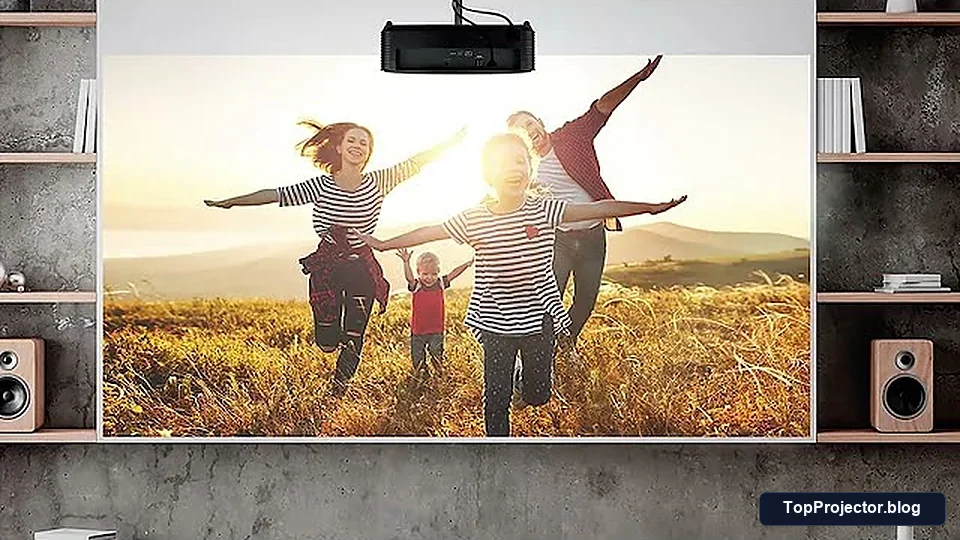
Projector brightness is measured in official ANSI lumens rather than misleading marketing terms. To test display performance, check out best interactive projector games that highlight vibrant colors and motion handling.
Dedicated dark rooms require far fewer lumens than open living spaces. Managing your room lighting directly impacts perceived black levels and color vibrancy.
Pairing your hardware with an ambient light rejecting screen preserves contrast ratios. This specialized material absorbs stray room light while reflecting projector beams directly forward.
Calculating actual screen brightness demands factoring in ambient room illumination, screen gain, and throw distance, where a 2000 ANSI lumens engine loses punch beyond a 120-inch diagonal.
- Use at least 3,000 ANSI lumens for brightly lit family rooms.
- Install blackout curtains to replicate dark room performance during daytime sessions.
- Select grey projection screens to boost perceived black levels and shadow depth.
- Avoid shiny white walls that reflect ambient light and ruin contrast.
- Measure ambient lux levels using a dedicated smartphone light meter.
- Draw blackout curtains to preserve deep black level performance.
Laser vs Lamp Light Sources for Long Gaming Sessions
Laser light engines maintain consistent brightness throughout thousands of operating hours. Traditional mercury lamps dim rapidly, requiring expensive bulb replacements every few years.
Laser systems also turn on and off instantly without cooling phases. This thermal efficiency benefits gamers who experience frequent power cycles.
- Expect 20,000 hours of maintenance-free operation from solid-state lasers.
- Ensure proper chassis ventilation to prevent thermal throttling during marathon sessions.
ALR Screen Pairings
Ambient light rejecting materials utilize microscopic sawtooth optical layers that reject overhead ceiling light while reflecting the ultra-short throw beam, drastically boosting perceived contrast ratios during daytime sessions.
- Ensure ambient light rejection fabrics match your throw angle.
- Avoid flat white walls if gaming with ambient illumination present.
Video Walkthrough: Here’s Why I Love Gaming On a Projector Over TVs \u0026 Monitors! (Ft. BenQ X3000i) | Raymond Strazdas
Selecting the Correct Throw Ratio and Room Geometry
Throw ratio determines the exact distance required to project your desired screen size. Using our throw distance calculator prevents costly mounting errors in tight spaces.
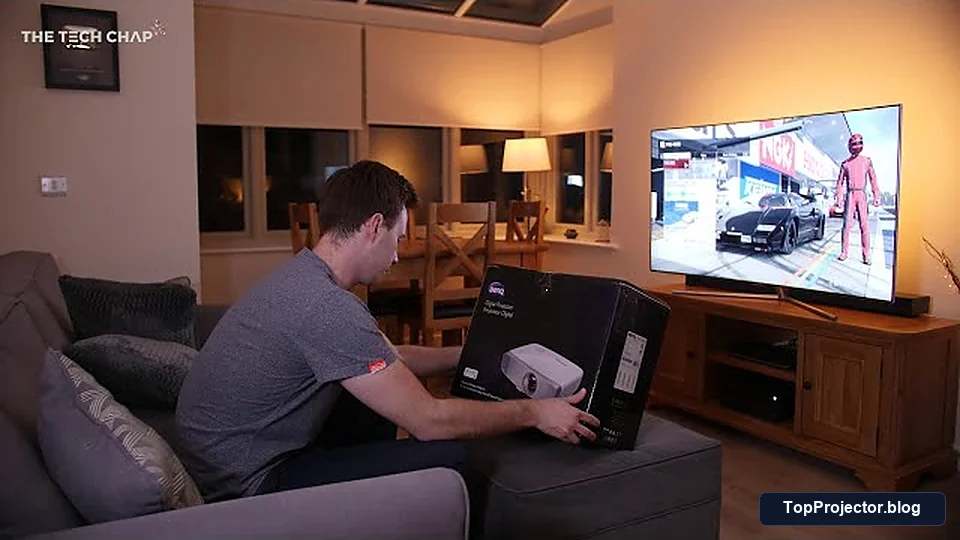
Standard throw models require ten to twelve feet of clear room length. Ultra-short-throw projectors sit mere inches away from the wall surface.
Calculating your lens shift flexibility saves hours of frustrating physical alignment. Vertical and horizontal lens shift lets you square the image without digital keystone correction.
Calculating exact lens placement requires dividing the throw distance by screen width, ensuring your ultra-short throw model sits within inches of the wall to avoid severe keystone distortion.
- Measure room depth carefully before purchasing a standard throw projector.
- Utilize ultra-short-throw optics if you have limited floor space or low ceilings.
- Avoid digital keystone correction because it reduces native pixel resolution.
- Secure ceiling mounts directly into wooden studs for structural safety.
- Use laser measure tools for pinpoint room geometry calculations.
- Account for chassis depth when mounting cabinets near screens.
Screen Size and Field of View Immersion
Projecting a massive 120-inch diagonal image fills your peripheral vision completely. This expansive field of view transforms standard gaming into an immersive experience.
Sitting too close to a massive projection reveals individual pixel structures. Maintain a viewing distance equal to twice the screen width for optimal clarity.
- Calculate viewing distance based on your native projector resolution.
- Ensure your wall surface is completely flat to prevent geometric distortion.
Offset and Lens Shift Math
Vertical lens shift mechanisms allow physical image placement adjustments without utilizing digital keystone correction, preserving native pixel mapping and preventing unwanted input lag penalties during competitive sessions.
- Measure ceiling clearance before mounting heavy chassis units.
- Calculate offset percentages to prevent awkward wall bracket placements.
Optimizing HDMI Bandwidth and Console Connections
Modern gaming consoles output massive data rates requiring robust cabling infrastructure. Outdated HDMI cables will bottleneck your resolution and frame rate capabilities.
Always verify that your projector features true HDMI 2.1 ports supporting full bandwidth. This specification enables uncompressed 4K gaming at blistering frame rates.
Connecting through an AV receiver requires careful compatibility checks. Ensure your surround sound processor passes through high refresh rate video signals without lag.
Harnessing current-gen consoles demands certified 48Gbps Ultra High Speed cables to pass uncompressed signals, preventing handshake failures when switching between 4K at 120Hz and HDR gaming feeds.
- Invest in certified ultra high speed HDMI cables for 4K setups.
- Plug consoles directly into projector ports to minimize input latency issues.
- Enable enhanced HDMI signal formats within your projector settings menu.
- Check for eARC audio return channels for uncompressed sound transmission.
- Inspect connector pins for bent contacts during initial setup.
- Secure cable runs away from power lines to eliminate interference.
PC Graphics Card Configuration and Resolution Scaling
Gaming PCs require custom resolution settings and proper color space output. Set your graphics control panel to output RGB full color range rather than limited.
Verify that Windows recognizes your projector as a high refresh rate display. Adjust display adapter properties to unlock maximum frame rate limits.
- Configure Windows HDR calibration tools for accurate highlight clipping.
- Lock your frame rates to match native projector refresh capabilities.
EDID Handshake Debugging
If your projector drops signal during resolution switches, force your AV receiver or source device to override the EDID profile and lock down specific HDMI 2.1 parameters.
- Use active fiber optic cables for runs exceeding fifteen meters.
- Disable HDMI-CEC if input switching triggers random projector reboots.
Calibration Settings for Motion Handling and Color
Factory default picture modes often prioritize vibrant showroom brightness over color accuracy. Switch to a dedicated game picture mode to disable unnecessary image processing.
Calibrating your white balance ensures neutral grey tones across every virtual landscape. Accurate color reproduction brings game worlds to life as developers intended.
Disable aggressive noise reduction filters that blur fine environmental textures. Clean, unadulterated pixel rendering maintains sharp text and crisp HUD elements.
Disabling aggressive motion interpolation engines prevents the introduction of artificial soap-opera effects and reduces processing overhead that directly inflates total display input lag measurements.
- Select game mode presets to disable high-latency image processing.
- Calibrate gamma settings to reveal hidden details in dark dungeon environments.
- Turn off dynamic iris features that cause distracting brightness pumping.
- Adjust sharpness controls carefully to prevent unwanted white edge halos.
- Calibrate white point targets using professional spectrophotometer tools.
- Save custom user picture presets for day and night gaming.
Managing HDR Tone Mapping for Realistic Lighting
High dynamic range metadata enhances contrast between bright explosions and deep shadows. Projectors handle HDR differently than flat-panel televisions due to peak brightness limits.
Adjust dynamic tone mapping settings to balance specular highlights effectively. Proper calibration prevents bright skyboxes from washing out shadow details.
- Use static metadata options when dynamic mapping causes visual flickering.
- Calibrate in-game HDR brightness sliders to match your projector limits.
Greyscale and Gamma Tweaks
Adjusting two-point white balance controls helps eliminate green or magenta color tints in shadow details, ensuring your Rec. 709 color gamut remains accurate during dark cinematic sequences.
- Target a 2.2 gamma curve for bright room gaming setups.
- Lock color temperature to warm for accurate cinematic tone representation.
Audio Integration and Latency Mitigation Strategies
Projectors often feature weak built-in speakers that fail to deliver immersive soundscapes. Connecting external audio gear is essential for competitive gaming awareness.
Audio synchronization issues frequently arise when routing sound through complex hardware chains. Keeping audio latency low prevents a frustrating disconnect between sight and sound.
Utilize optical audio outputs or dedicated soundbars placed near the screen. Direct acoustic placement ensures sound originates from the visual action on screen.
Routing audio directly from your console to an eARC-compatible soundbar or AVR eliminates the processing delay introduced when pass-through routing relies on the projector audio board.
- Connect external surround sound systems directly to your gaming console.
- Enable low-latency audio codecs to eliminate lip sync or effect delays.
- Avoid analog Bluetooth transmitters that introduce noticeable audio lag.
- Position multi-channel speakers according to standard Dolby Atmos guidelines.
- Verify lossless Dolby Atmos bitstream compatibility across all devices.
- Check audio buffer settings in your console system preferences.
Overcoming Fan Noise in Quiet Gaming Environments
High-performance projectors generate internal heat requiring active cooling fans. Loud fan noise can disrupt subtle audio cues in quiet adventure titles.
Choose models featuring specialized eco cooling modes to reduce operational decibels. Mount the projector far enough away to keep fan noise inaudible.
- Check manufacturer decibel ratings before purchasing home units.
- Mount projection hardware forward of seating positions to minimize noise.
Lip Sync and Delay Compensation
Utilize internal audio delay settings on your AV receiver to compensate for heavy image processing pipelines, perfectly aligning audio and video cues for competitive twitch shooters.
- Test audio latency using specialized sync video test patterns.
- Keep optical audio connections as a backup for legacy surround systems.
Troubleshooting Common Artifacts and Sync Issues
Hardware handshakes between consoles and projectors occasionally fail during startup sequences. Resetting your video output resolution usually resolves these temporary signal drops.
DLP projectors can occasionally exhibit visual rainbow artifacts during rapid eye movements. Choosing models with higher color wheel speeds minimizes this optical quirk.
Keep your projector firmware updated to resolve persistent compatibility bugs. Manufacturers frequently release patches that improve overall HDMI stability and input latency.
Addressing annoying screen tearing involves enabling variable refresh rate technologies like FreeSync or G-Sync, which dynamically match the projector refresh rate to fluctuating GPU frame outputs.
- Swap high-speed HDMI cables if you experience intermittent black screens.
- Update projector system firmware using a USB drive when available.
- Clean air intake filters regularly to prevent unexpected thermal shutdowns.
- Verify native display scaling settings on your connected gaming device.
- Power cycle optical units completely if HDMI handshake locks occur.
- Update projector firmware via USB to resolve intermittent stutter bugs.
Resolving Focus Drift and Thermal Expansion
Projector lenses expand slightly as internal temperatures rise during long sessions. As noted in our daytime projector guide, this thermal shift can cause mild focus drift requiring minor adjustments.
Allow your projector to warm up for fifteen minutes before performing final alignments. Glass lens elements maintain focus stability much better than plastic alternatives.
- Invest in projectors featuring all-glass precision optical lenses.
- Lock the focus ring physically if vibration causes shifting over time.
Addressing Rainbow and Speckle Effects
Single-chip DLP projectors can trigger color separation artifacts for sensitive viewers, making high-speed RGBRGB color wheels or multi-laser solid-state engines mandatory upgrades for motion-sensitive gamers.
- Clean optical air filters regularly to prevent thermal throttling artifacts.
- Check firmware versions for known frame-pacing and handshake patches.
Frequently Asked Questions
Can any projector be used for gaming?
Technically yes, but office or older home theater models suffer from severe input lag. You must choose a dedicated gaming projector featuring sub-16ms latency for responsive controls.
Is 4K resolution necessary for projector gaming?
Native 4K provides stunning clarity on massive screens, but high refresh rate 1080p offers smoother competitive performance. Prioritize low input lag over raw pixel counts for fast titles.
How do I fix input lag on my projector?
Always enable the dedicated game mode setting in your projector menu. This bypasses intensive video processing pipelines to reduce controller latency down to acceptable thresholds.
Can I use a projector for competitive online gaming?
Yes, provided your model supports high refresh rates like 120Hz or 240Hz. Modern laser gaming projectors match traditional monitor responsiveness while offering immersive screen sizes.
Do I need a special screen for gaming in a lit room?
An ambient light rejecting screen is strongly recommended for daytime or lit room gaming. This specialized surface absorbs room light while preserving high contrast ratios and deep blacks.