Can You Play Xbox on a Projector? Comprehensive Technical Setup Guide
Connecting your Xbox to a high-performance projector delivers breathtaking cinematic scale. Mastering refresh rates and low input lag ensures competitive gaming perfection in any room.
Yes, you can seamlessly play Xbox on a projector by verifying HDMI 2.1 bandwidth and enabling dedicated low latency game modes for optimal responsiveness.
Ready to compare verified models? Start with our Best Backyard Projector Setup: Top Movie Night Picks.
Practical Quick-Reference Table
| Scenario / Metric | Recommended Target | Why It Matters |
|---|---|---|
| Input Lag | < 16ms at 60Hz | Prevents noticeable delay between controller action and on-screen response. |
| Refresh Rate | 120Hz or higher | Ensures fluid motion handling during fast-paced competitive shooter sequences. |
| Brightness | > 3000 ANSI Lumens | Combats ambient room light for vivid daytime contrast and color saturation. |
| Throw Ratio | 1.1:1 to 1.5:1 | Determines exact screen size relative to lens-to-wall physical mounting distance. |
| HDMI Version | HDMI 2.0 or 2.1 | Required for passing uncompressed 4K video signals at high frame rates. |
| Audio Latency | < 40ms sync window | Eliminates distracting lip-sync and sound effects delay during gameplay. |
Architectural Advantages of Large-Screen Console Projection
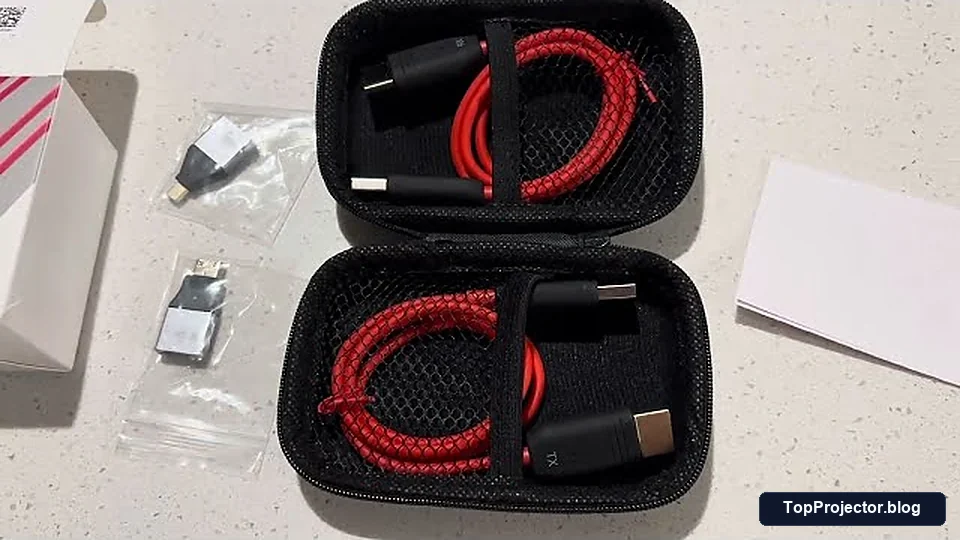
Migrating your gaming setup from a standard flat panel to a high-output projection system transforms traditional gameplay. Massive diagonal image sizes immerse players far beyond standard television boundaries.
Modern optical engines deliver exceptional color accuracy and wide color gamuts. This ensures your favorite console titles look precisely as their developers intended across massive surfaces.
Choosing projection over flat panels requires careful placement. For instance, testing our Epson Home Cinema 3800 review reveals how high ANSI lumens conquer challenging ambient living room light.
- Expands field of view for immersive first-person role-playing titles.
- Eliminates bezels found in multi-monitor desktop display configurations.
- Provides flexible screen sizing ranging from 100 inches to over 150 inches.
- Utilizes reflected light, which reduces direct eye strain during extended sessions.
Evaluating Room Environment and Ambient Light Control
Ambient light remains the primary challenge when deploying a projection system in non-dedicated living spaces. Uncontrolled daylight washes out black levels and severely degrades perceived contrast ratios.
Pairing your projector with an ambient light rejecting screen preserves contrast. Alternatively, total blackout curtains ensure dark-room performance matches cinema standards.
- Measure total room lumens before selecting an optical engine.
- Install heavy drapes to block intrusive windows and sliding glass doors.
- Opt for matte grey screens to enhance perceived black level depth.
Core Hardware Requirements for Xbox Series X and S Integration
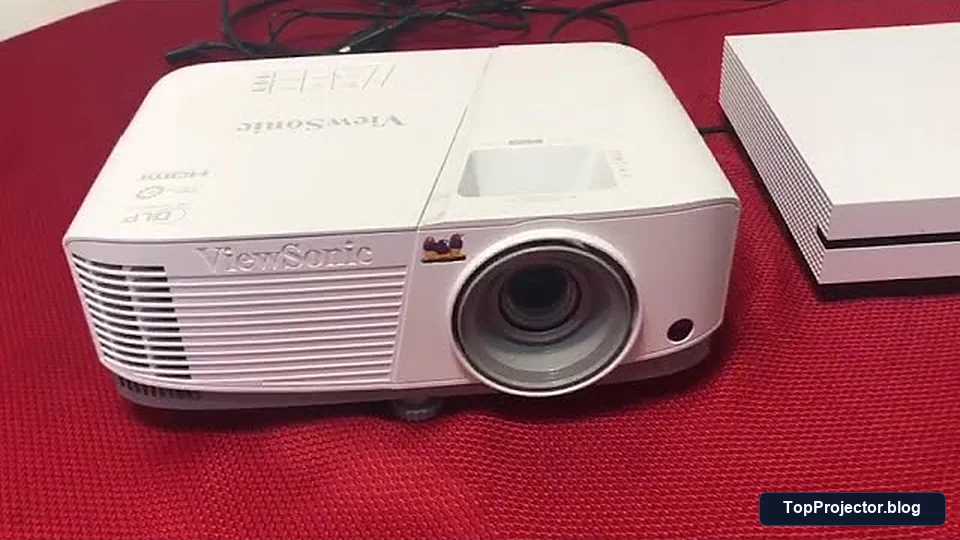
Connecting modern Microsoft hardware requires careful attention to interface specifications. Both the Series X and Series S output high-definition digital video streams requiring robust hardware handshakes.
Legacy analog connections like composite or component video are entirely obsolete. Modern display devices rely exclusively on digital HDMI connectivity to handle high-bandwidth transmissions.
Verify that your chosen display device features compatible input ports. Older hardware often lacks the necessary bandwidth to support advanced HDR metadata and high frame rates.
- Check physical clearance behind the chassis for bulky cabling.
- Ensure power supplies handle peak wattage demands during heavy rendering loads.
- Verify firmware versions are up to date on both console and projector.
Understanding HDMI Protocol Revisions and Port Limitations
HDMI 2.0 ports comfortably pass 4K video at 60Hz. Understanding hardware longevity matters too, so review projector bulb lifespan guides to protect your optical engine investment.
Always inspect individual port labels on your projection system. Manufacturers frequently restrict advanced gaming features like variable refresh rate to a single designated input port.
- Identify the primary high-bandwidth port marked for gaming.
- Avoid daisy-chaining through unpowered splitters that degrade signals.
- Inspect connector pins for physical damage prior to installation.
Video Walkthrough: Overview
Signal Chain Physics: Mastering HDMI Bandwidth and Throw Distances
Long cable runs introduce severe signal degradation when transmitting uncompressed 4K video. Standard copper HDMI cables struggle to maintain integrity over distances exceeding fifteen feet.
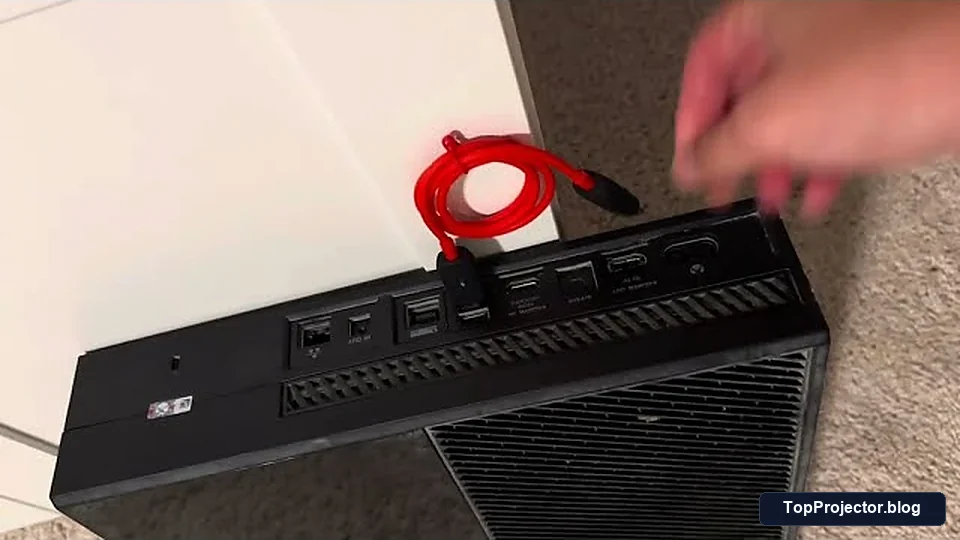
Active optical cables solve distance limitations by converting electrical signals into light pulses. Before finalizing runs, test optical geometries using our throw distance calculator for perfect image scaling.
Calculate your throw distance carefully using the lens throw ratio formula. This ensures the projected image fills your designated screen border without requiring digital keystone correction.
- Use active optical cables for runs exceeding twenty feet in length.
- Calculate exact throw ratios before drilling ceiling mount brackets.
- Minimize sharp bends that could fracture internal fiber optic strands.
Calculating Throw Ratios and Physical Placement Parameters
The throw ratio determines how far back your projector must sit. Multiply your target screen width by the projector throw ratio to find the correct mounting distance.
Standard throw models suit dedicated theater rooms with long focal lengths. Short throw projectors mount inches away from the wall to prevent room obstruction.
- Measure room length from screen surface to back wall accurately.
- Account for lens shift capabilities when fine-tuning vertical alignment.
- Keep cooling vents unobstructed to prevent thermal throttling issues.
Navigating Resolution, Frame Rates, and the Series S Dynamic Range Trap
The Xbox Series X natively targets uncompressed 4K rendering at high frame rates. Your display hardware must accept these massive data streams without downscaling or dropping frames.
Conversely, the Xbox Series S targets 1440p resolution while upscaling to 4K displays. Understanding native resolution prevents unnecessary processing overhead and visual stuttering.
High dynamic range metadata enhances contrast between bright highlights and deep shadows. Proper EDID handshake configuration ensures your projector correctly interprets HDR10 color profiles.
- Match console output resolution to your projector native panel specs.
- Disable aggressive dynamic contrast algorithms during critical gaming sessions.
- Calibrate white balance settings to prevent crushed highlight details.
Optimizing High Dynamic Range Settings for Projection
Projectors handle HDR differently than emissive self-lit television panels. Because projectors rely on reflected light, peak luminance values rarely reach television nit levels.
Adjust tone mapping settings within the console display menu accordingly. This prevents bright daytime scenes from blowing out into unrecoverable white patches.
- Enable HDR tone mapping adjustments on the console dashboard.
- Lower gamma levels slightly to preserve dark shadow detail.
- Select projector color modes tailored specifically for high dynamic range.
Minimizing Motion Blur Through Dedicated Game Modes and Low Input Lag
Input lag represents the delay between pressing a button and visual execution. High latency ruins competitive gaming by making twitch reactions feel sluggish and unresponsive.
Enabling dedicated game mode bypasses internal image processing pipelines. This reduces overall latency down to competitive thresholds suitable for fast shooters.
Variable refresh rate technology eliminates screen tearing by synchronizing display updates. Ensure your projector supports VRR protocols for buttery smooth motion handling.
- Turn off frame interpolation and noise reduction processing entirely.
- Verify input lag drops below sixteen milliseconds in game mode.
- Test controller responsiveness immediately after changing video presets.
Understanding Response Times and Frame Interpolation Pitfalls
Frame interpolation inserts artificially generated intermediate frames to smooth motion. While useful for slow-moving cinematic movies, it introduces catastrophic input lag during interactive gaming.
Always disable motion smoothing features when connecting an active console. Pure raw response time is paramount for competitive gaming accuracy and timing.
- Disable soap opera effect processing within user menus.
- Prioritize native panel response over artificial enhancement filters.
- Test fast-panning camera movements to check for ghosting artifacts.
Audio Routing Strategies for Immersive Surround Sound in Dedicated Spaces
Projectors typically feature weak internal audio drivers. Pairing your display with our best speakers for projector recommendations ensures rich sound quality and deep game immersion.
Utilize an HDMI eARC connection to pass uncompressed surround sound formats. This routes audio directly from your console through the receiver without lag.
Optical audio outputs provide a reliable alternative for legacy sound systems. However, they lack bandwidth for advanced spatial audio formats like Dolby Atmos.
- Connect console directly to an AV receiver before the projector.
- Enable spatial audio processing within Xbox system settings.
- Position surround speakers symmetrically around the primary seating position.
Overcoming Audio Delay and Lip-Sync Synchronization Issues
Video processing pipelines often introduce noticeable display latency. This creates a frustrating mismatch where audio effects trigger before visual action occurs.
Use audio delay settings on your receiver to match video processing lag. Achieving perfect synchronization preserves directional cues in competitive multiplayer titles.
- Measure audio-to-video offset using test pattern videos.
- Apply millisecond delays to match projector processing speeds.
- Test gunshot audio cues against on-screen muzzle flashes.
Troubleshooting Common Synchronization, Handshake, and Aspect Ratio Anomalies
Blank screens or flashing signals usually indicate an HDCP handshake failure. Power cycling all connected devices in correct sequence typically resolves authentication errors.
Aspect ratio distortion can stretch or squash your game image incorrectly. Lock your projector aspect ratio to native mapping to prevent geometric scaling errors.
Intermittent signal drops often stem from poor quality HDMI cabling. Upgrading to certified high-speed cables eliminates bandwidth bottlenecks during heavy rendering.
- Restart console and projector simultaneously to reset HDCP handshakes.
- Check aspect ratio settings to eliminate black border stretching.
- Replace damaged or uncertified HDMI cables with certified alternatives.
Resolving HDCP Handshake Errors and Black Screen Issues
HDCP copyright protection protocols occasionally fail during device startup sequences. Disconnecting and reconnecting the HDMI cable forces a fresh security handshake.
Ensure your AV receiver firmware is fully updated to prevent compatibility bugs. Outdated firmware frequently breaks modern security protocol communication channels.
- Power down all audio-video components before swapping cables.
- Update receiver and projector firmware to latest releases.
- Bypass intermediate switchers to isolate faulty hardware links.
Frequently Asked Questions
Can you play Xbox on any standard projector?
Yes, any projector with an HDMI input can accept an Xbox video signal. However, older office models suffer from high input lag and low refresh rates.
What HDMI cable length should I use for a ceiling mount?
For runs over fifteen feet, standard copper cables lose signal integrity. You should use an active optical HDMI cable to maintain reliable bandwidth.
Why does my game feel sluggish on my projector?
Sluggish controls usually stem from enabled image processing filters. Turn off motion smoothing and activate dedicated game mode to reduce input lag.
Does the Xbox Series S support 120Hz projection?
Yes, the Series S outputs 120Hz signals over HDMI. Ensure your projector supports high refresh rate input and variable refresh rate technology.
How do I get sound when my projector lacks speakers?
Route your Xbox through an AV receiver or soundbar using HDMI eARC passthrough. Alternatively, connect headphones directly to the wireless controller.